Chapter 8
Settings
A walk through the settings, screen by screen. Everything here can be changed later, so feel free to start playing with the defaults.
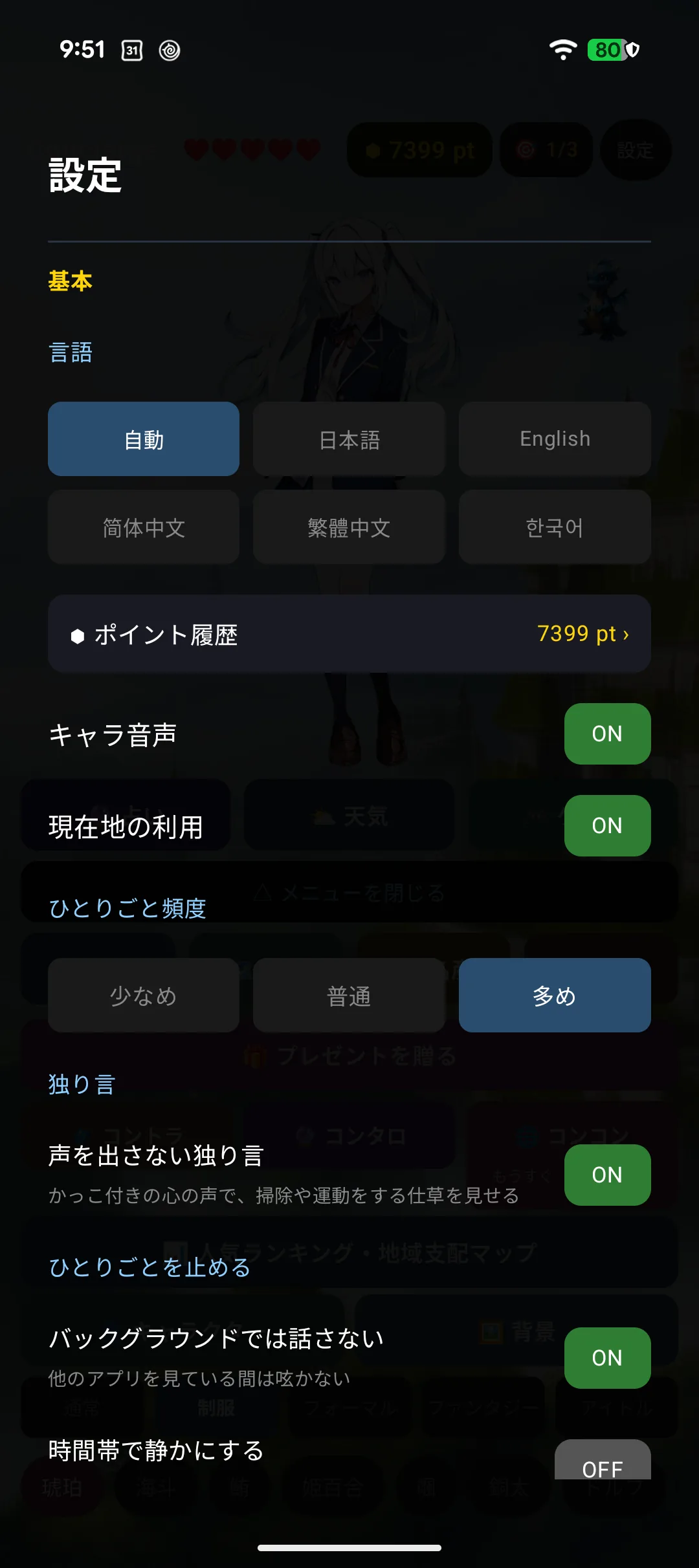
⌚ On Apple Watch settings are split into sub-screens (talk & reactions, voice, text, …). 🤖 On Android it is one long screen with seven groups:
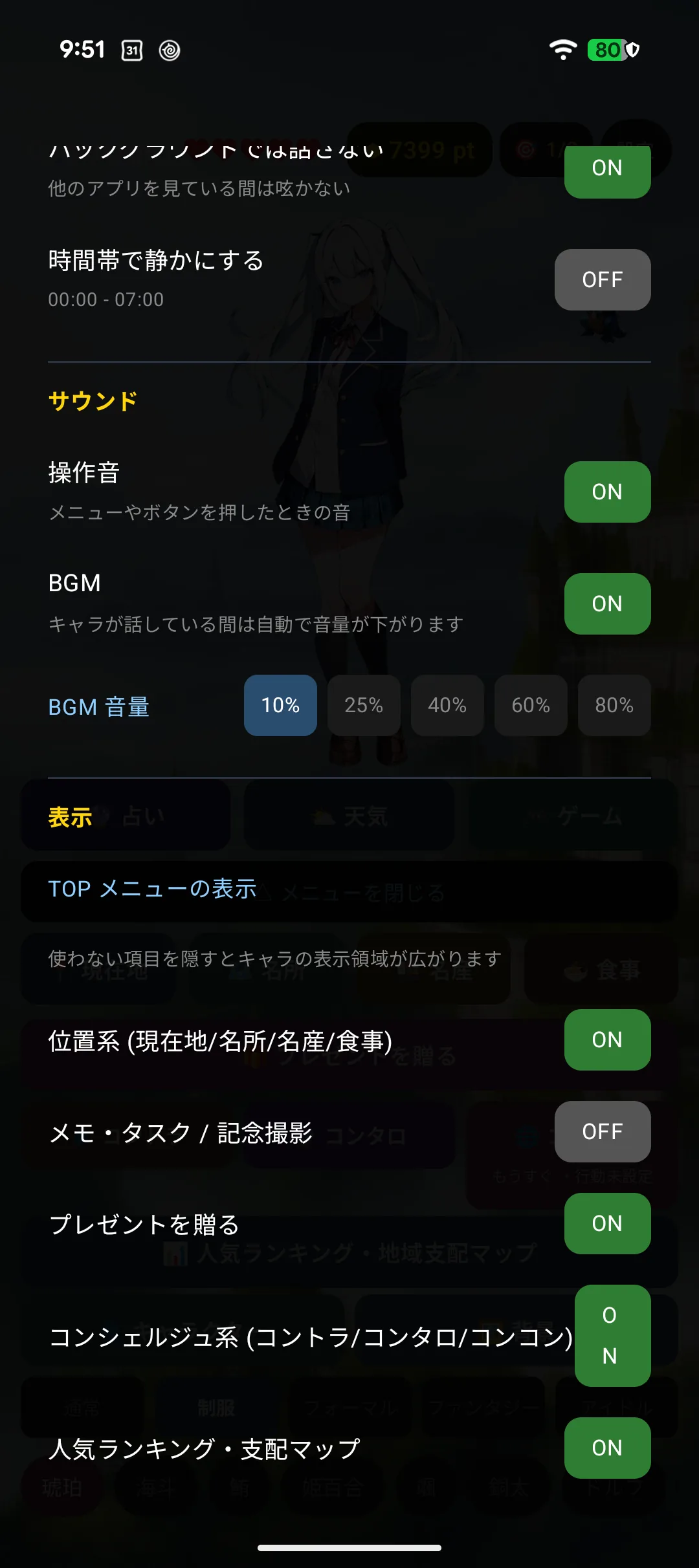
Android group Contents Basics Language / point history / character voice / location / muttering frequency / soliloquy Sound UI sounds / music / music volume Display Which menu rows appear / speech bubble / birthday Customise Character order / familiar / background Gift codes Entering a code, scanning a QR Account link Signing in so purchases survive a reinstall App info Guide / contact / manual / FAQ / storage / credits / support ID The names and order differ; what you can do is broadly the same — except that weather, health and network settings exist only on ⌚ Apple Watch (Android only has the location toggle, under Basics).
8-1. Opening settings
Tap the ⚙ in the header.
8-2. Talk and reactions
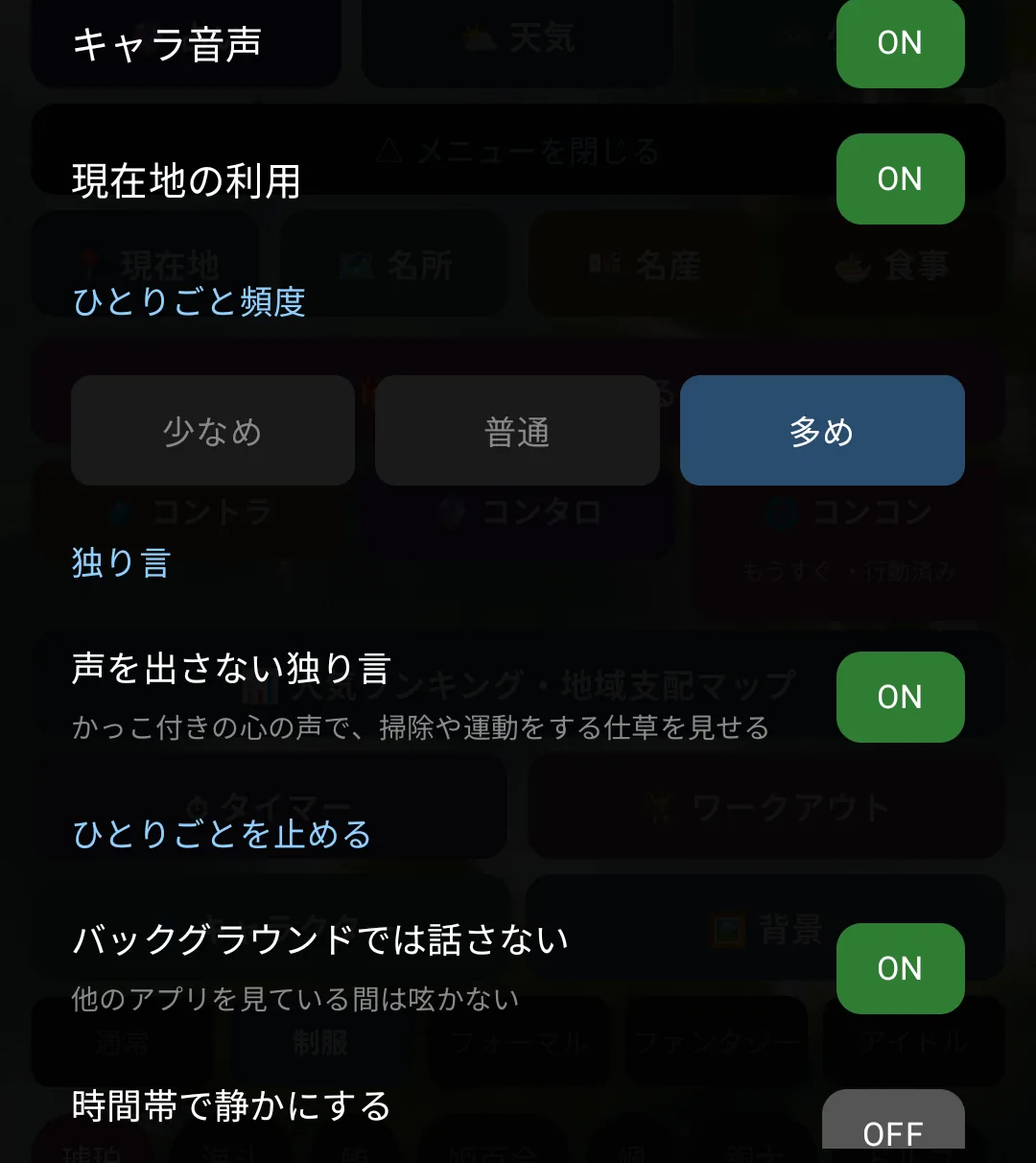
🤖 On Android these live inside the Basics group rather than on their own screen.
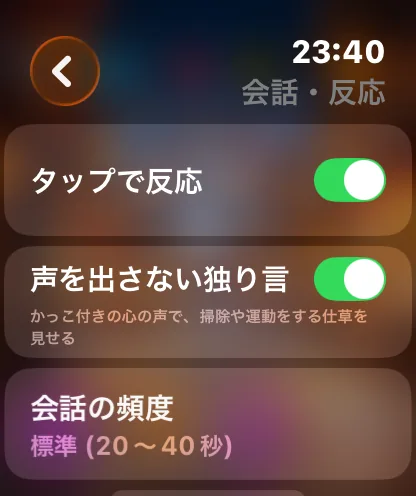
| Item | What it does |
|---|---|
| Muttering frequency | Chatty / normal / quiet |
| Choice interval | How long until a three-way conversation prompt appears |
| Tap reactions | Whether touching your character gets a response |
| Affection mechanics | Whether affection rises and falls |
| React to motion | Whether tilting, shaking and spinning get a reaction |
| Motion sensitivity | Relaxed / Normal / Sensitive (Relaxed by default) |
| Soliloquy mode | Quiet stretches where they move but do not speak |
⚠️ Leave it on Relaxed if it reacts while you are just walking. Relaxed is the default. Raise it only if you want more reactions, or turn "React to motion" off entirely.
8-3. Voice
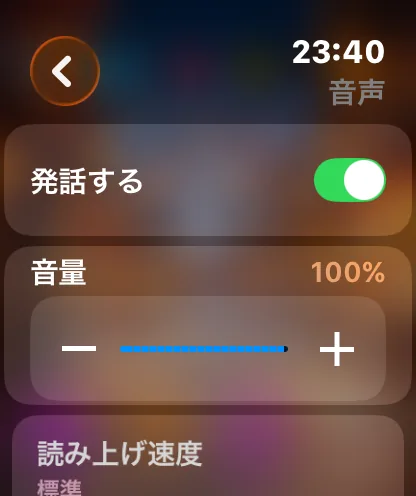
| Item | What it does |
|---|---|
| Speak | Off leaves text only |
| Speech rate | Slow to fast |
| Volume | Speech volume |
| Speech language | Follow the device, or pick one |
8-4. Display and text
🤖 On Android these live inside the Display group.
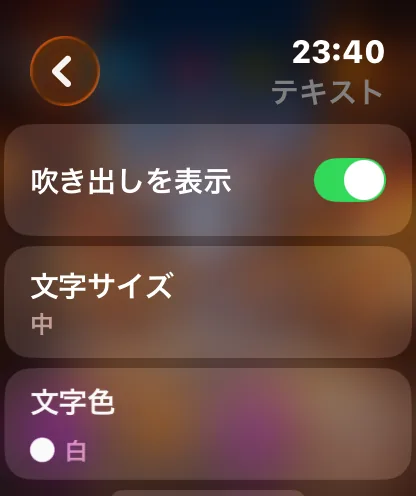
Change the speech bubble's visibility, text size, colour, opacity and position (above, below, or overlaid). With overlaid you can still touch the character underneath.
8-5. Music and UI sounds (🤖 Android)
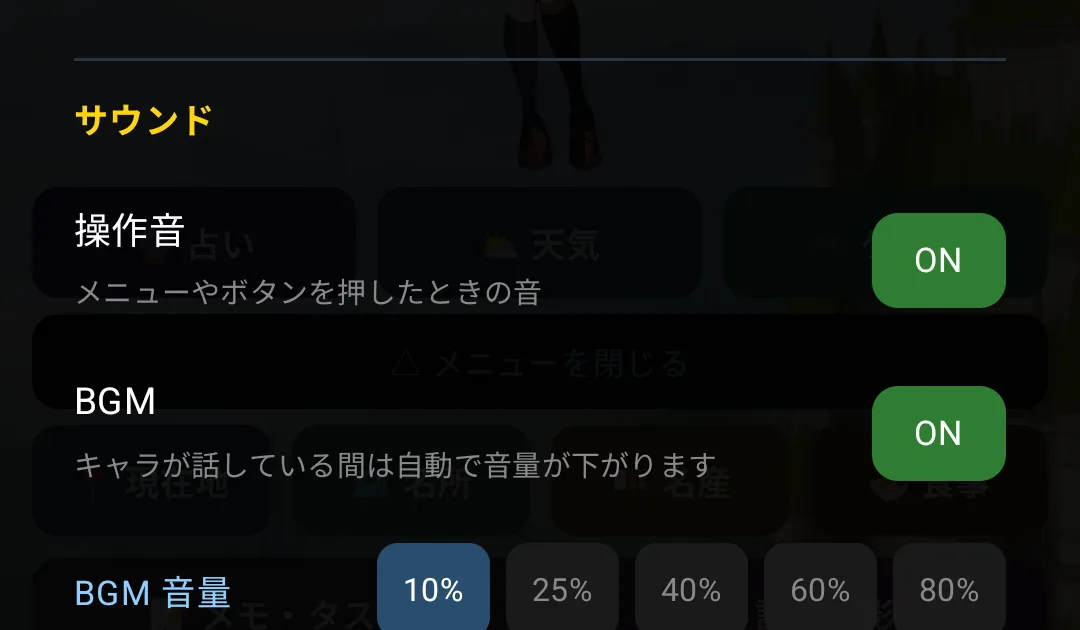
| Item | Default |
|---|---|
| Background music | On, at the lowest volume |
| Music volume | Five steps (10 / 25 / 40 / 60 / 80 %) |
| UI sounds | On |
Music ducks automatically while your character speaks. Concon has its own track.
8-6. Time (⌚ Apple Watch)
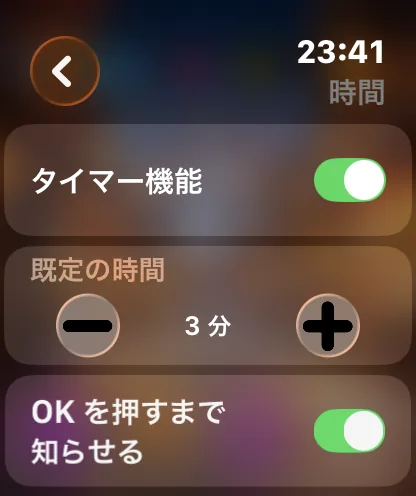
Hourly chimes, and the default length for timers.
8-7. Weather (⌚ Apple Watch)
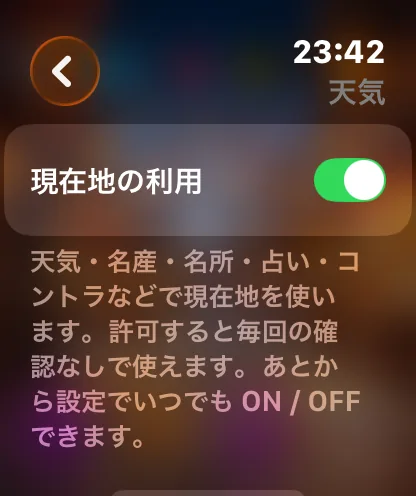
Whether the weather is fetched at launch. Requires location permission.
🤖 Android has no weather setting — it fetches the weather when you ask for it.
8-8. Health
When your steps and heart rate are readable, your character congratulates you at 5,000 and 10,000 steps and tells you to take it easy when your heart rate runs high. We only read — nothing is written back, and nothing is sent to our servers.
⌚ Apple Watch
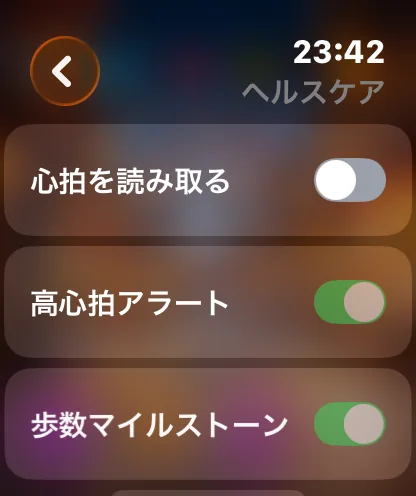
| Item | What it does |
|---|---|
| Read heart rate | Encouragement during workouts, care when it runs high |
| Step milestones | A line at 5,000 and 10,000 steps |
| Activity rings | Celebrating a closed ring (⌚) |
| Body weight | Used to estimate calories burned (30-200 kg) |
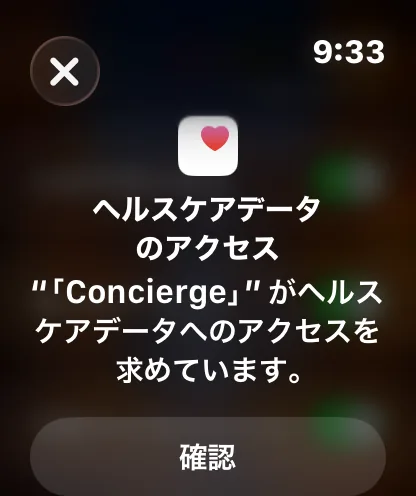
Declining leaves everything else working, and you can turn it on later.
🤖 Android (Health Connect)
In Workout (🏋) the calorie count is the larger of the measured and the estimated value, and your character cheers you on every 3 minutes (switching to "take it easy" above 130 bpm). Each finished session is kept for the last 50, viewable under "📋 History" with per-type totals — all stored on this device only.
On Android your steps and heart rate live in Google's Health Connect app, and Concierge reads them from there. So the order is: install Health Connect first, then allow Concierge.
⚠️ It lives under 🏋 Workout on the home screen, not in Settings — steps and heart rate belong with workouts, so they share one screen.
- Open 🏋 Workout on the home screen → the "❤️ Health Connect" block at the top
- If you see "Get Health Connect", install it first (it is built in on Android 14 and later)
- Tap "Connect health" and allow steps, heart rate and active calories
- After that, the "Character reacts to steps & heart rate" checkbox in the same block turns the reactions on and off
If something doesn't work, use "Open Health Connect settings" → App permissions → Concierge to check what is allowed.
⚠️ If Concierge is missing from that list, your app is out of date — the declaration that puts it there shipped on 2026-09-22. Update the app.
⚠️ If your steps never reach Health Connect, Concierge sees zero. Allow your pedometer app (Google Fit, Fitbit, …) to write to Health Connect.
⌚ Wear OS watches have no health settings — steps and heart rate are read on the phone only. A screen on the watch asking for your height and weight belongs to Health Connect or a fitness app, not to Concierge.
8-9. Network and privacy (⌚ Apple Watch)
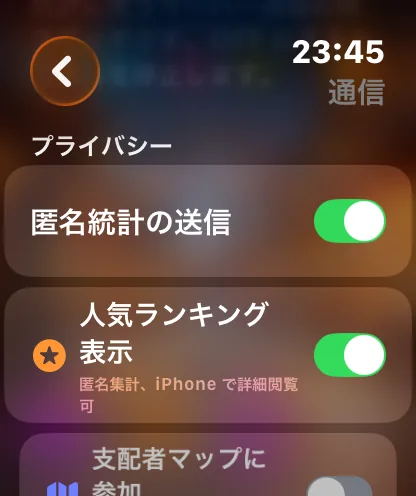
| Item | What it does |
|---|---|
| Server connection | Off means replies come from a small on-device set instead |
| Join the popularity ranking | Optional: contribute which character you use |
| Join the region map | Optional: contribute regional popularity |
The ranking features are entirely optional, and even when you join, only rough character and region information is sent.
🤖 Android does not surface these three as settings. It always talks to the server, and ranking statistics are sent only while you have the ranking / region map screen open.
8-10. Language
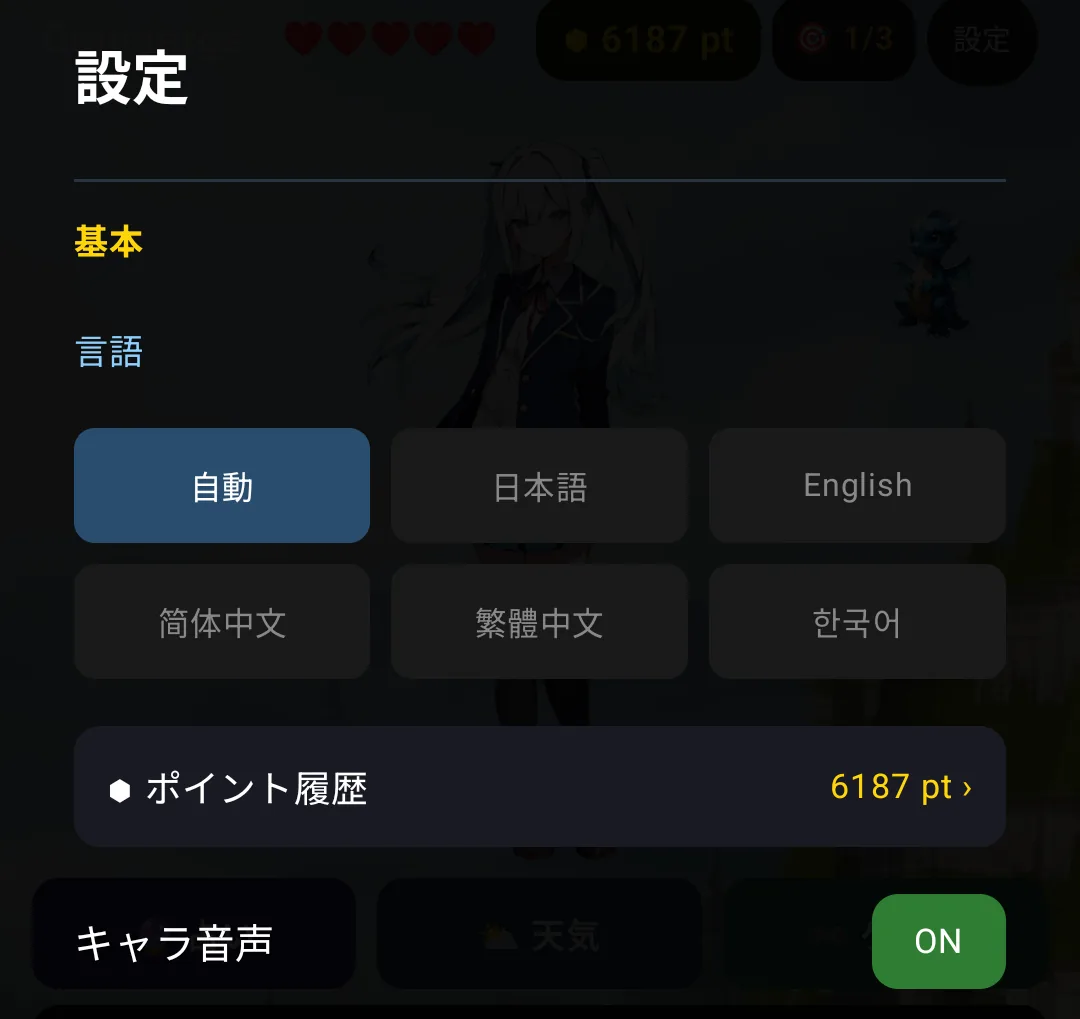
Japanese / English / Simplified Chinese / Traditional Chinese / Korean. The default is follow the device.
Recorded character voices are in Japanese. In other languages, speech uses text-to-speech.
8-11. Choosing what appears
Want more room for your character? Hide the rows you never use.
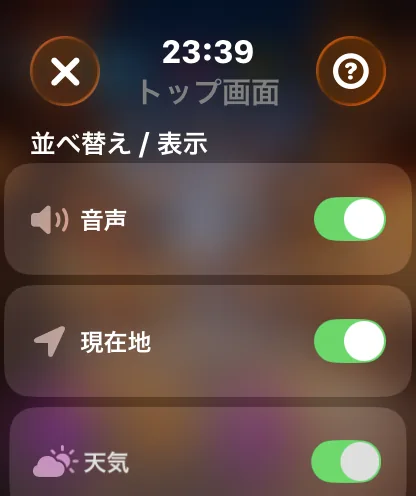
- ⌚ Apple Watch: reorder or hide icons in the top row
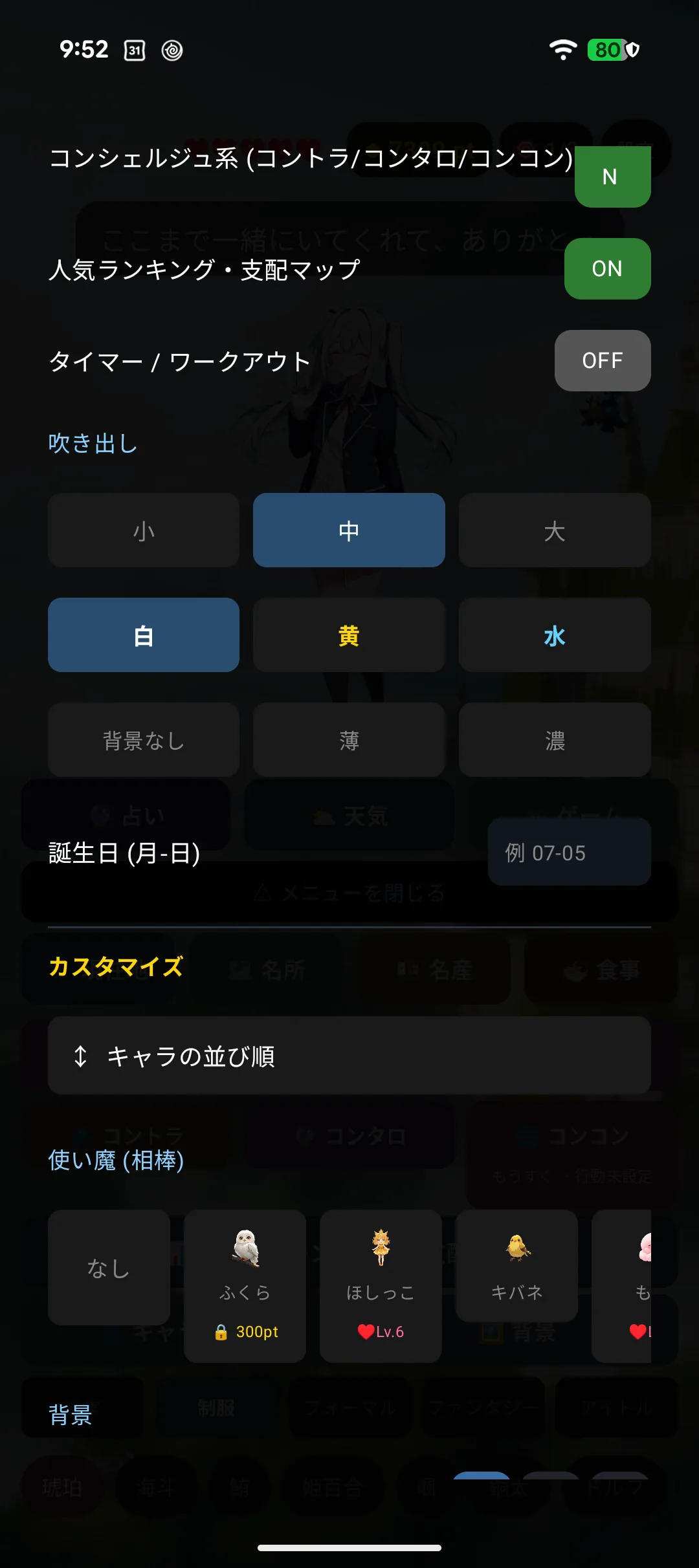
- 🤖 Android: show or hide each menu row
The characters and background rows cannot be hidden — that would remove the way into the shop.
🤖 The "Notes & tasks / Photo" row starts hidden. Turn it on under Settings → Display → home menu rows.
8-11-b. Character order (🤖 Android)
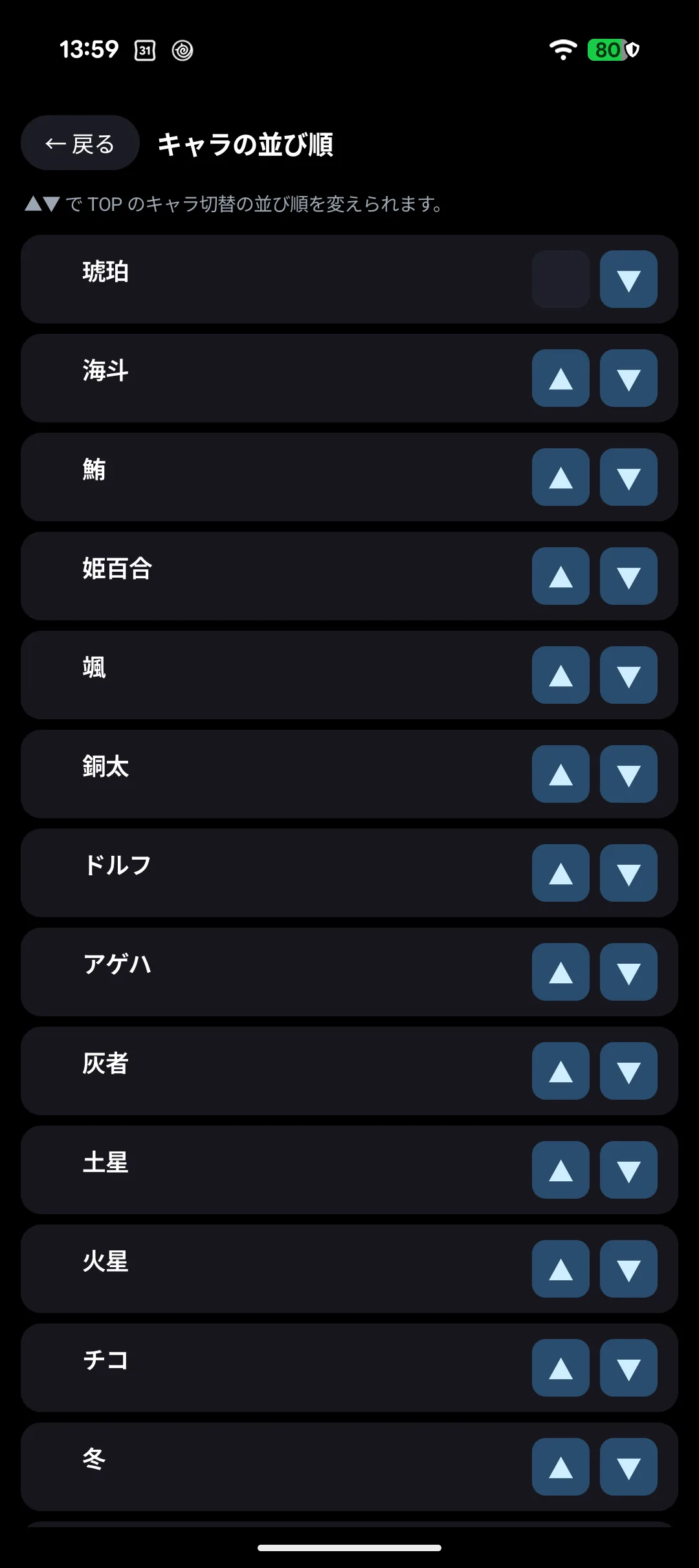
▲▼ changes the order of the character switcher along the bottom of the home screen. Put the ones you use most on the left.
8-12. Storage management
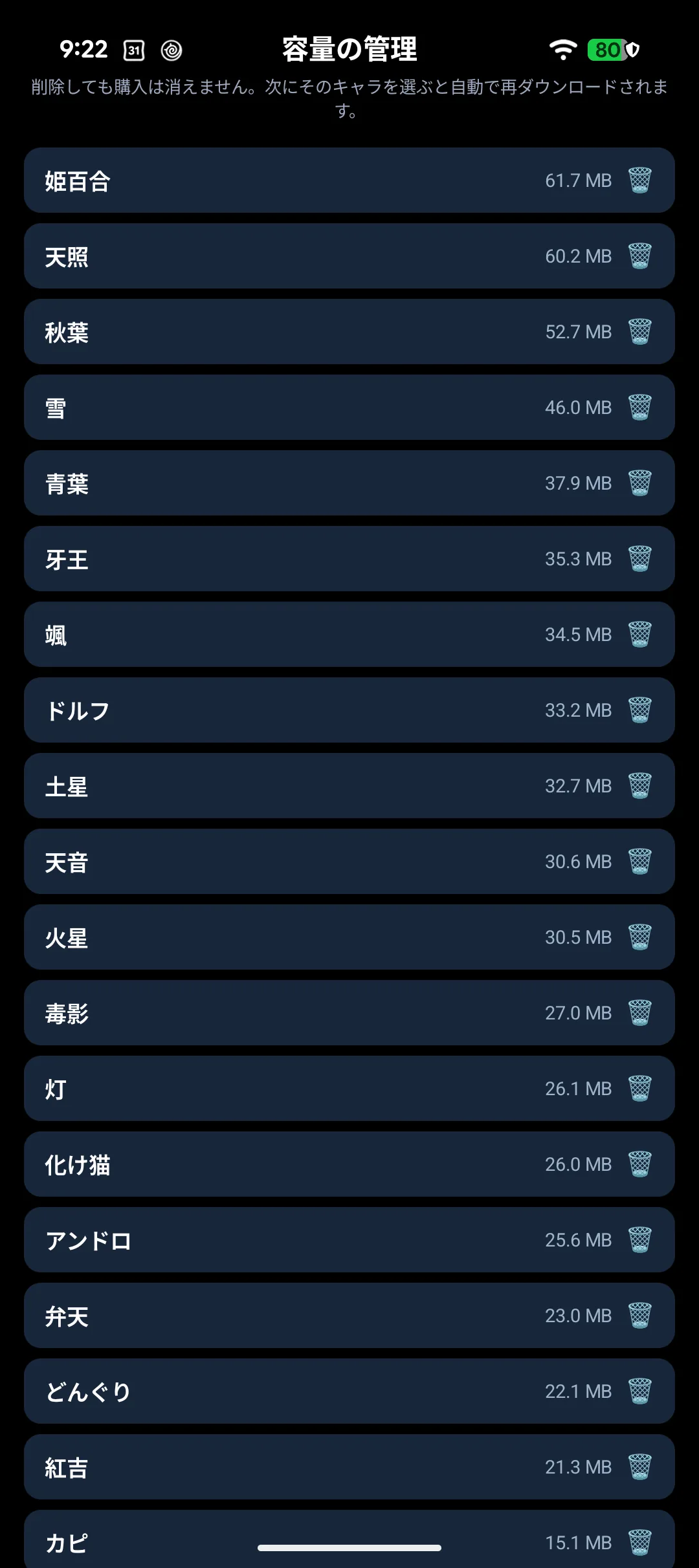
Remove downloaded data for characters, starting with the ones you are not using.
Deleting data keeps your purchases. Selecting the character again downloads it back.
Elsewhere in settings
| Item | Where |
|---|---|
| Your name (what your character calls you) | User info |
| Your birthday (for the celebration and +30 pt) | User info |
| Reordering characters and species | Customise → "Character order" |
| Entering a gift code (🤖 Android only) | Gift codes |
| Point history | 🤖 Basics → point history / ⌚ Points |
| FAQ / contact / credits / replay the guide | App info |