Chapter 9
On your phone
Anything that is awkward on a small wrist screen — records, rankings, previews worth lingering over — lives on the phone.
| Your setup | What to read |
|---|---|
| iPhone + Apple Watch | 9-1 to 9-8 (the iPhone app) |
| Android + Wear OS | 9-9 to 9-10 (Wear). For the Android phone, the main chapters apply as written |
9-1. The iPhone app
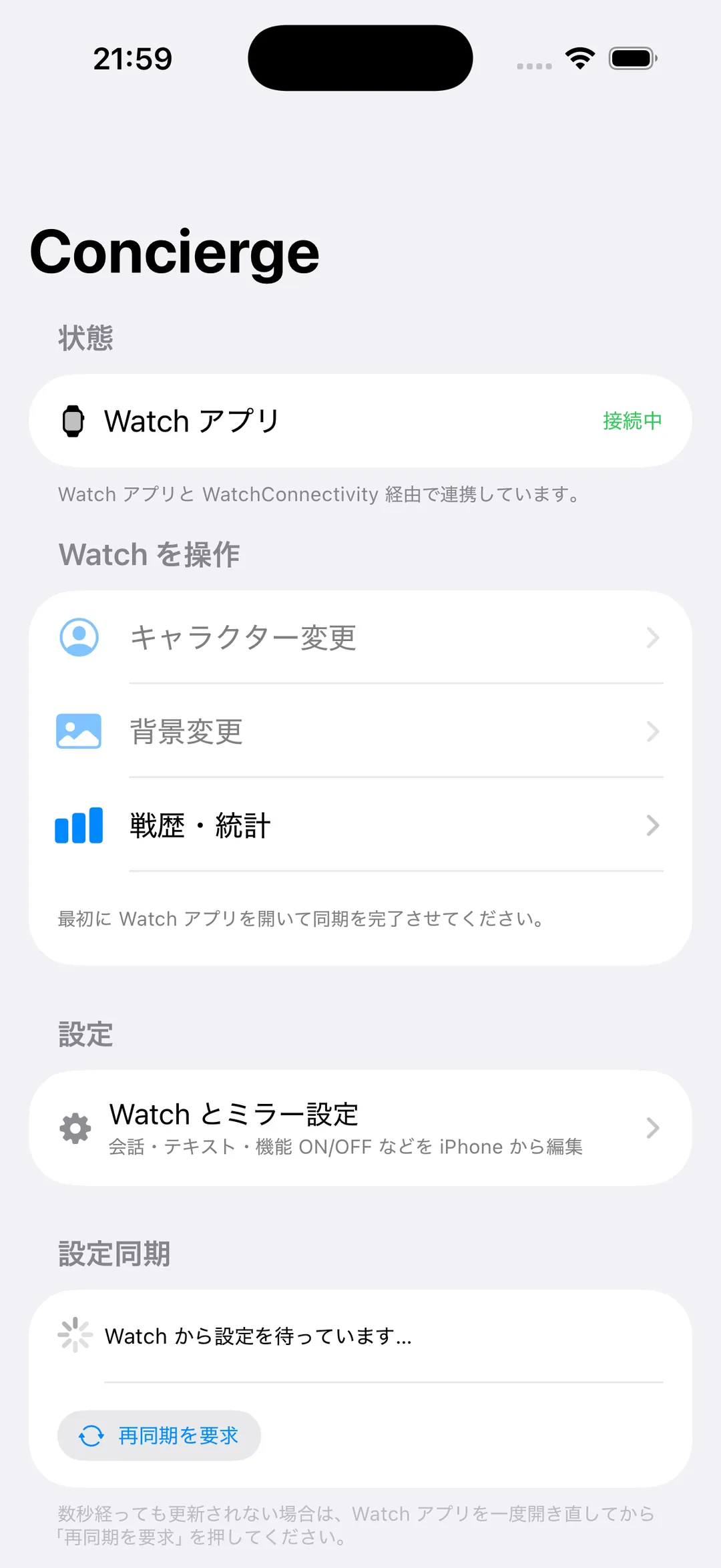
The iPhone app is the Watch's companion: choose characters and backgrounds, and browse your records (choices here are reflected on the Watch).
9-2. Character previews (recommended)
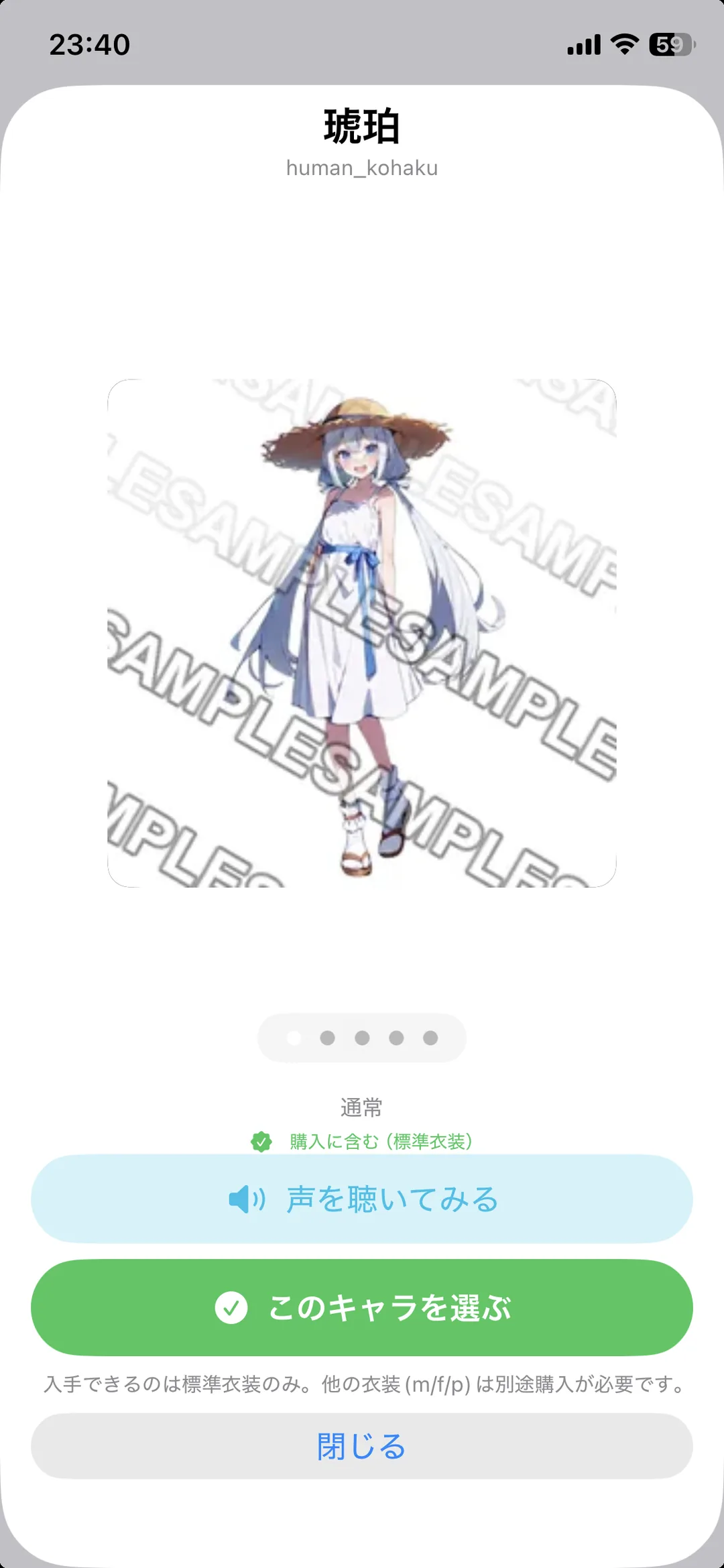
Swipe through four costumes and watch the animated artwork on a large screen. This is the clearest way to look before buying.
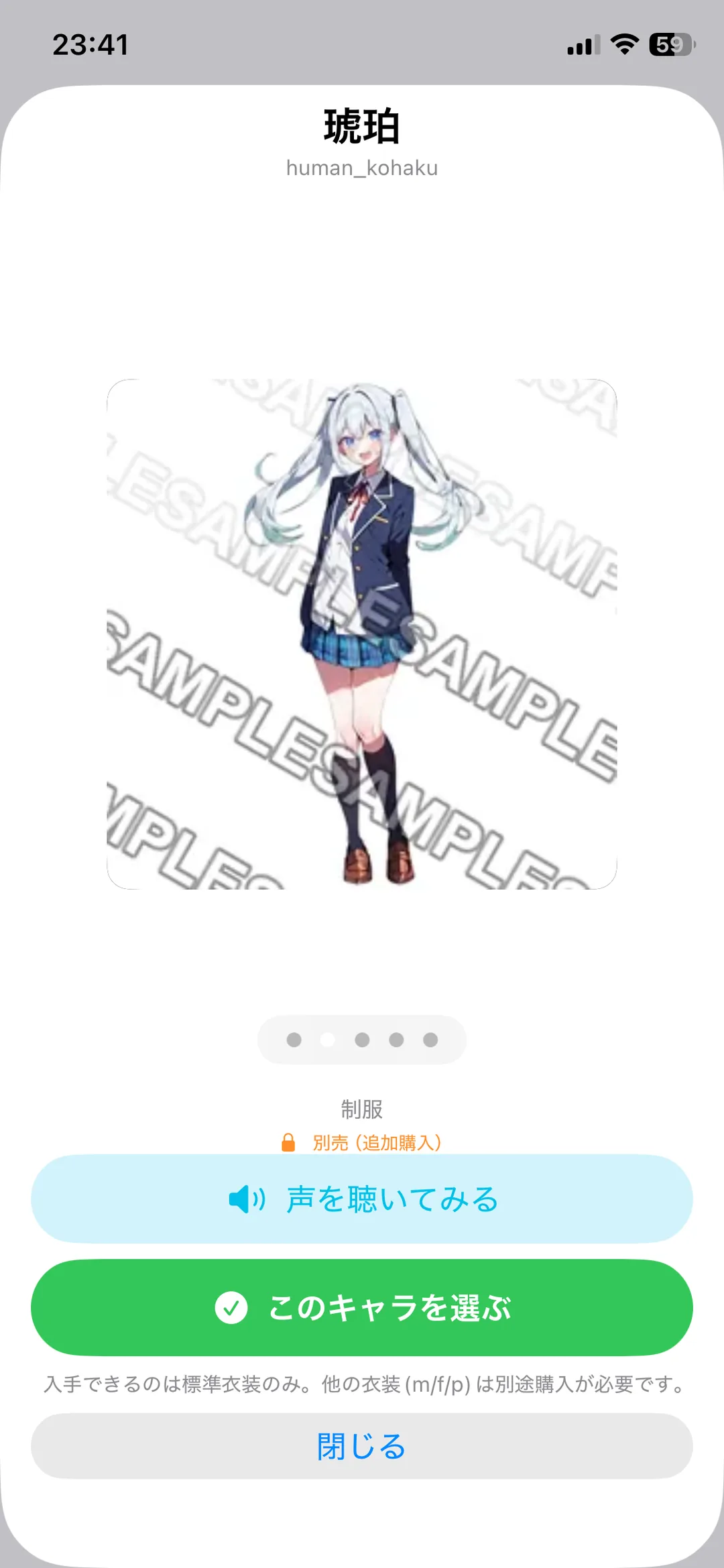
Previews are muted, so you can browse quietly.
9-3. Records and statistics
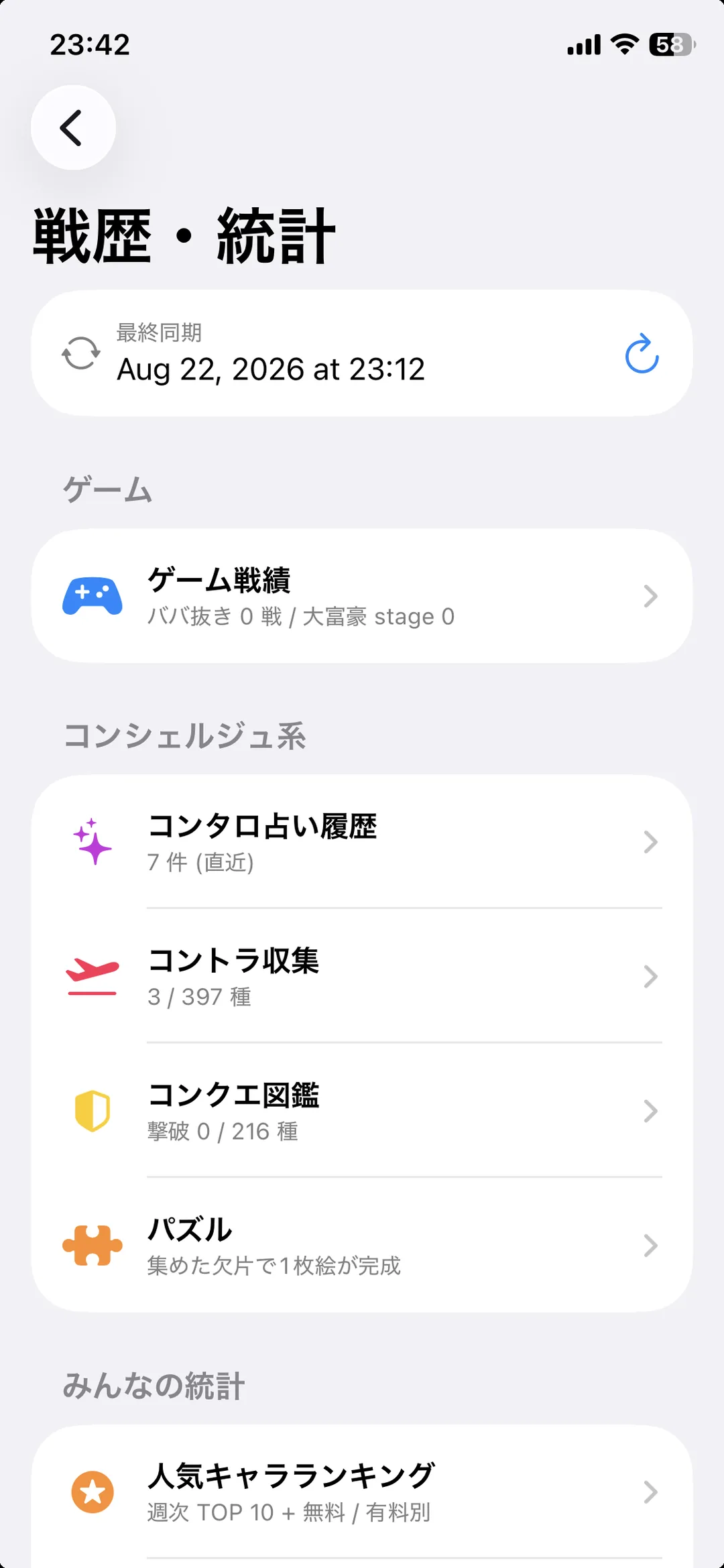
Seven categories. What you did on the Watch appears when you open it.
9-4. What is in the records
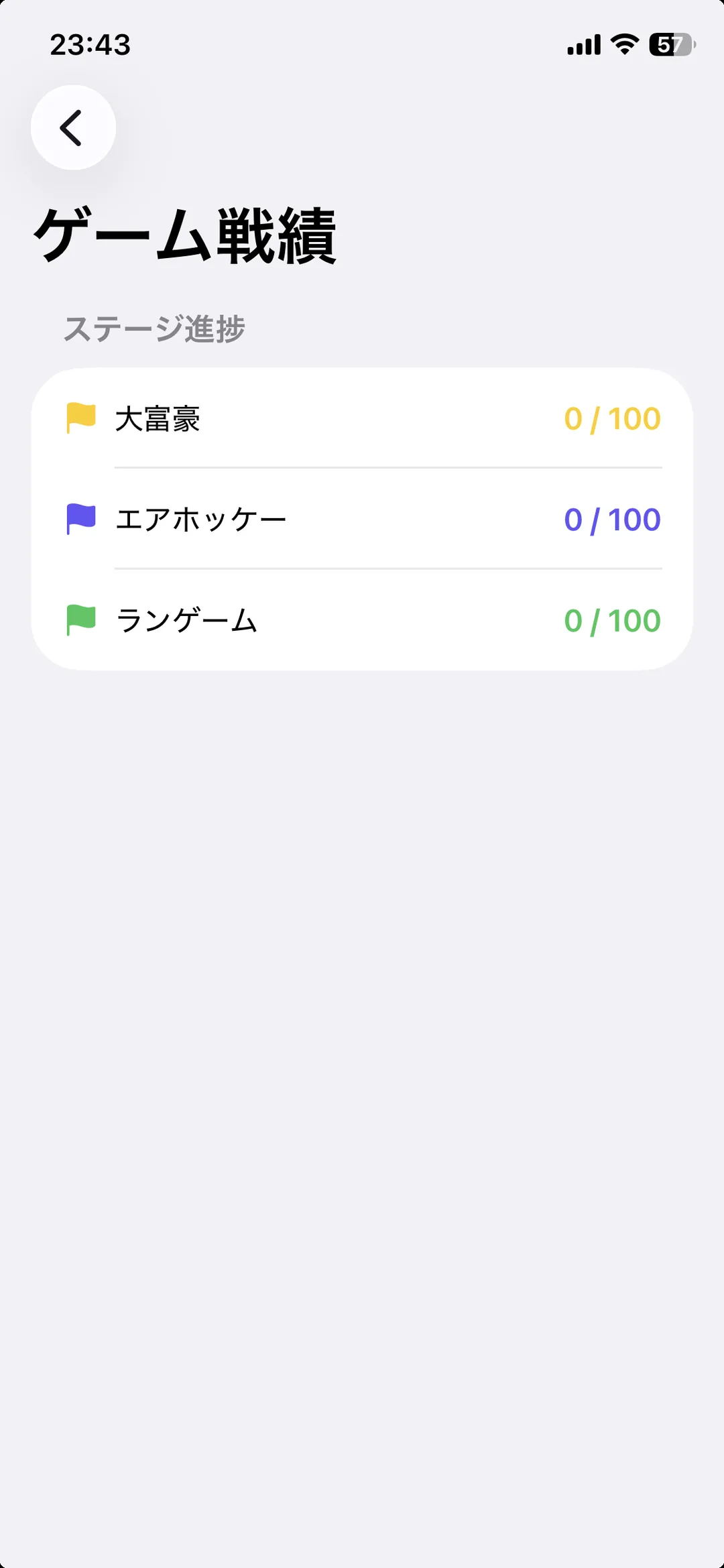
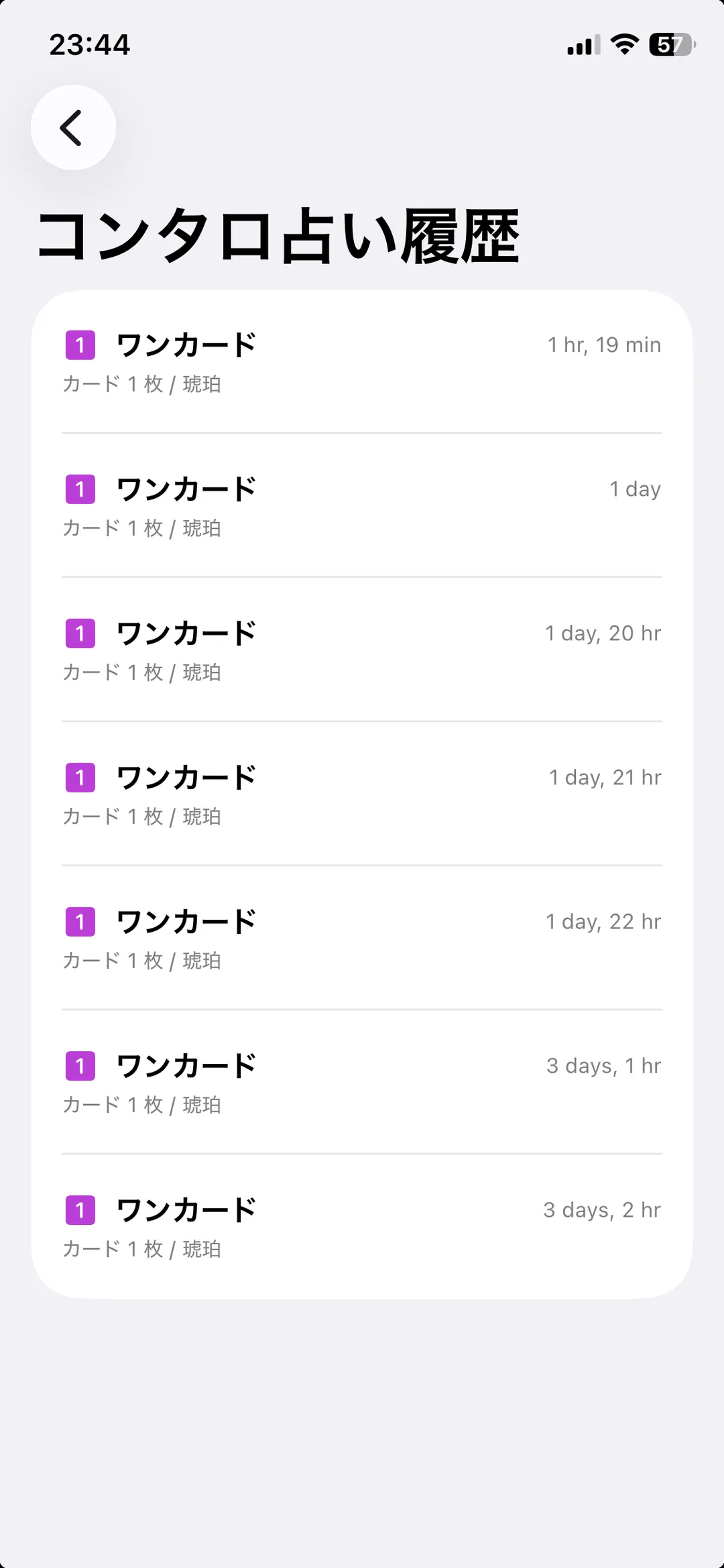
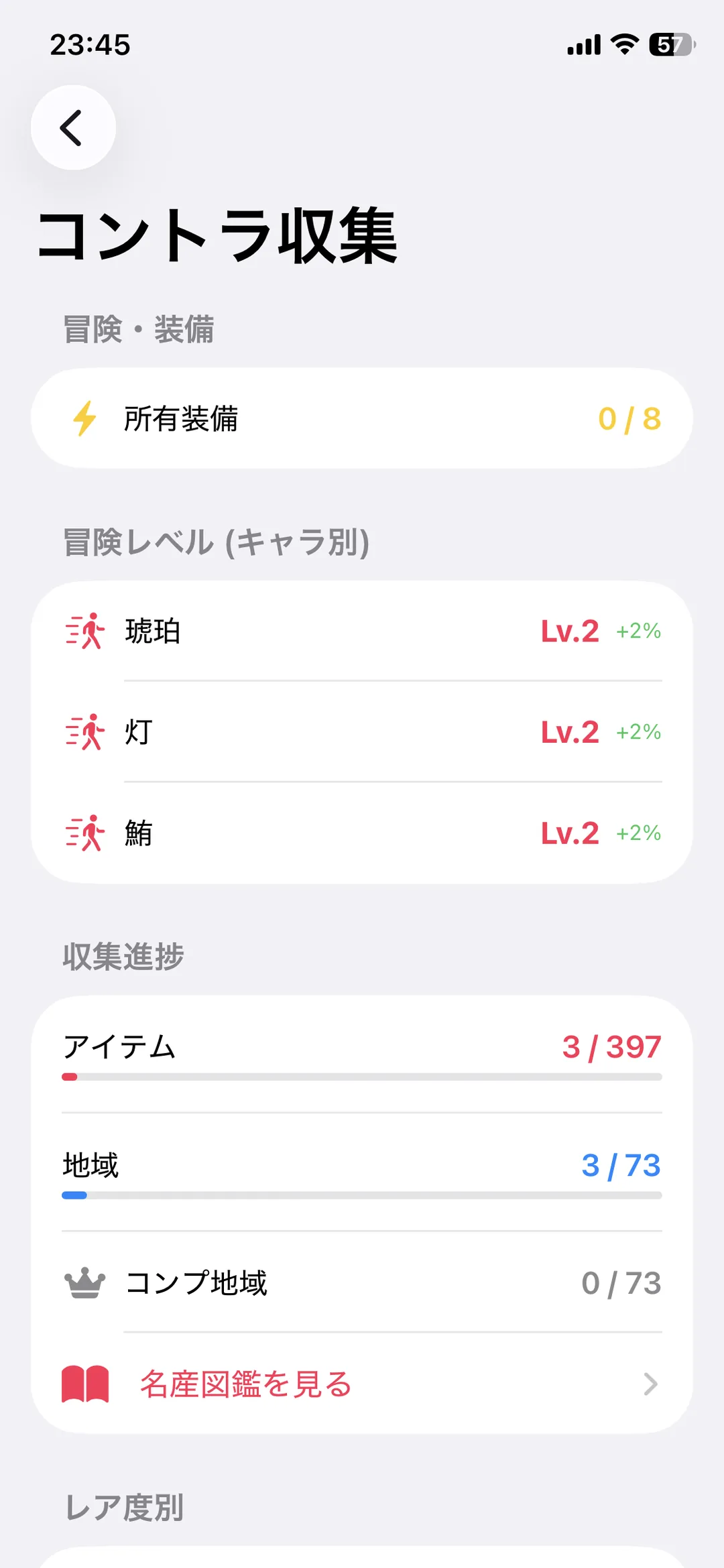
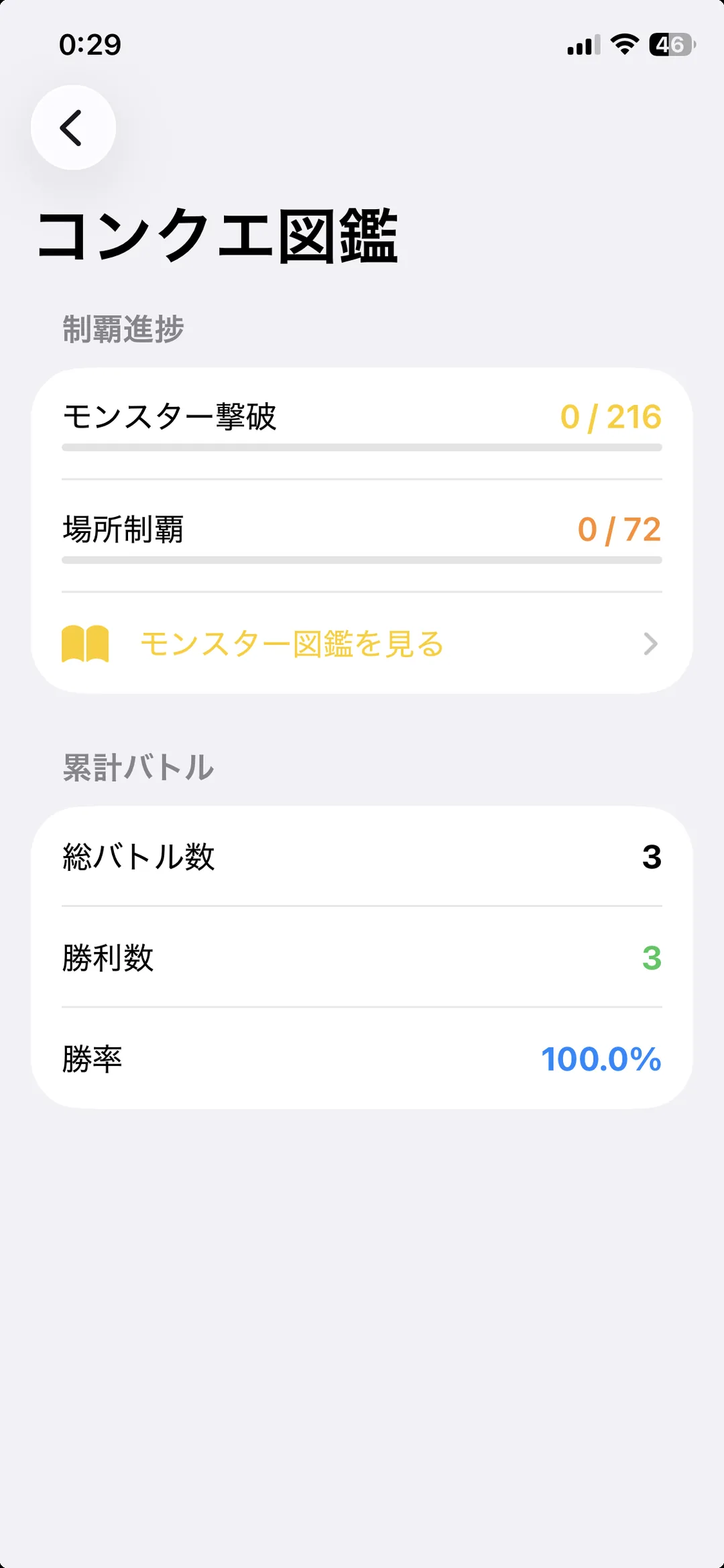
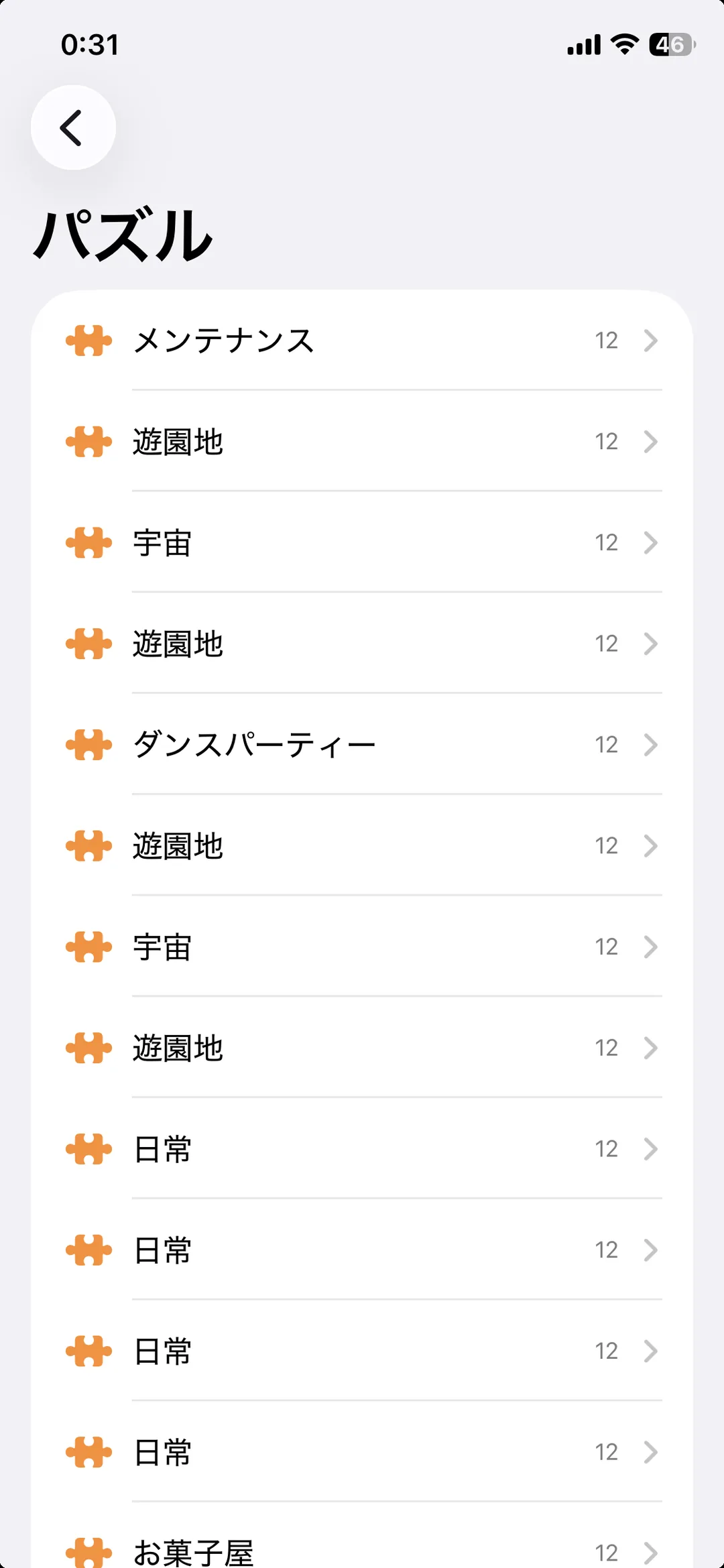
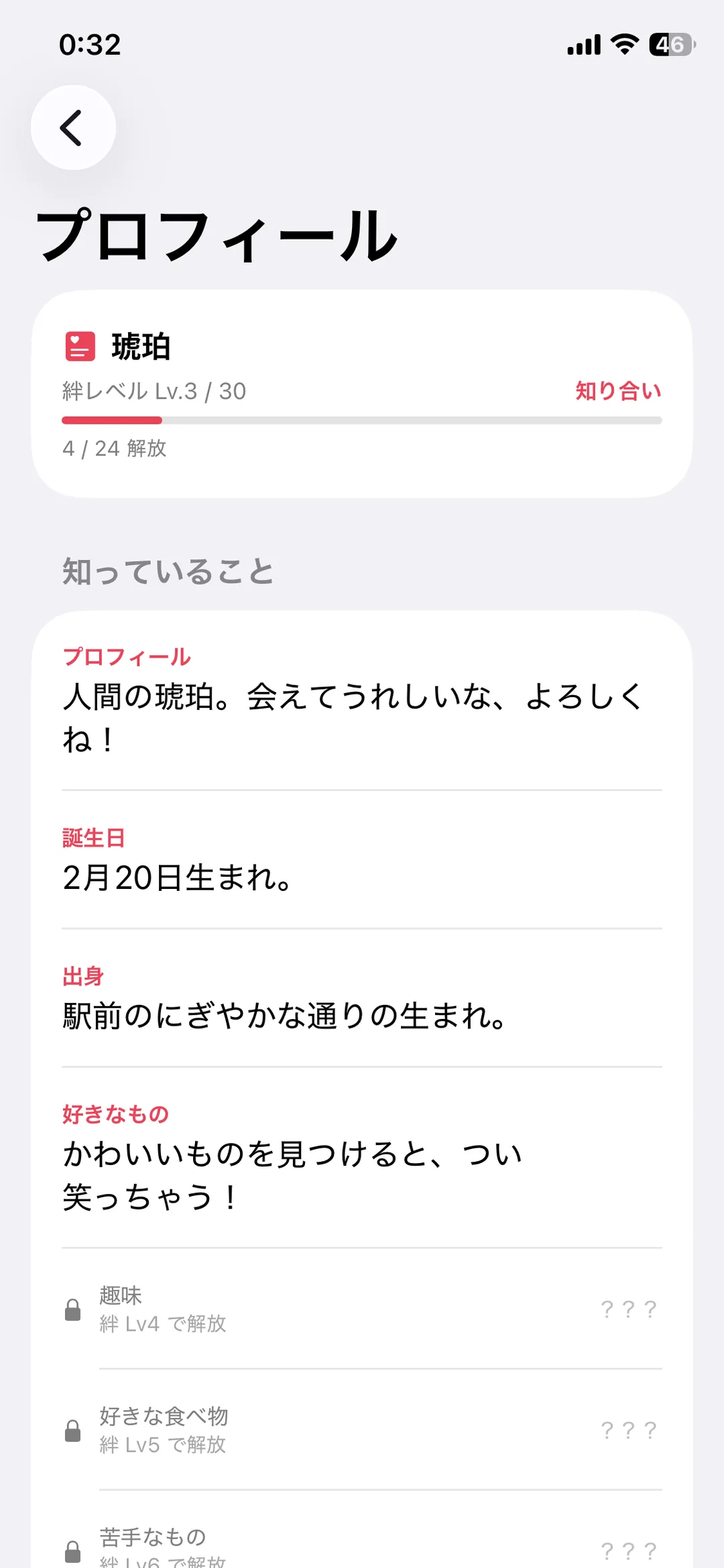
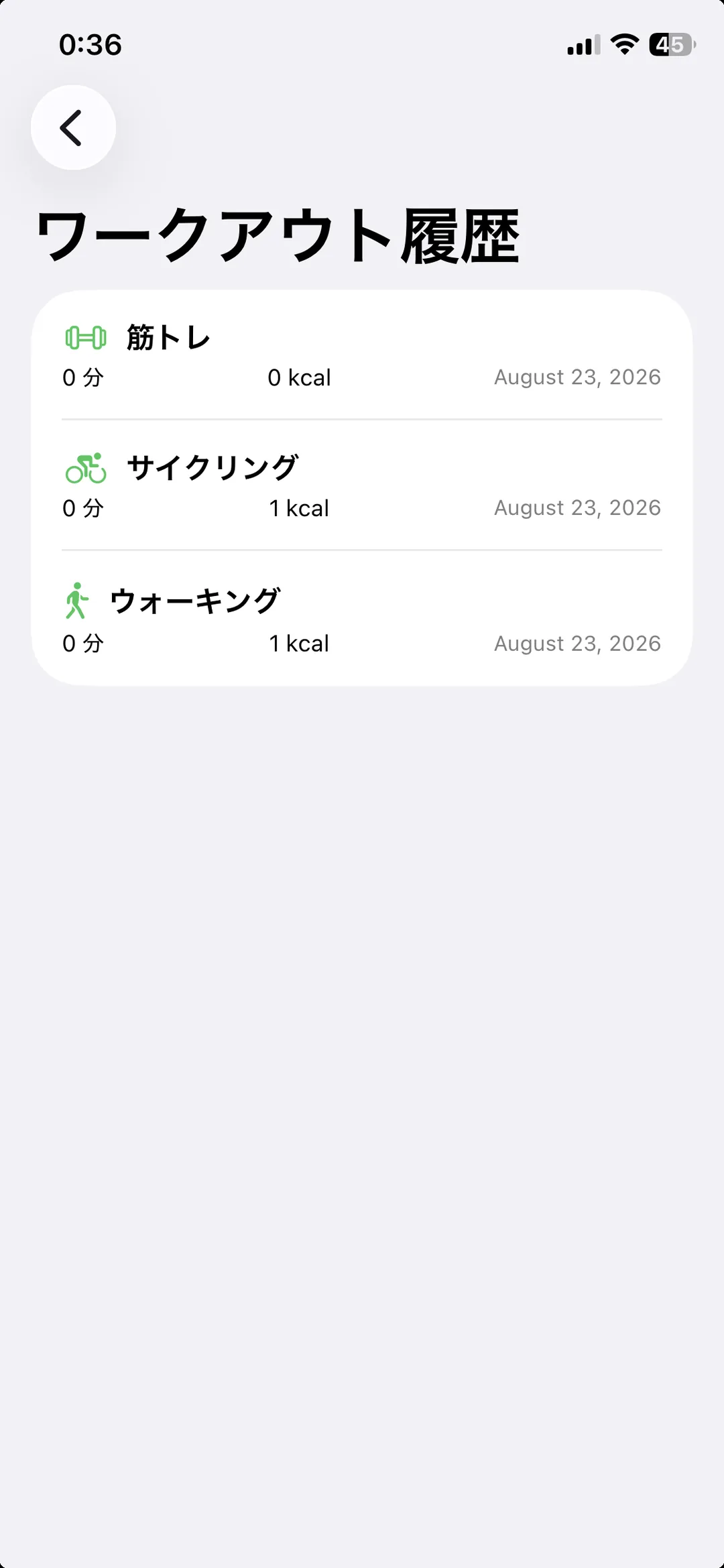
Each one is its own screen.
The names below are exactly what the app shows, so you can search for them.
| Name on screen | What it shows |
|---|---|
| Game records | Wins/losses, personal bests and stage progress for the 6 games |
| Reading history | The spreads you drew and their results |
| Contra collection | Owned gear, per-character expedition level, and the specialities you collected (items / regions / by rarity) |
| Conquest codex | Conquest progress, total battles, win rate and achievement badges |
| Puzzles | A gallery of the pieces you collected and the finished artwork (collected on the ⌚; view only here) |
| Affection | Each character's affection shown as hearts |
| Workout history | Per-activity history and achievement badges |
| Character profile | Entries unlocked by bond level (current character only) |
| Favourite characters | Who you used most over the last 7 days |
| Lifetime | Login days, pt, and interaction counts |
⚠️ Workout history appears once you have recorded at least one workout on the ⌚. Until then the row is not shown at all (so you never see an empty screen). Character profile and Favourite characters work the same way.
⚠️ The ⌚ calls it affection, the iPhone calls it affection ranking — same thing.
9-5. Popularity ranking
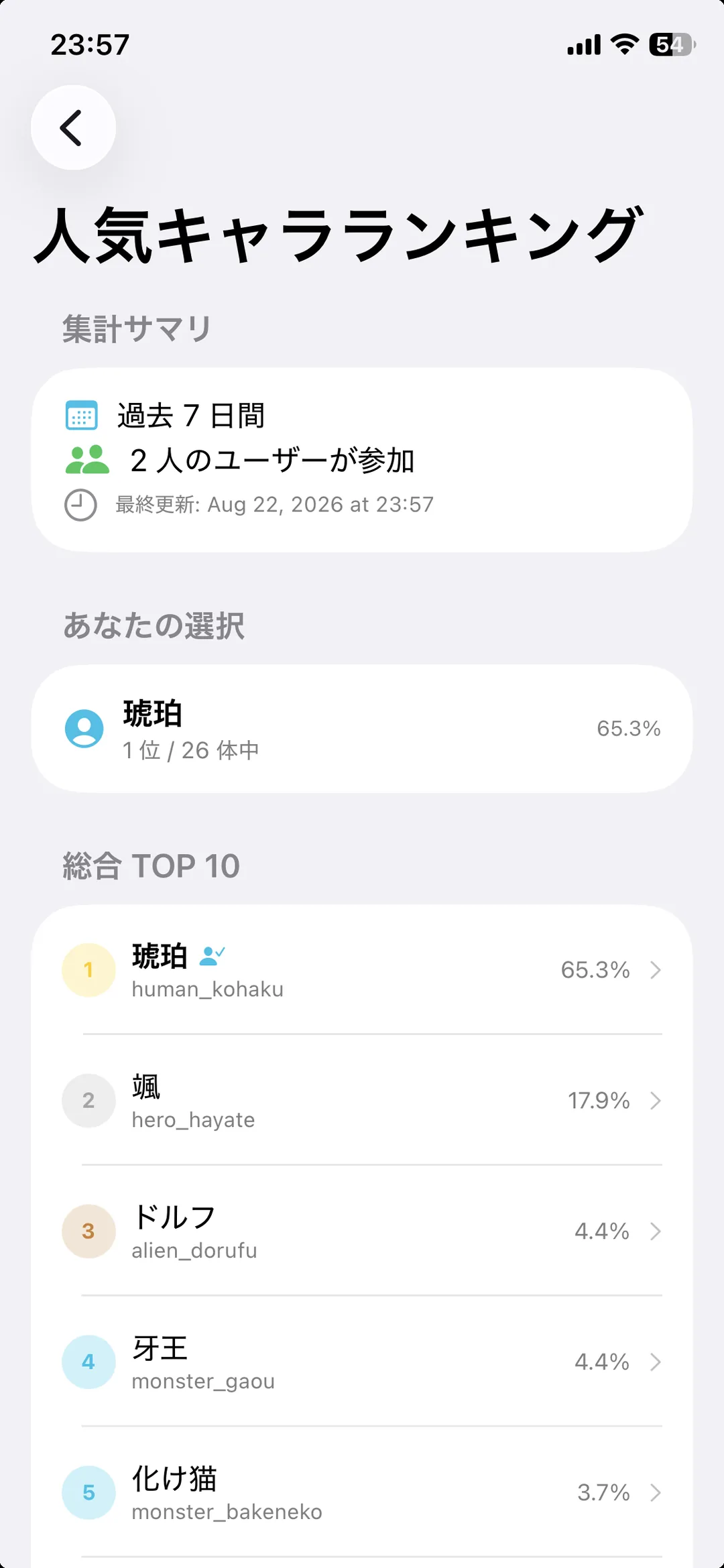
Which characters are popular right now, built only from people who opted in (→ Chapter 8).
9-6. Region map
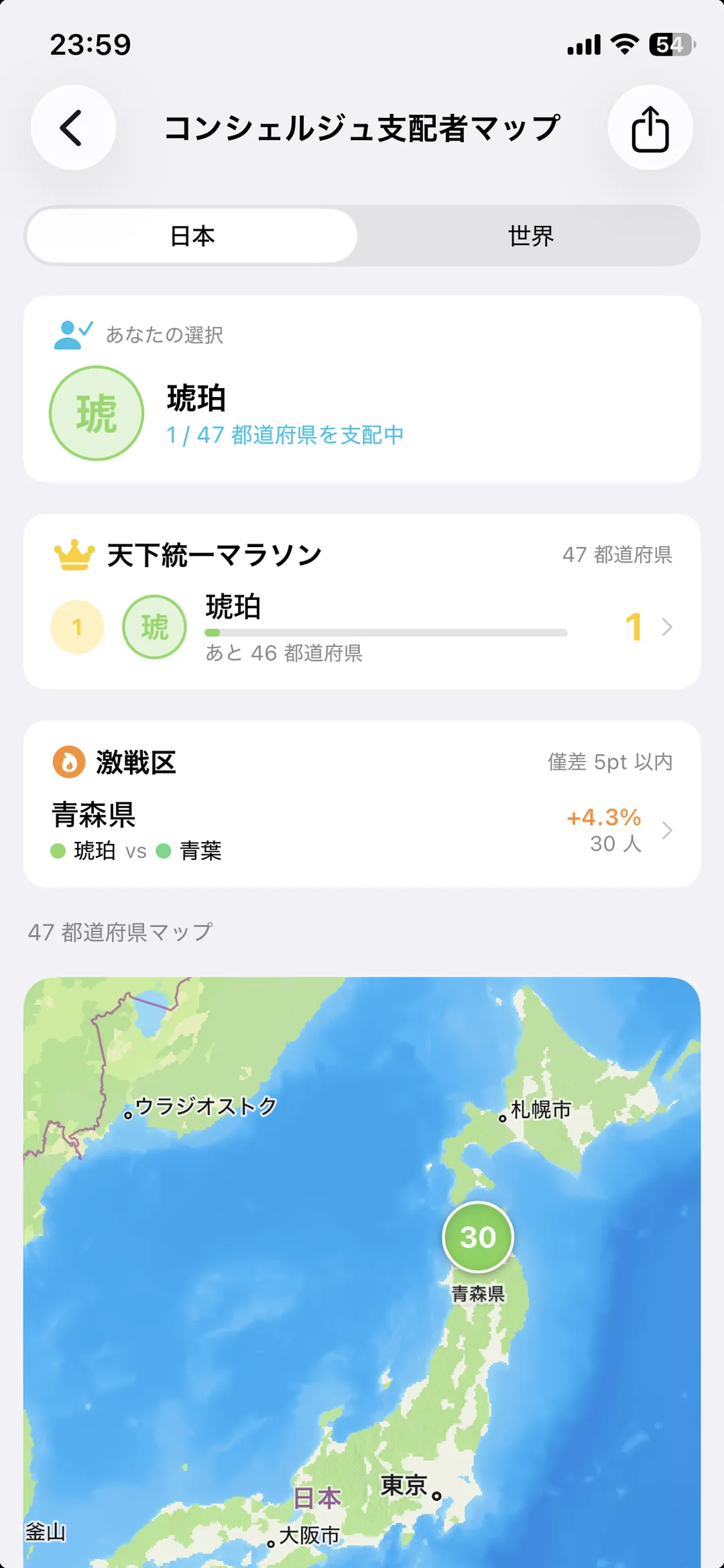
Which characters are most common in each region, by colour. Also opt-in.
9-7. Seeing them in AR
Stand your character in front of you through the camera.
Where to find it: your phone's top screen — iPhone: See Your Character in AR / Android: 🪄 AR photo
🤖 Available on Android too (since 2026-08-23). It does the same thing.
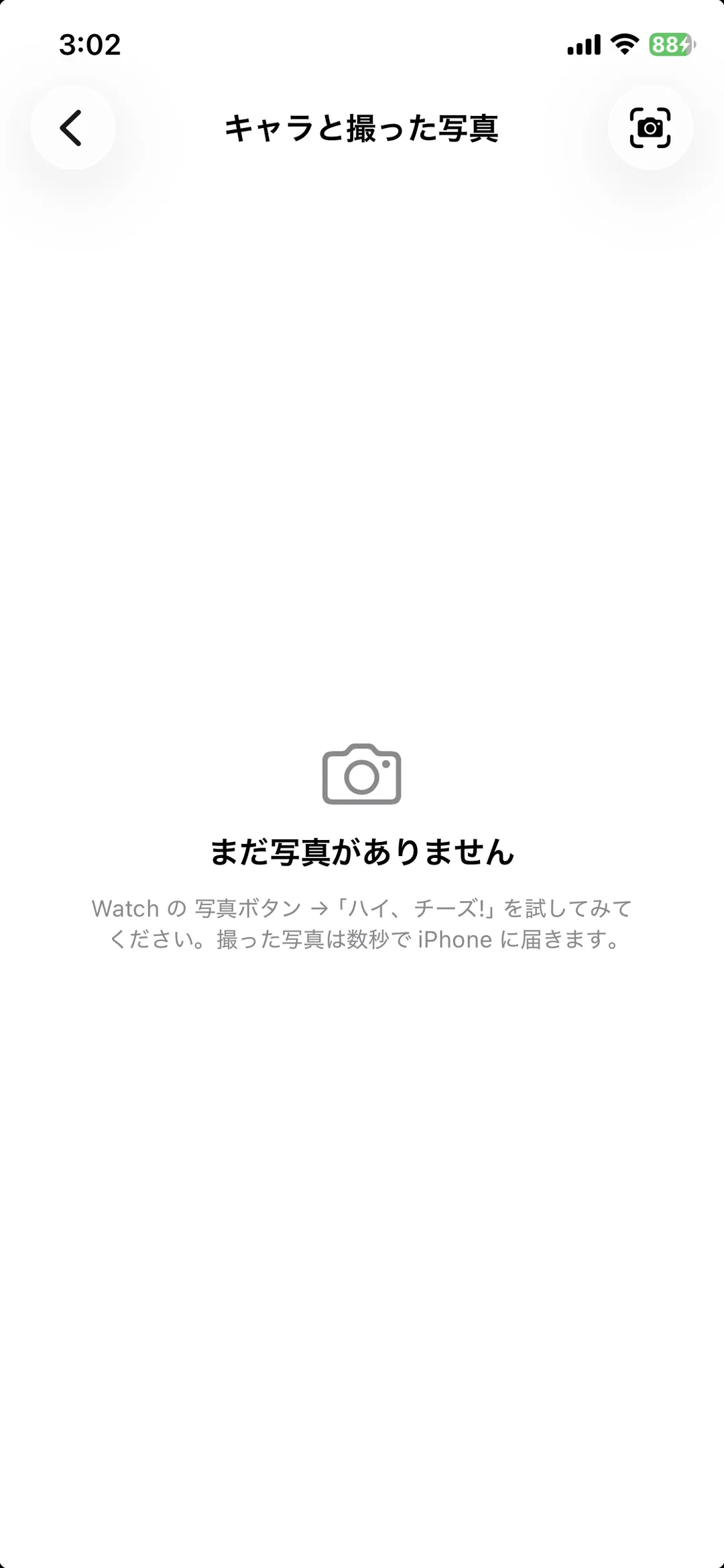
You can also open it from the camera icon at the top right of the Photos screen.
Only what is inside the 「」 marks gets saved
Corner marks appear at the four corners of the screen. Everything inside them becomes the photo. The camera fills the whole screen, but only the area inside the marks is captured.
| Gesture | What it does |
|---|---|
| Drag | Move the character |
| Pinch | Resize |
| Expression buttons | Normal / Smile / Blush / Surprise |
| Flip button | Mirror the character left/right |
| Opacity | Blend the character into the scene. Applied to the saved photo too.Switch with the 100/80/60/40/20% buttons |
| Grid button | Rule-of-thirds lines (a composition aid; not captured) |
| 🖼 icon | Open the photos you have taken |
🤖 On Android, a character you have not used before needs its assets fetched first. If you see "Fetching your character…", give it a moment.
On-screen guides such as the corner marks and the grid are not saved into the photo. Only the camera image and the character are.
The ⌚ photo feature and AR are different
| Taken on | What it shows | How it arrives | |
|---|---|---|---|
| ⌚ photo | Apple Watch ("say cheese") | Your character on the ⌚ screen | Transferred from the ⌚ to the iPhone |
| iPhone AR | iPhone (camera icon) | Your character over the iPhone camera | Saved straight to the iPhone |
⚠️ Photos taken on the ⌚ do not appear instantly — they have to transfer first. If nothing shows up, leave the iPhone app open for a while. Even when it says there are no photos yet, the camera icon still opens AR.
9-8. iPhone settings
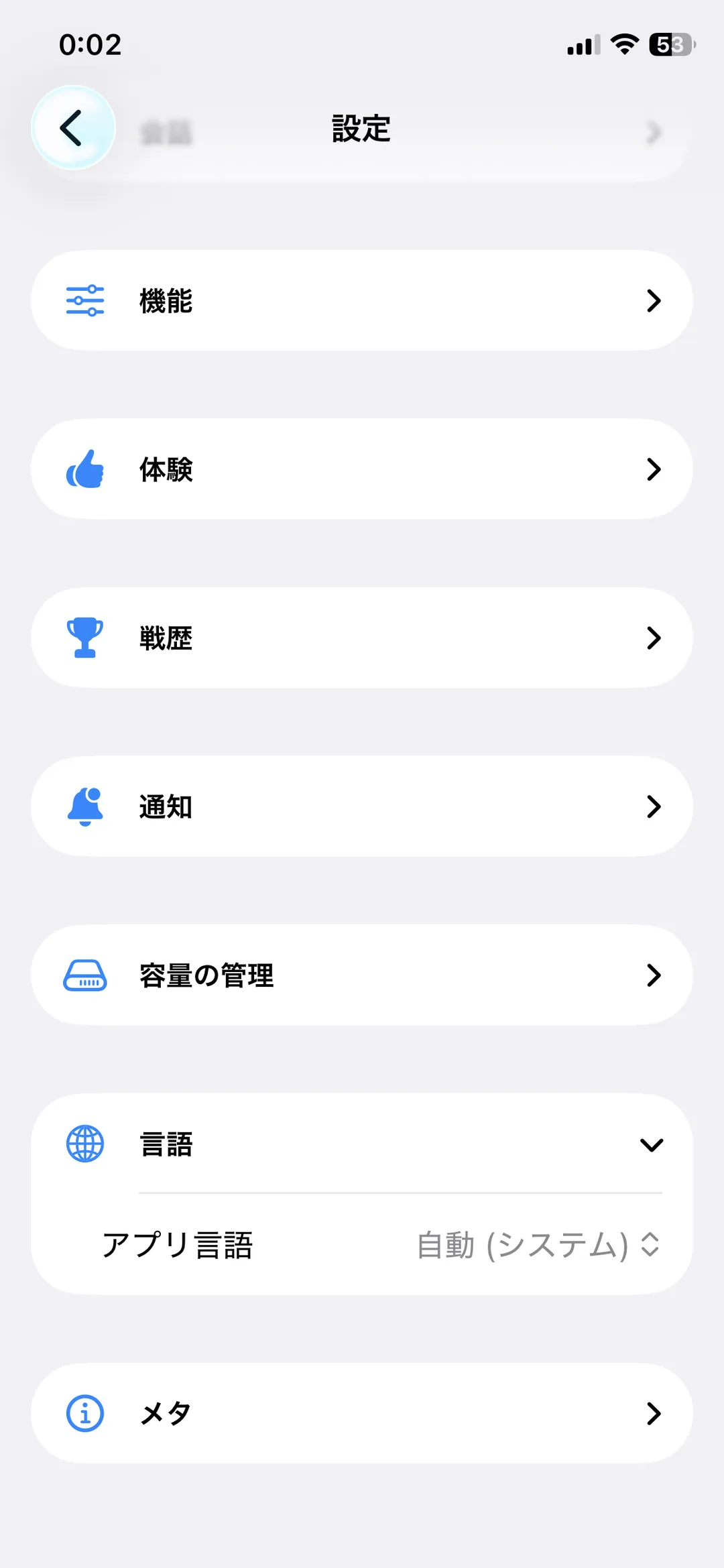
Language and display for the iPhone app. These are separate from the Watch's settings (character and background choices are shared).
9-9. The Wear OS menu (⌚w)
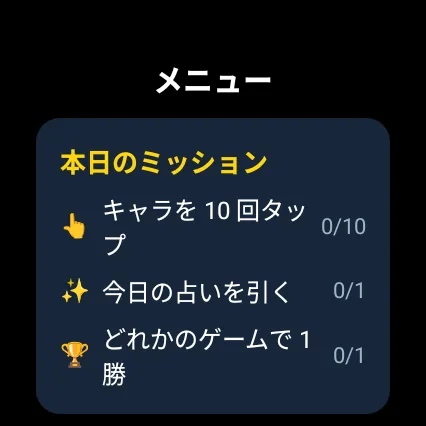
Wear OS has a small round screen, so the menu is arranged in three groups.
| Group | Contents |
|---|---|
| Handy | Character / timer / here / sights / local specialties |
| Play | Concon / Tarot / Contra / Conquest / Old Maid / Daifugo / Catch / Drop / Run |
| More | Point history / profile / storage / settings / about |
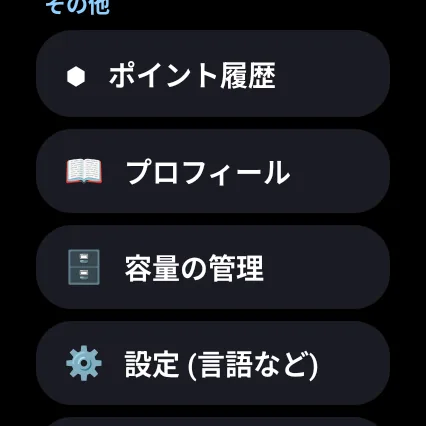
Air hockey is not available on Wear (a paddle is hard to control on a small round screen), and there are no notes or tasks there either.
9-10. Wear settings
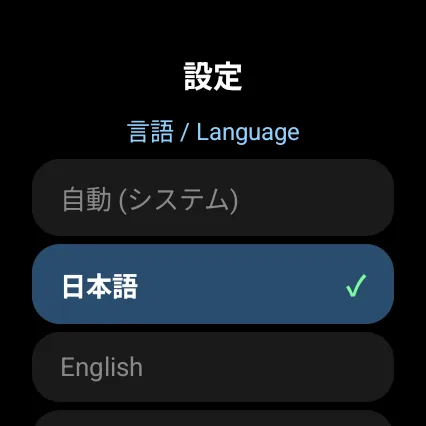
Language and display, plus what the left and right buttons on the home screen do (fortunes and weather by default).
⌚w Wear OS and the 🤖 Android phone run on the same account — pt and purchased characters are shared.