From first launch to what each part of the home screen is called. Later chapters use these names.
Updated: 2026-10-27
This chapter covers what happens the first time you open the app, and what each part of the home screen is called.
Later chapters reuse the names introduced here, so it is worth a quick read first.
The screenshots are from the Android phone app. Apple Watch lays things out differently because the screen
is smaller, but you can do the same things in the same order. Differences are noted with "⌚ On Apple Watch".
Words used in this manual
Name
Where it is
What it does
Home screen
The first screen after opening the app
Where your character stands. Everything starts here
Header
Top edge of the screen
Affection, points, missions, events and settings
Points (pt)
The ⬢ chip in the header
In-app points, used to get characters and costumes
Speech bubble
Above or below the character
The text of whatever your character just said
Action bar
Just below the character
Fortune, weather and games. Always available
Menu
Below the action bar
Everything else. Collapsed by default
1-1. The first time you open the app
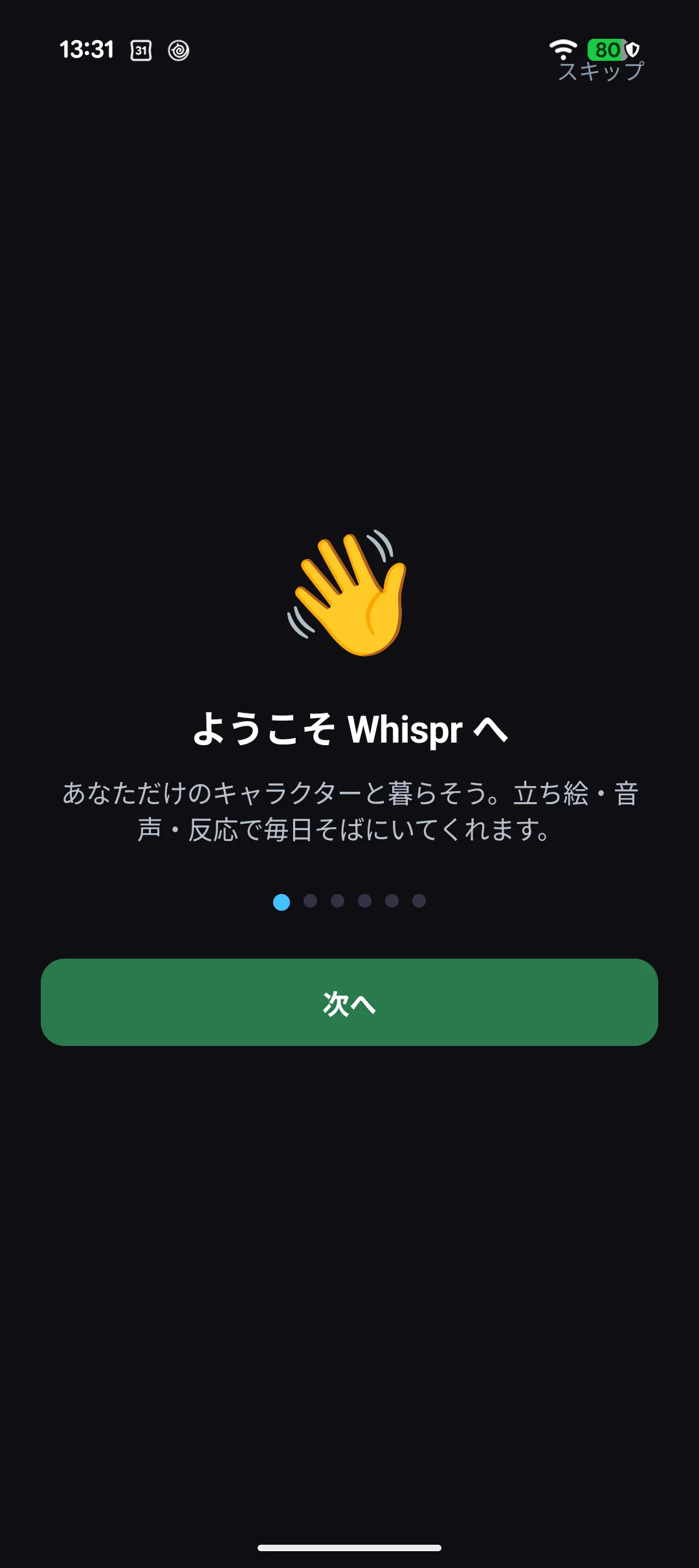
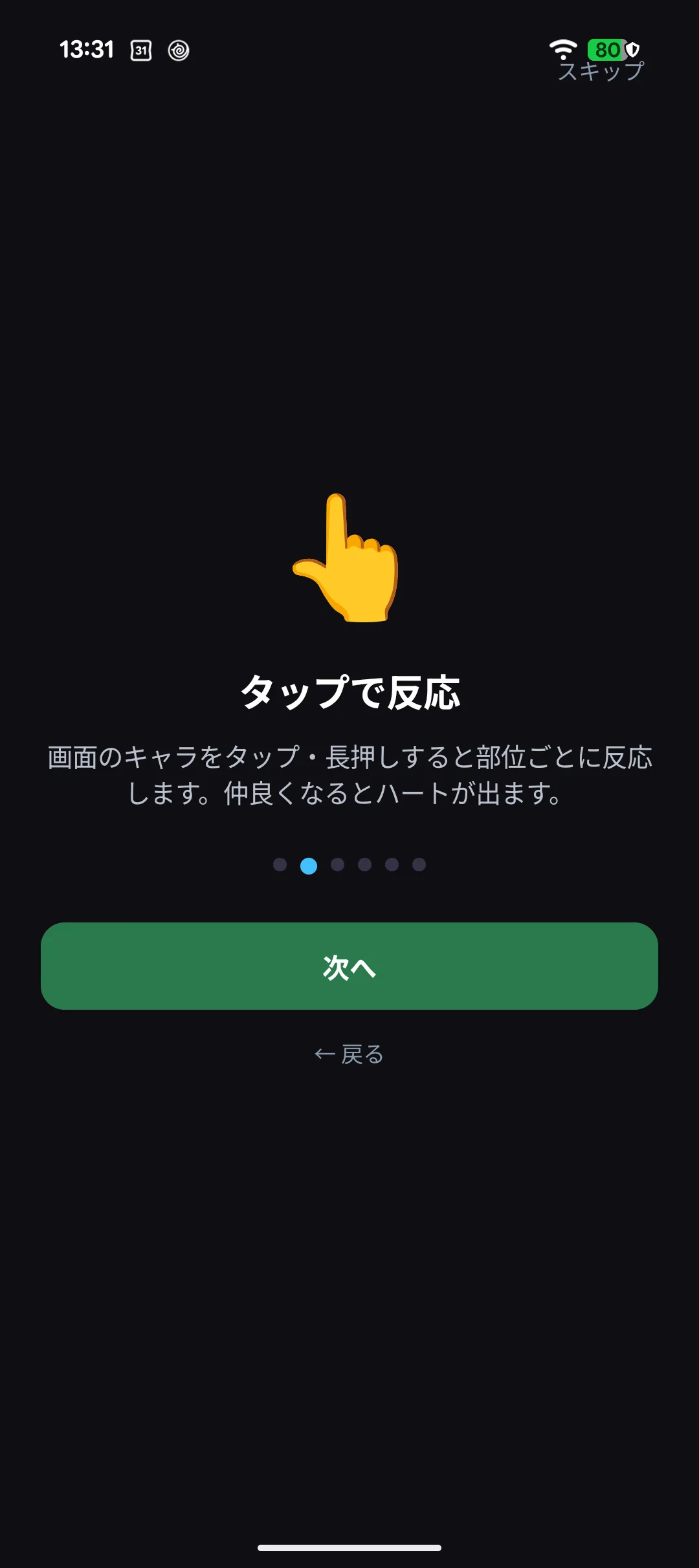
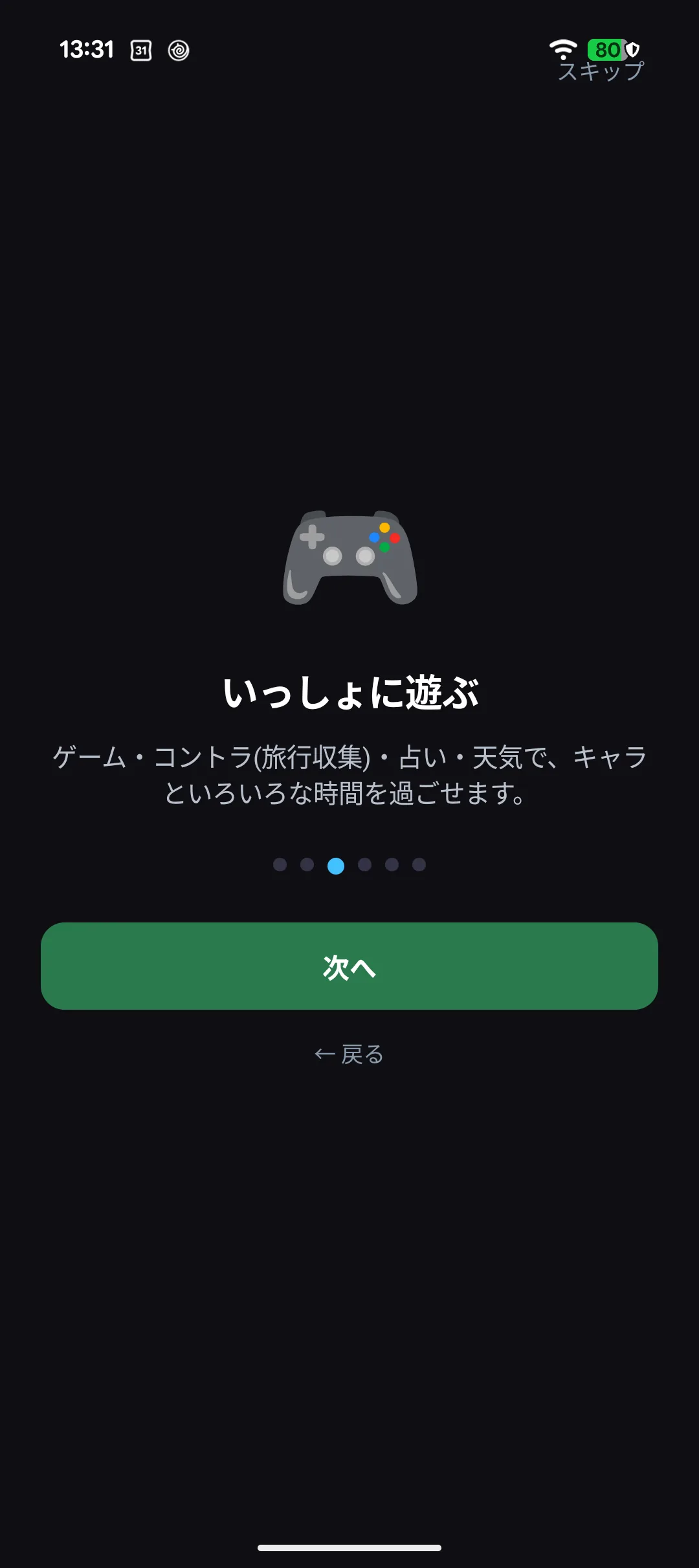
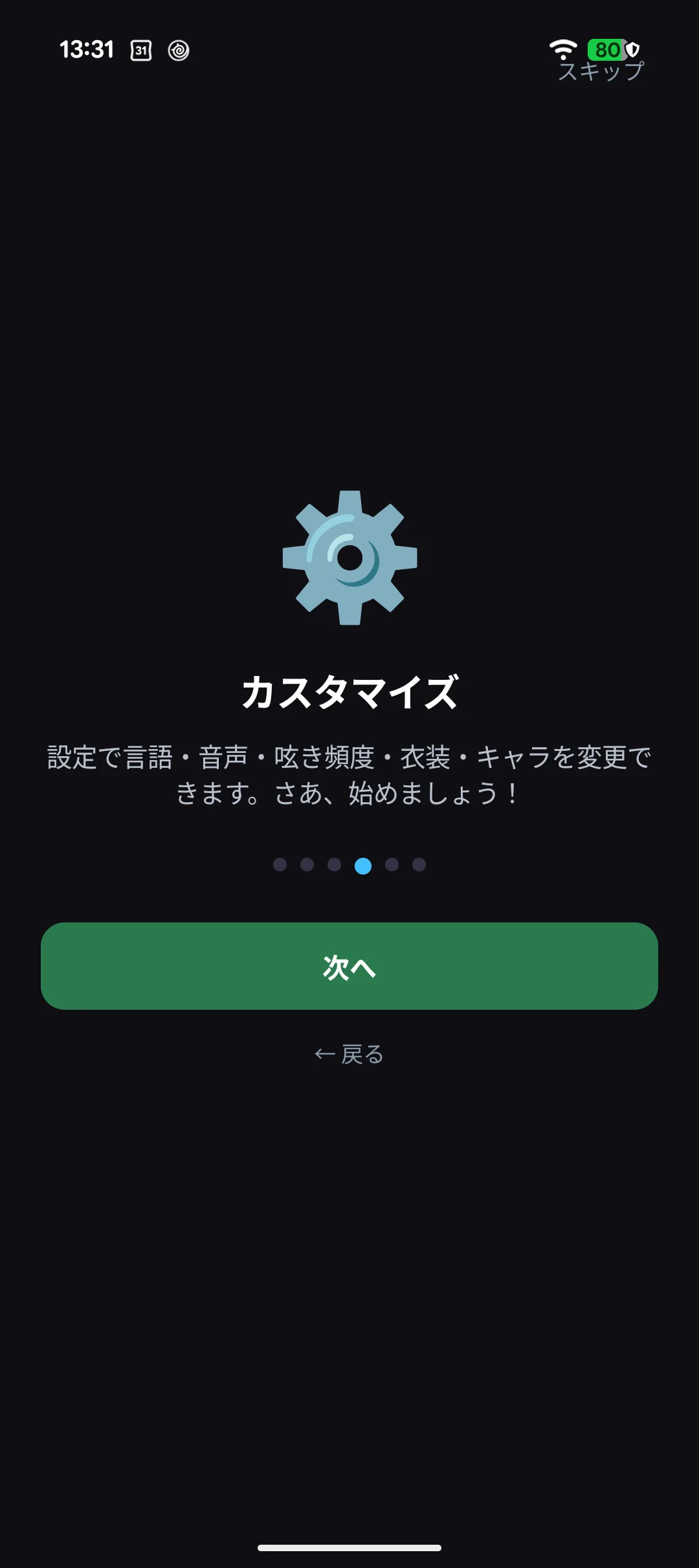
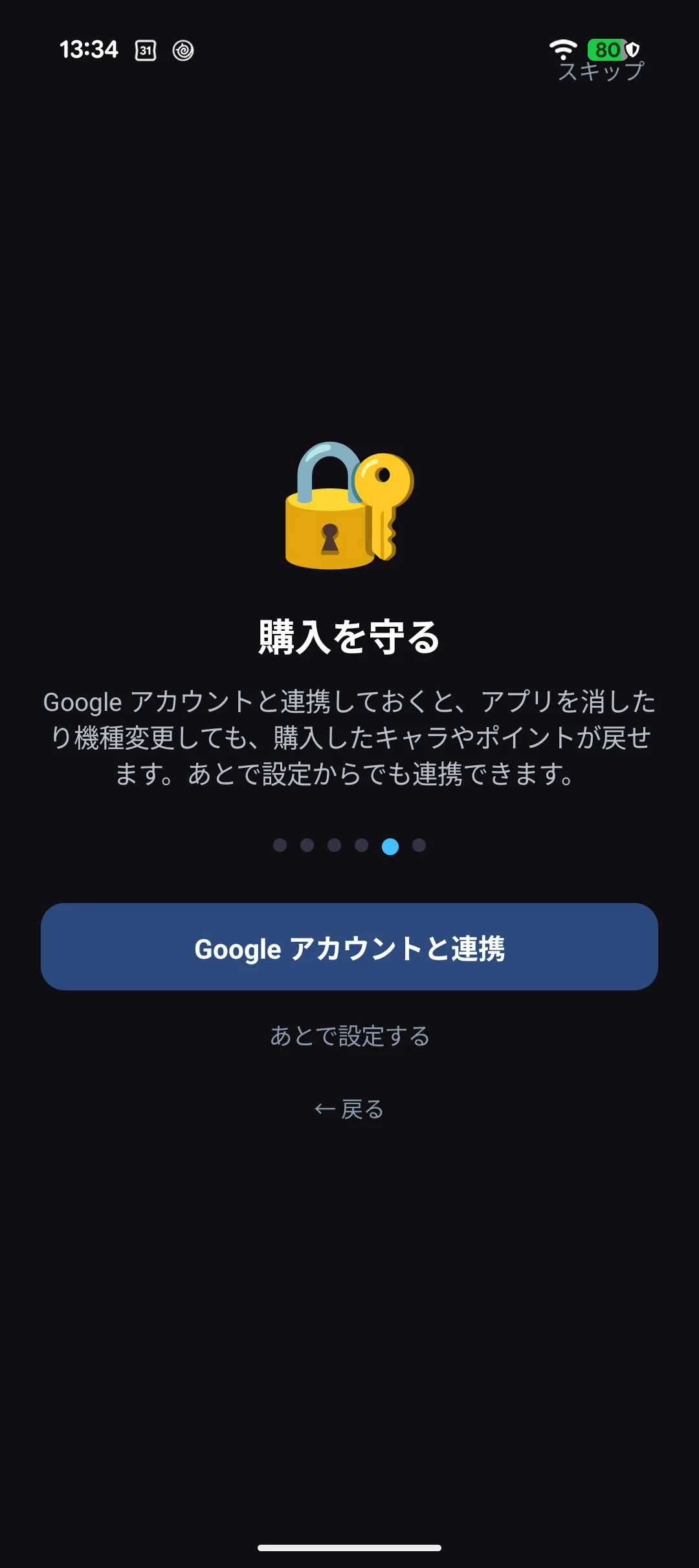
On first launch you get an introduction — tap Next to move through it (six pages; ⌚ Apple Watch has the same six).
Introduction page 1: what the app is
Page 2: how to open the menu
Page 3: how your character reacts when you tap
Page 4: characters and backgrounds can be changed
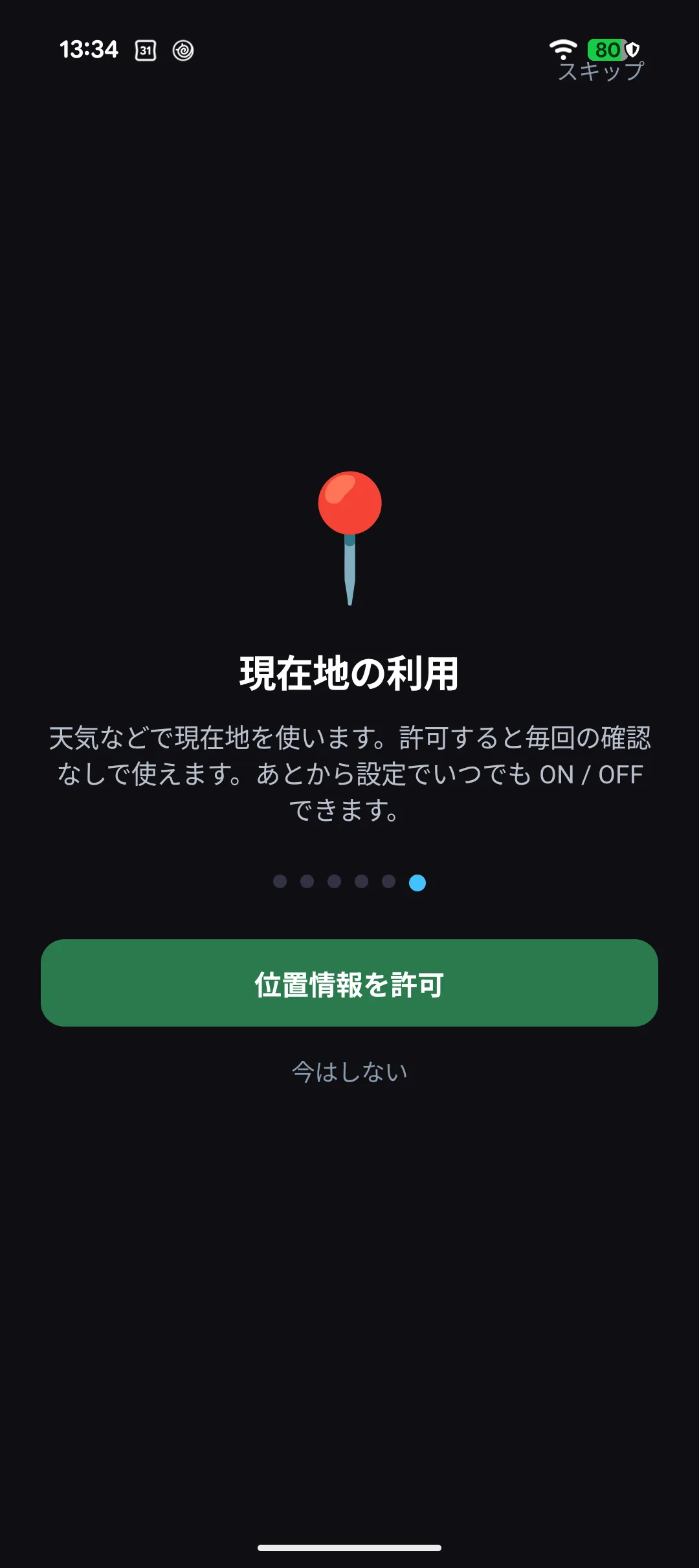
Two more pages follow: linking an account and using your location. Both can be done later
from settings, so "Set up later" and "Not now" are perfectly fine here.
⌚ On Apple Watch the location page has a single "Continue" button. Your device then asks for permission,
and you choose there (the app works without it, and you can change it later in Settings > Weather > Use Location).
Page 5: linking an account to protect purchases
Page 6: using your location
Reaching the end takes you to the home screen. Skip in the top corner is fine too.
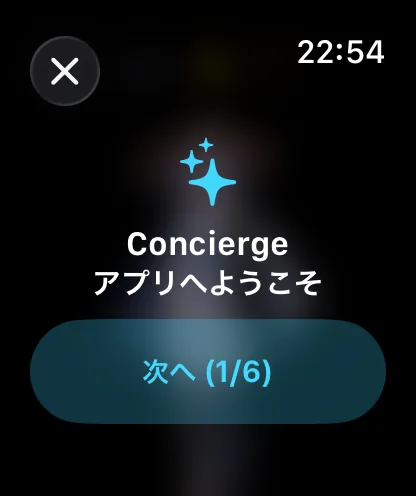
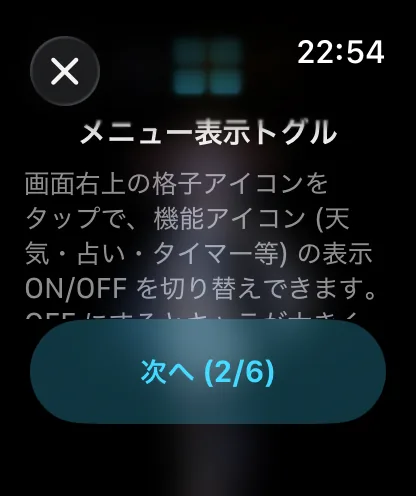
⌚ On Apple Watch you get the same six pages. The screen is smaller so the text arrives in
smaller pieces, but the order and the content are the same. If a sentence looks cut off,
swipe up and down to read the rest.
⌚ Page 1: what the app is
⌚ Page 2: the grid icon shows and hides the menu
You can read it again later. Open settings and tap "Show the guide again" under App info at the bottom.
1-2. The home screen at a glance
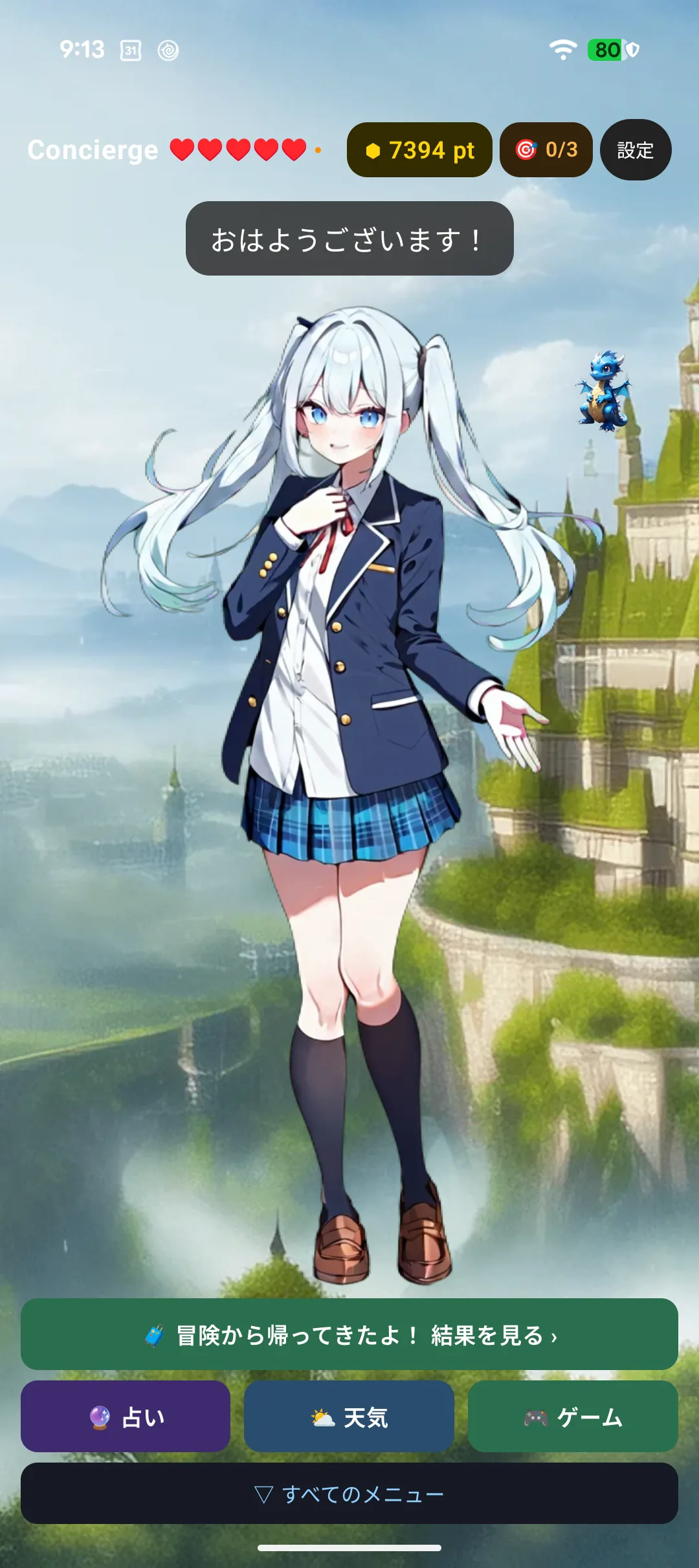
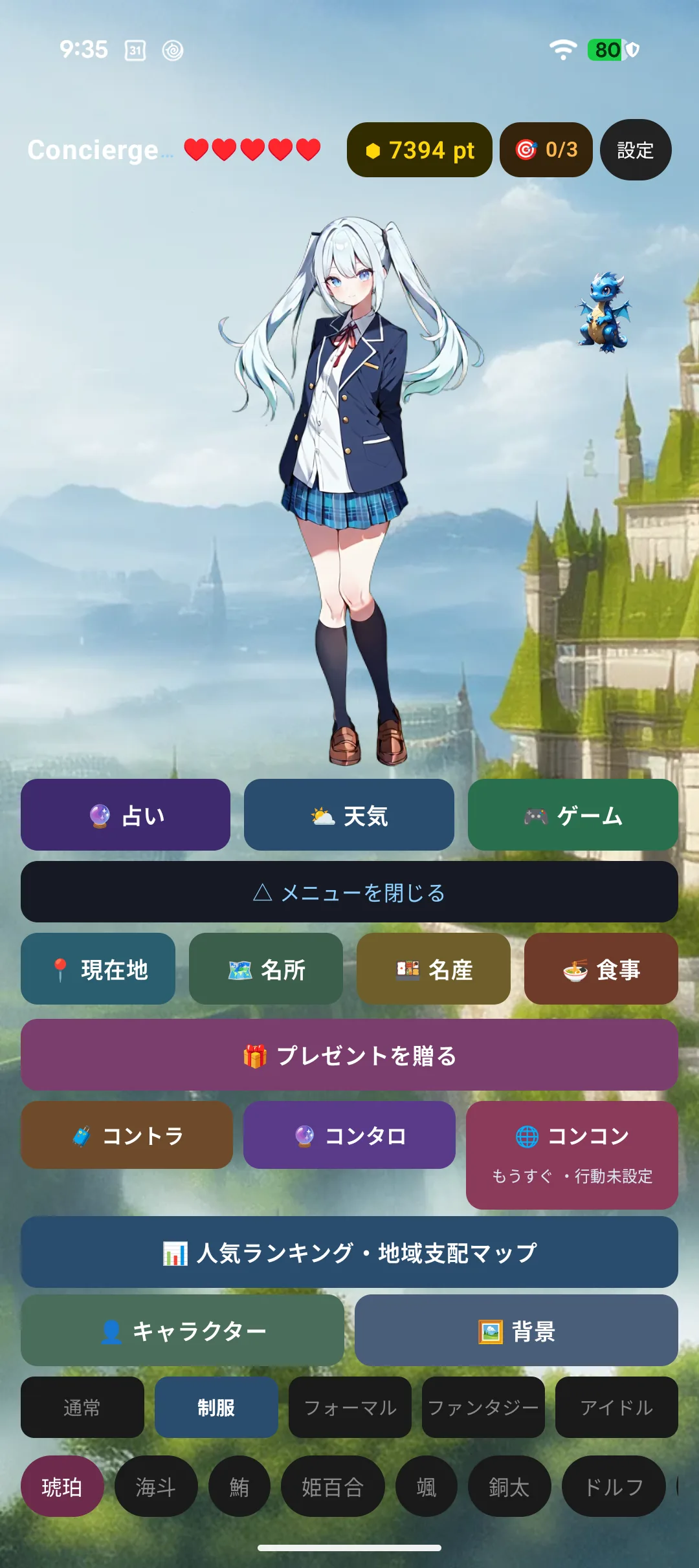
From top to bottom: header → speech bubble → character → action bar → menu.
The whole home screen: header, speech bubble, character, action bar and menu
Left alone, your character mutters to themselves, stretches and tilts their head from time to time.
Moving on its own is the normal state — nothing is wrong.
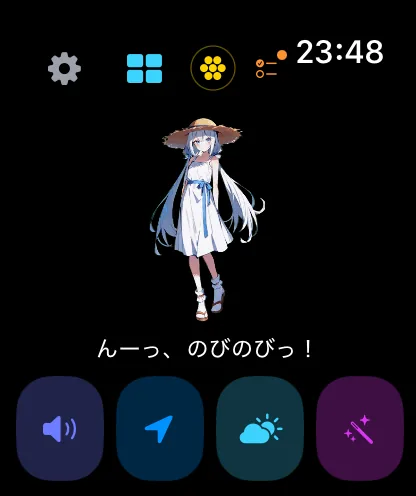
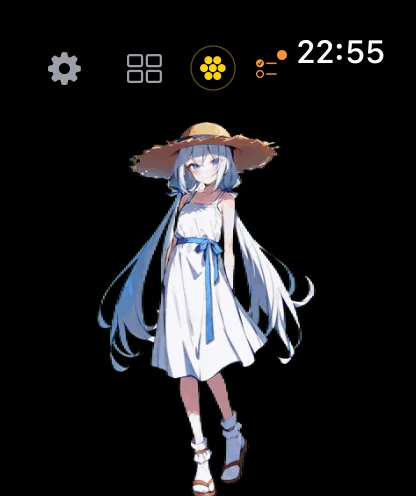
⌚ On Apple Watch only the header and the character are visible; the action bar and menu become a
single horizontal strip of small icons (the icon row).
⌚ The whole home screen: header, character, speech bubble and icon row
1-3. The header
From left to right:
Close-up of the header: character name, heart, points, missions, event, settings
Item
Meaning
Tapping it
Concierge + name
The character currently with you
—
♥ (hearts)
How close you are. More hearts as you get closer
Opens the character's profile (→ Chapter 3)
⬢ 000 pt
Points you hold
Opens the point shop (→ Chapter 4)
🎯 0/3
Today's missions completed
— (missions are listed at the top of the game screen)
🎉
Only on special days (New Year, Tanabata, and so on)
Your character says something about the day
⚙ Settings
Settings
Opens settings (→ Chapter 8)
An orange dot next to the hearts means there is profile text you have not read yet.
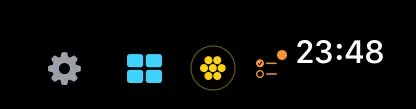
⌚ On Apple Watch there is no room for the character name or the heart, so they are not shown.
You get four items and the clock: ⚙ Settings / ▨ Menu / ⬢ Points / 🎯 Missions.
Open the profile from the character section in Settings instead.
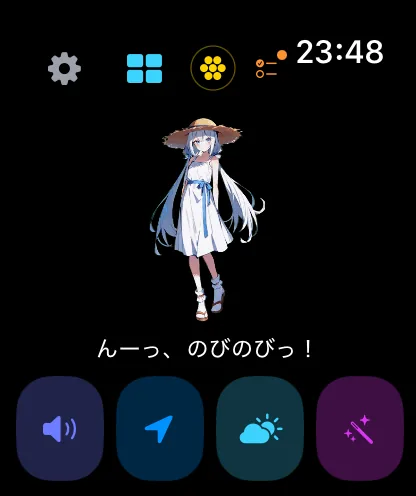
⌚ Close-up of the header: settings, menu, points, missions
1-4. Opening the menu
The menu is collapsed by default so that your character stays large.
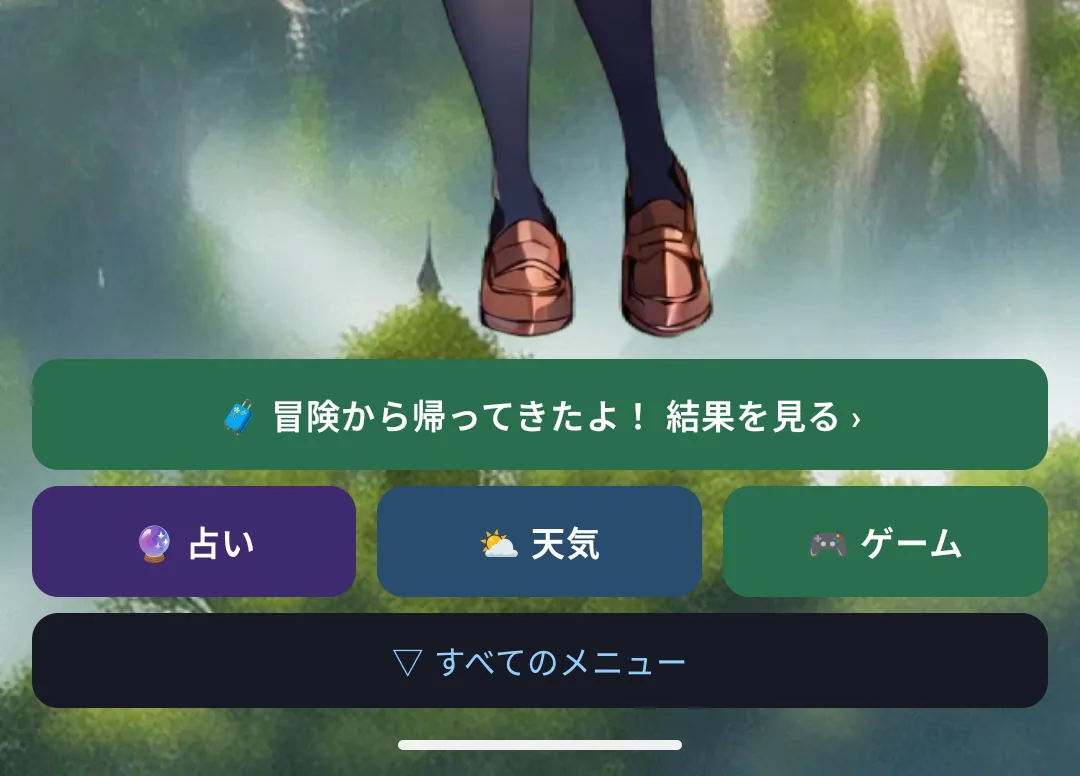
Menu collapsed, showing "▽ More"
Tap "▽ More" just below the action bar to expand it.
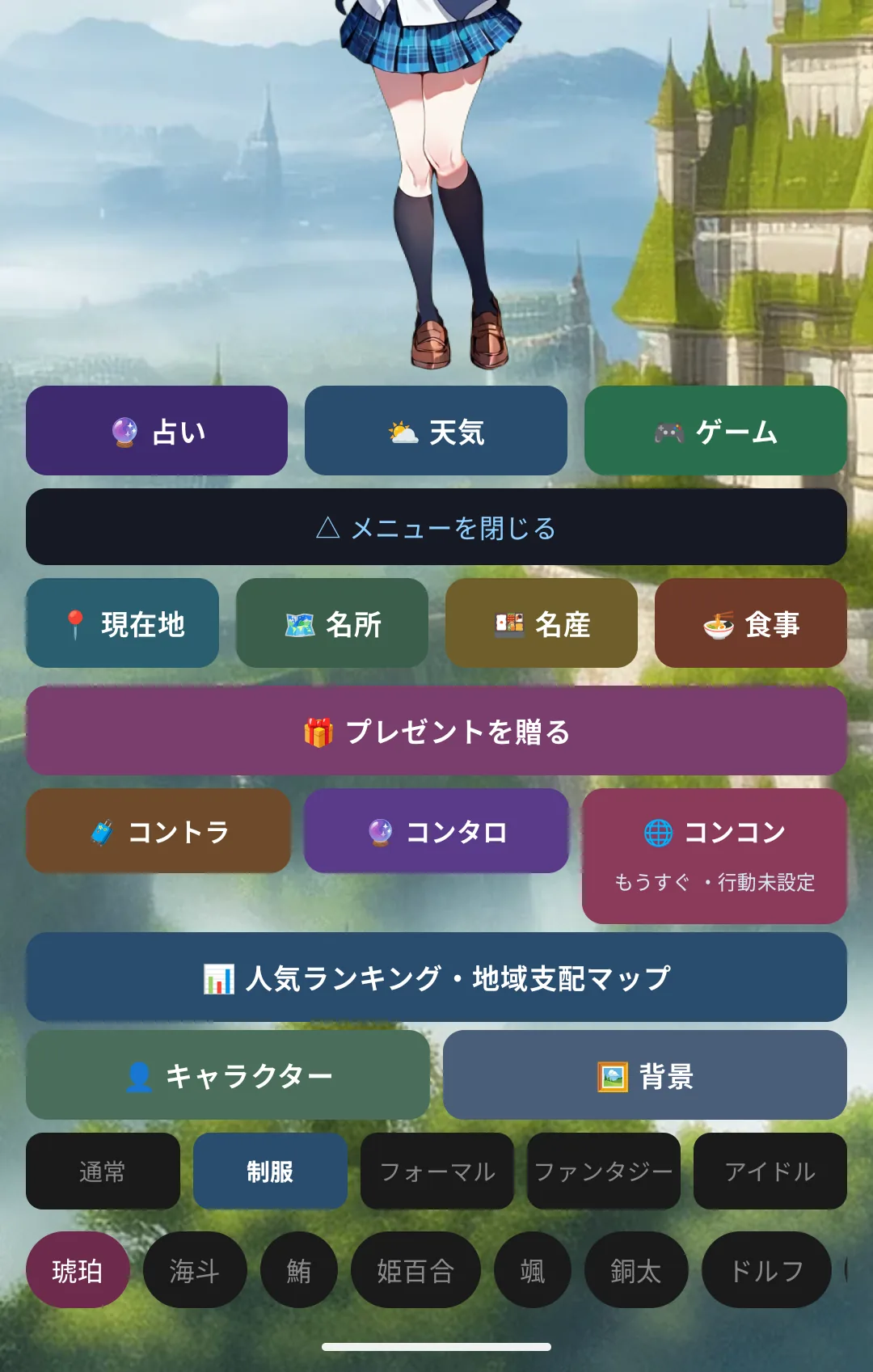
Menu expanded, showing the location row, concierge row and so on
Tap "△ Less" in the same place to collapse it again. The app remembers which state you left it in.
Turning the phone sideways collapses it automatically. In landscape there is very little vertical
space, and an open menu would leave almost nothing for your character. You can still reopen it by hand.
⌚ On Apple Watch the grid icon (▨) in the top right does this — it shows and hides the icon row.
When the icon glows cyan the row is open.
⌚ Icon row hidden — the character is shown large
⌚ Icon row shown — the grid icon glows cyan
1-5. What is in the menu
The rows appear in this order. Rows you never use can be hidden (→ Chapter 8).
The expanded menu
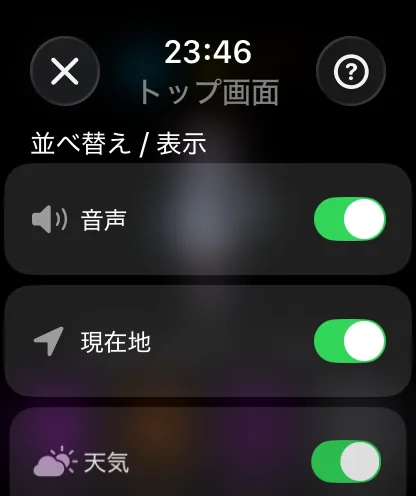
⌚ On Apple Watch you choose what appears in the icon row under
Settings → Home screen → Reorder / Show. Hiding what you never use puts the rest within closer reach.
⌚ Reordering and showing icons
Row
Contents
More in
Location
Here / Sights / Local specialties / Food
Chapter 7
Notes & tasks / Photo
Reminders, and photos with your character
Chapter 7
Give a gift
Presents that bring you closer
Chapter 3
Concierge
🧳 Contra / 🔮 Tarot / 🌐 Concon
Chapter 5
Ranking & region map
Popular characters and how regions stand
Chapter 9
Tools
Timer / Workout
Chapter 7
Costume
Change outfits
Chapter 3
Characters / Background
Choose and obtain characters and backgrounds
Chapter 3
The three concierge tiles show a small emoji status only when there is something to know. A sentence
would wrap and make the tile taller than its neighbours, so the state is an emoji and the time is just digits.
Shown
Meaning
🧭 3:20
Contra: on a trip, back in 3 minutes 20 seconds
🎁
Contra: back home — tap to collect the souvenir
🆓
Tarot: your first free reading is still available
⏳ 1:20 ✅
Concon: 1h20m to the next battle, your action is set
⏳ 1:20 ❗
Concon: 1h20m to the next battle, no action set yet
1-6. The speech bubble
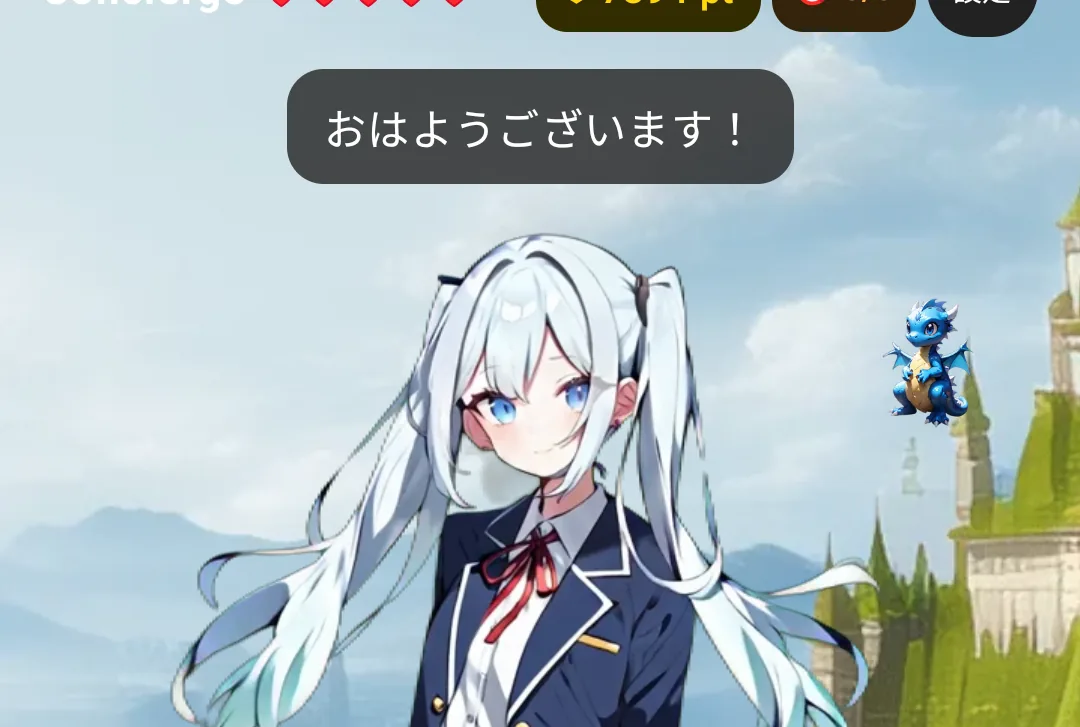
When your character speaks, the text appears in a speech bubble.
A speech bubble on screen
Size, colour, opacity and position of the text are adjustable (→ Chapter 8)
You can turn the text off and keep voice only
You can turn the voice off and keep text only — handy in quiet places
That is the whole screen. Next up: what happens when you touch your character.