Chapter 7
Everyday tools
The everyday features outside the games. What makes them feel different here is that your character chimes in while you use them.
7-1. Timer
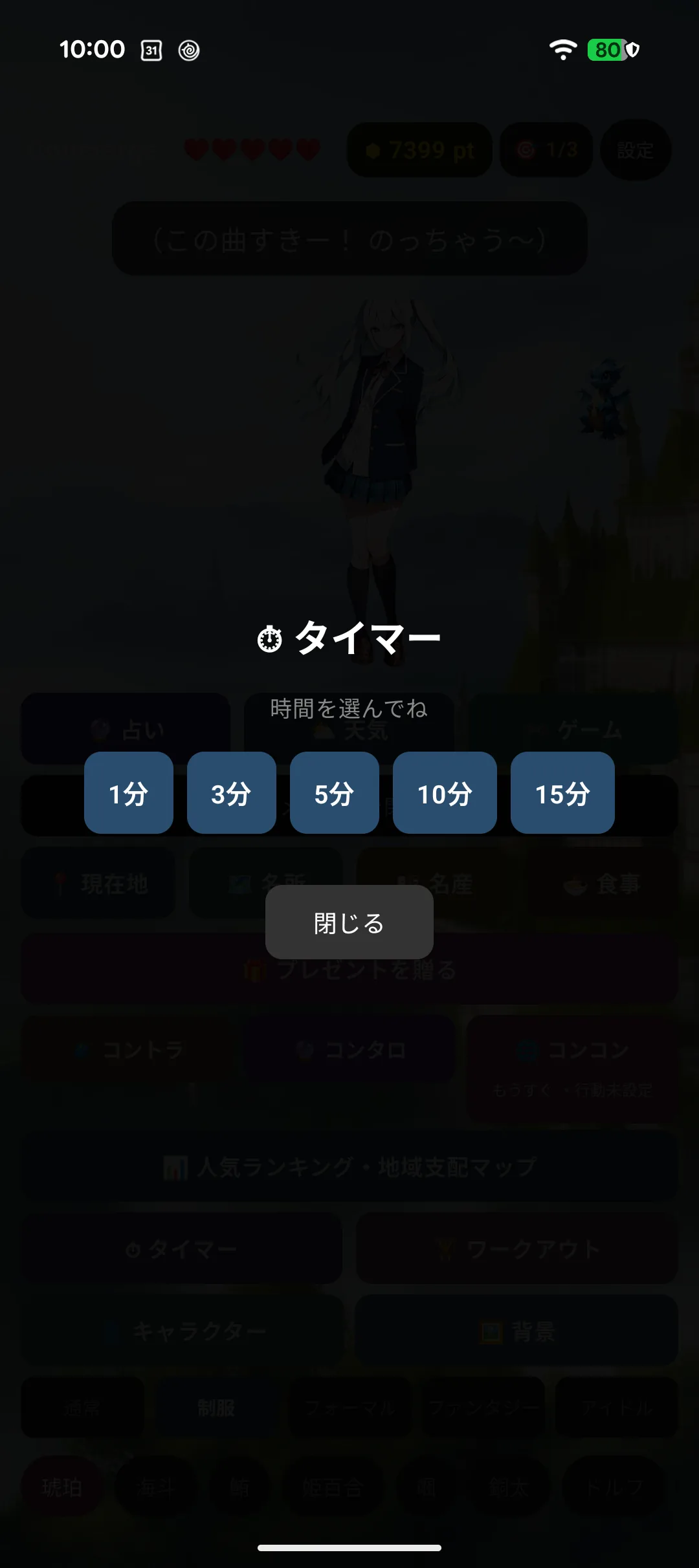
Buttons for common lengths, plus your own value (the default is three minutes).
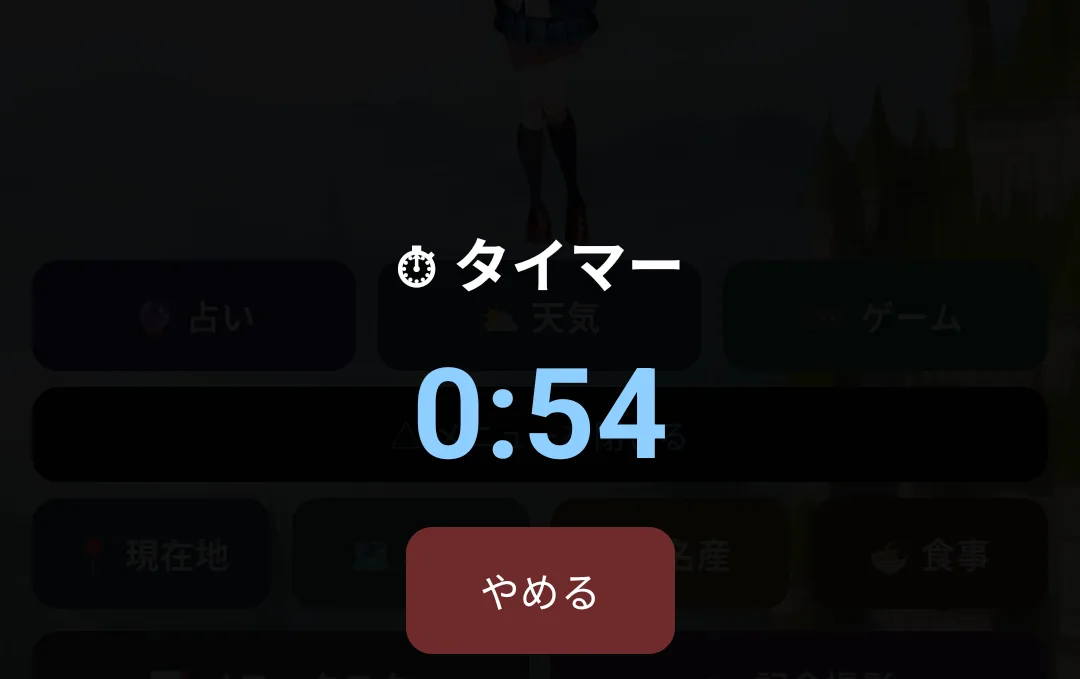
- While it runs, the remaining time appears on the menu button
- Even with the app closed, a notification arrives when time is up
- Your character says something when it rings
7-2. Workouts
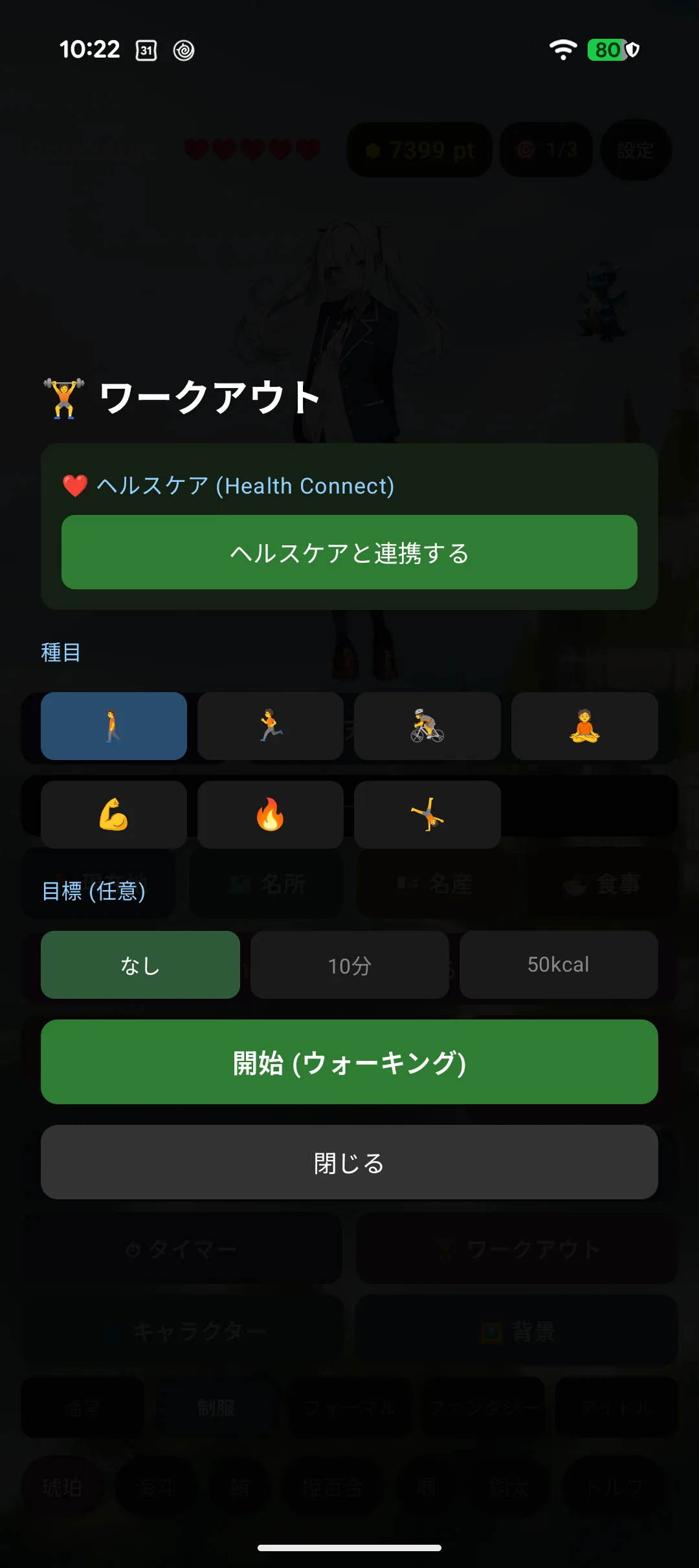
Pick a type and a goal, then start.
| Type | Walking / running / cycling / yoga / strength / sit-ups / other |
| Goal | None / duration (minutes) / calories (kcal) |
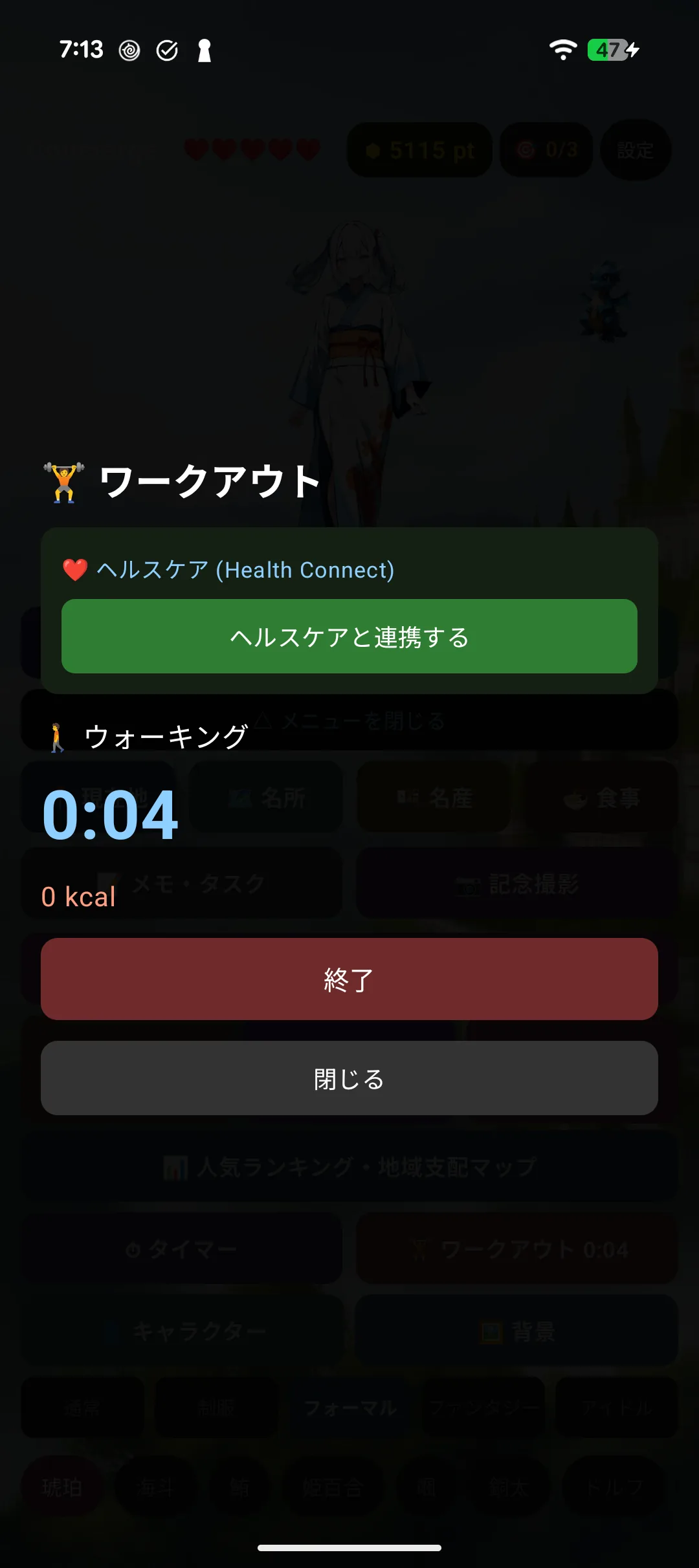
Your character cheers you on, and eases off with "don't overdo it" when your heart rate runs high.
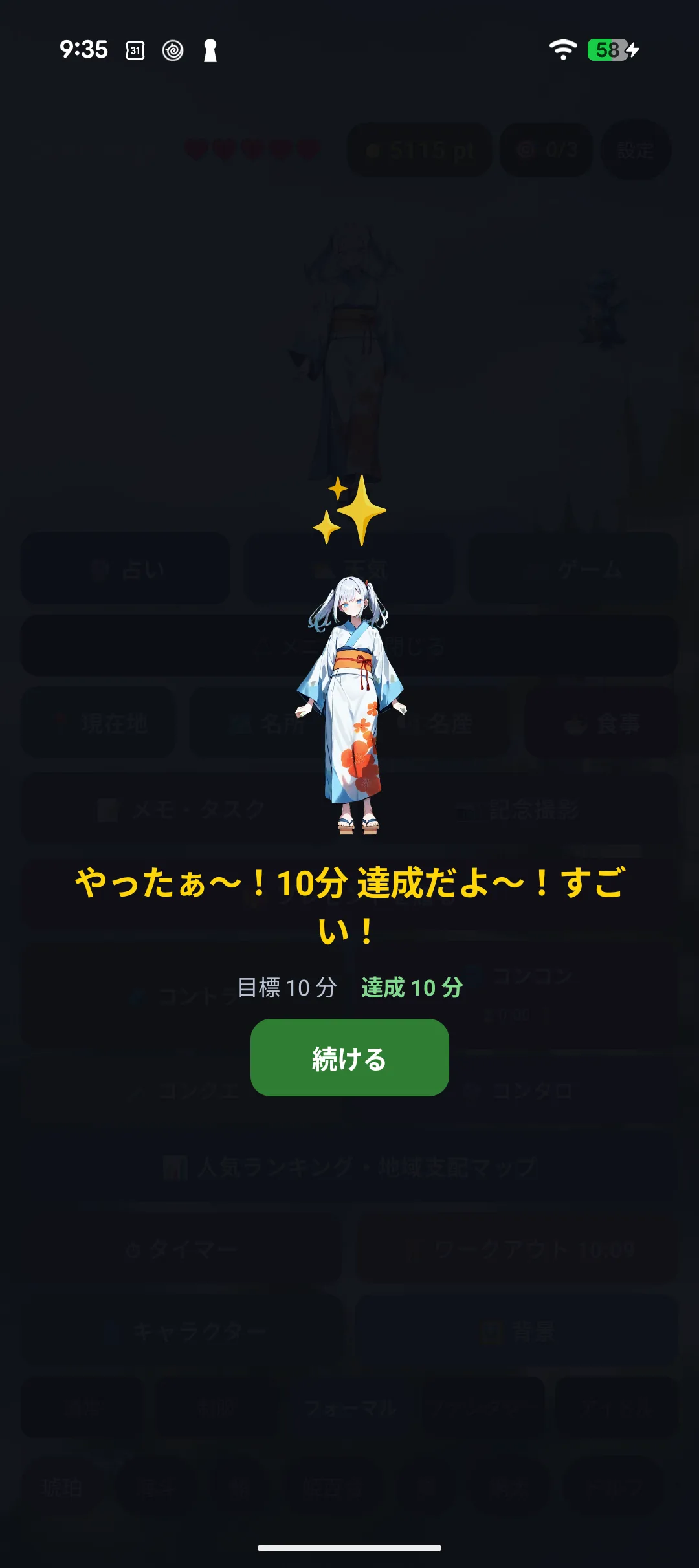
When you hit the goal a celebration screen appears. It shows even if the workout panel is closed, so you will not miss it while you are looking at another screen.
Calories are the larger of the value from Health and an estimate based on your weight, so a number appears even without Health permission (setting your weight improves the estimate).
7-3. Workout history
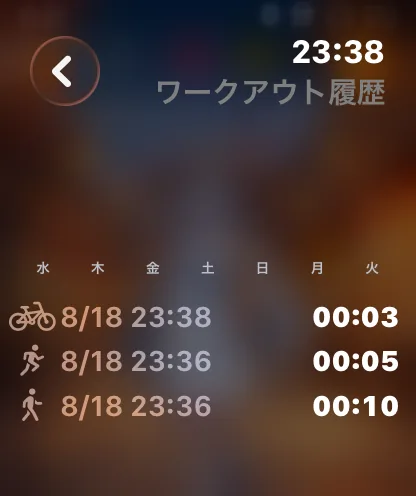
Past workouts by type, with a badge on the ones where you hit your goal.
7-4. Weather
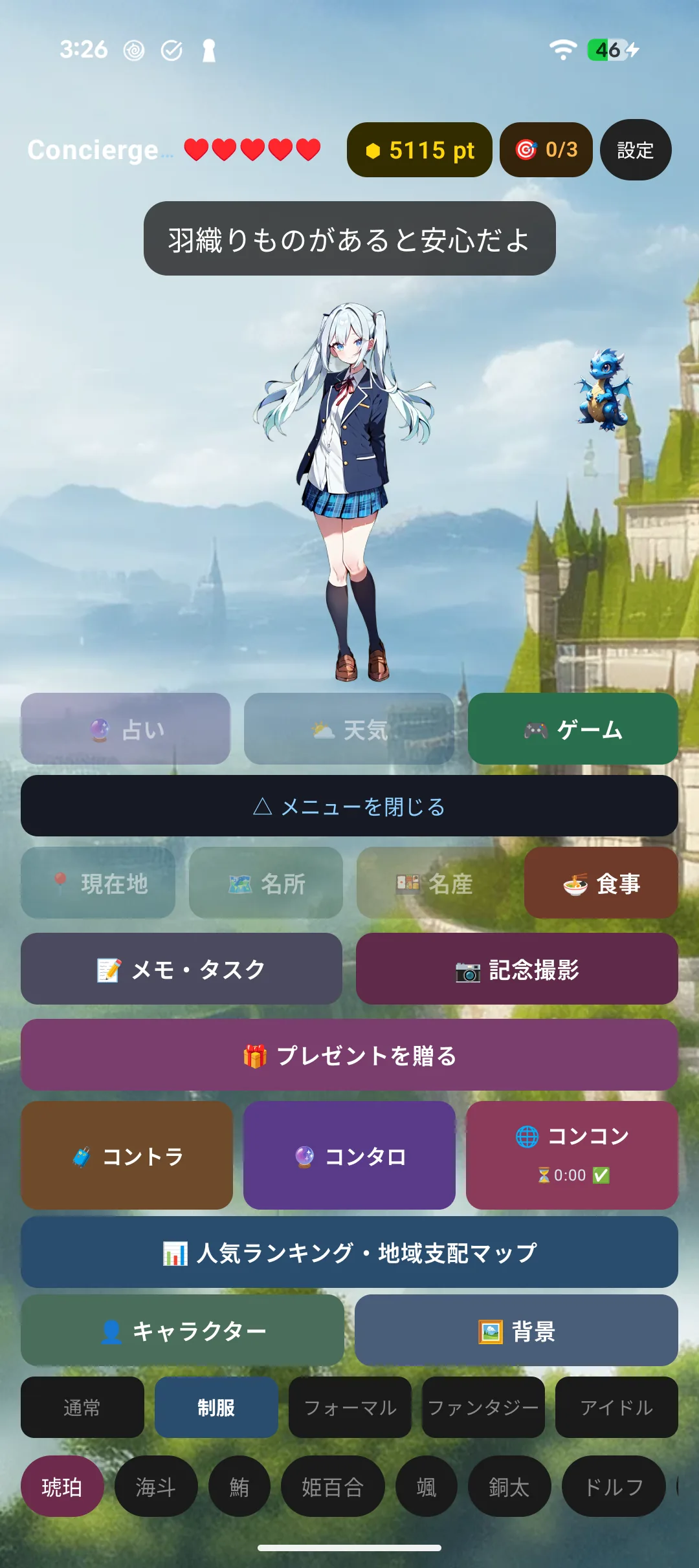
Beyond the current conditions, your character follows up with a note on humidity, what to wear, and tomorrow's forecast.
Location permission is required — without it the weather cannot be fetched.
7-5. Fortunes
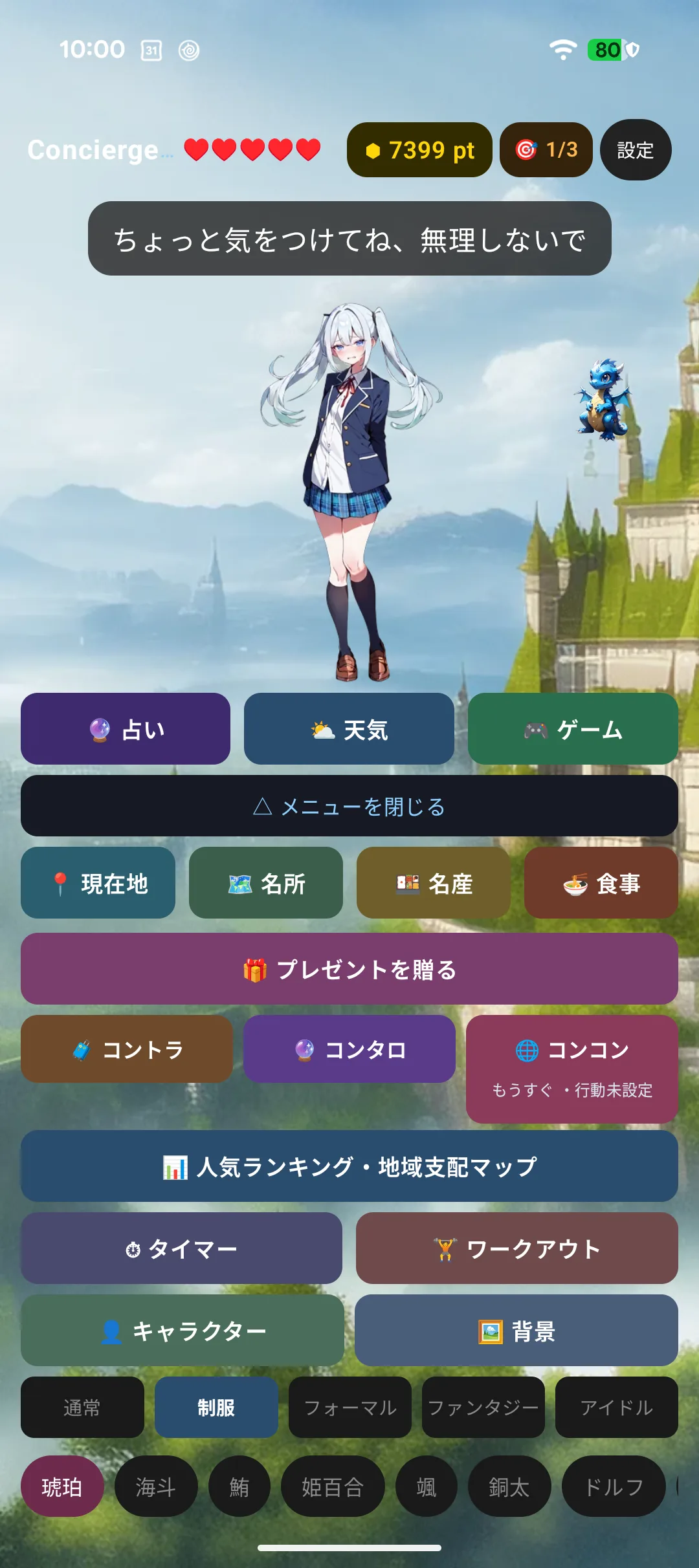
Once a day. Reopening it the same day shows the same result.
Results run across five levels, from excellent to poor (good results are more likely).
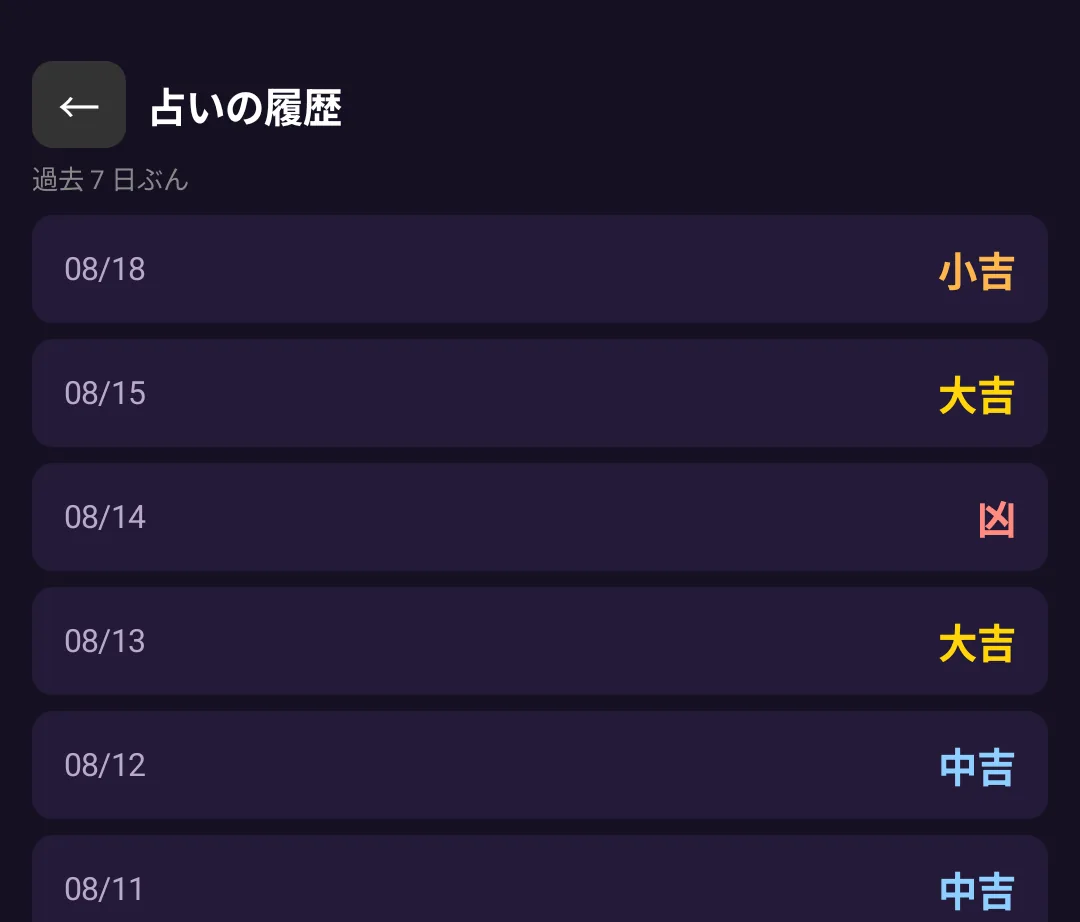
The last seven days are kept.
Where to find it: 🤖 Android under Settings → "🔮 Fortune History"; ⌚w Wear OS in the menu.
⌚ On Apple Watch, drawing a figure-eight with your arm starts a reading.
7-6. Where you are, sights and local specialties
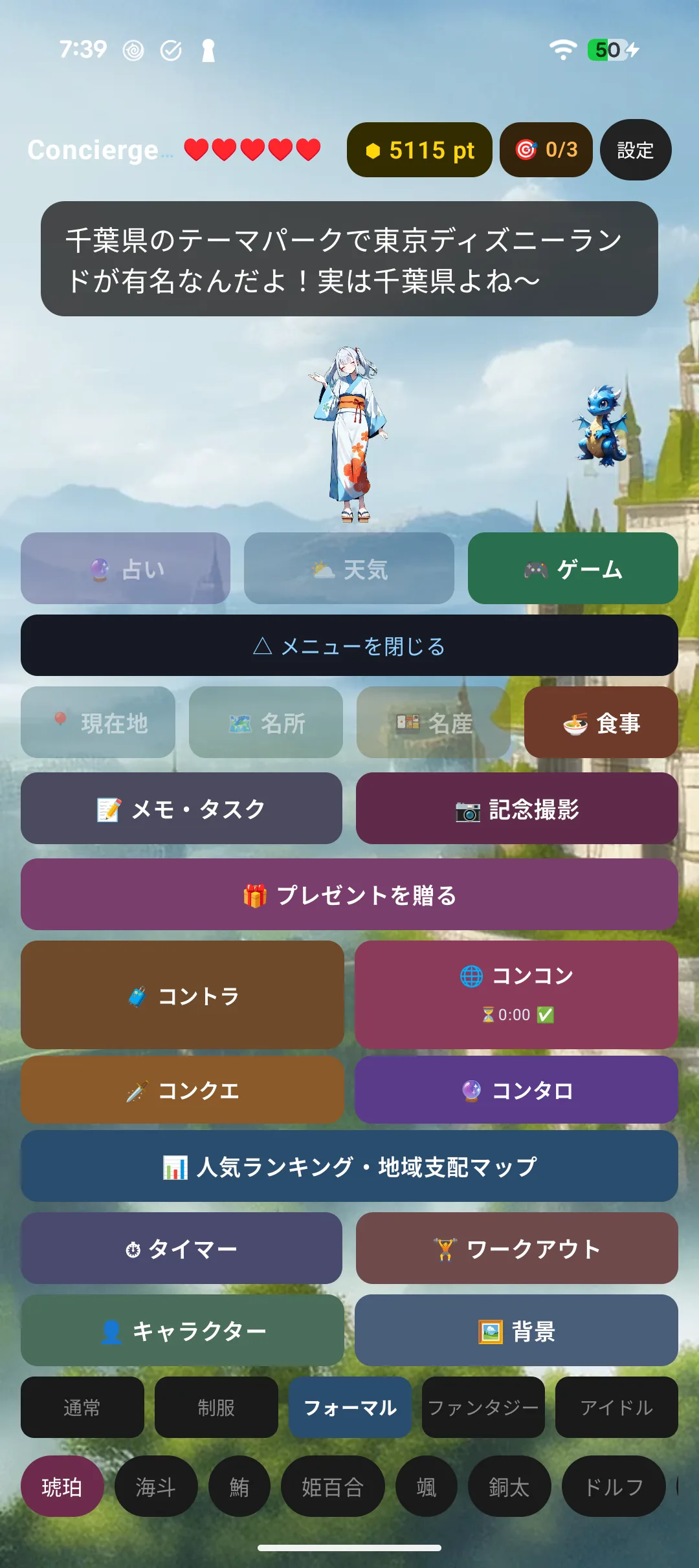
Based on where you are, your character introduces sights and local specialties.
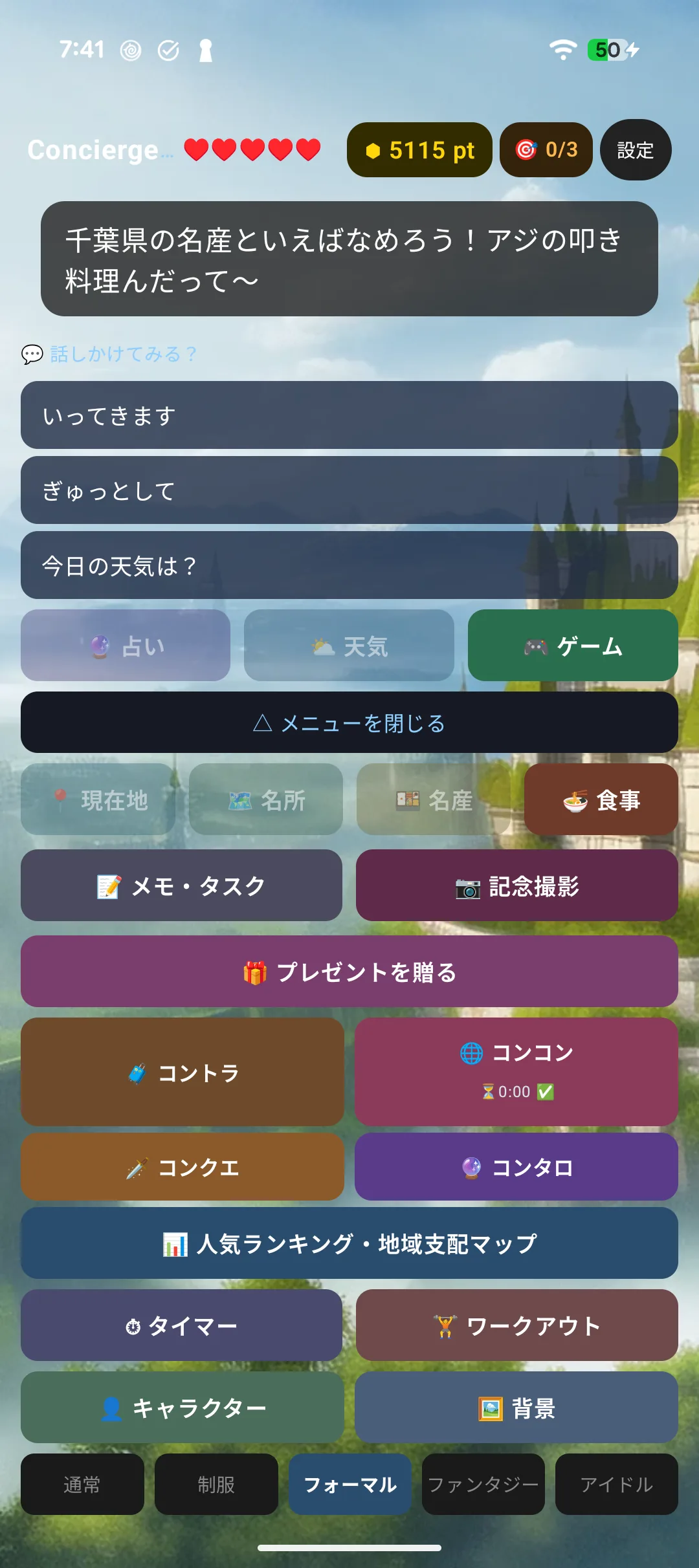
- Content covers Japan's 47 prefectures plus 26 countries — 73 regions in all
- Things you have not heard yet come first; once you have seen them all it starts over
7-7. Finding somewhere to eat
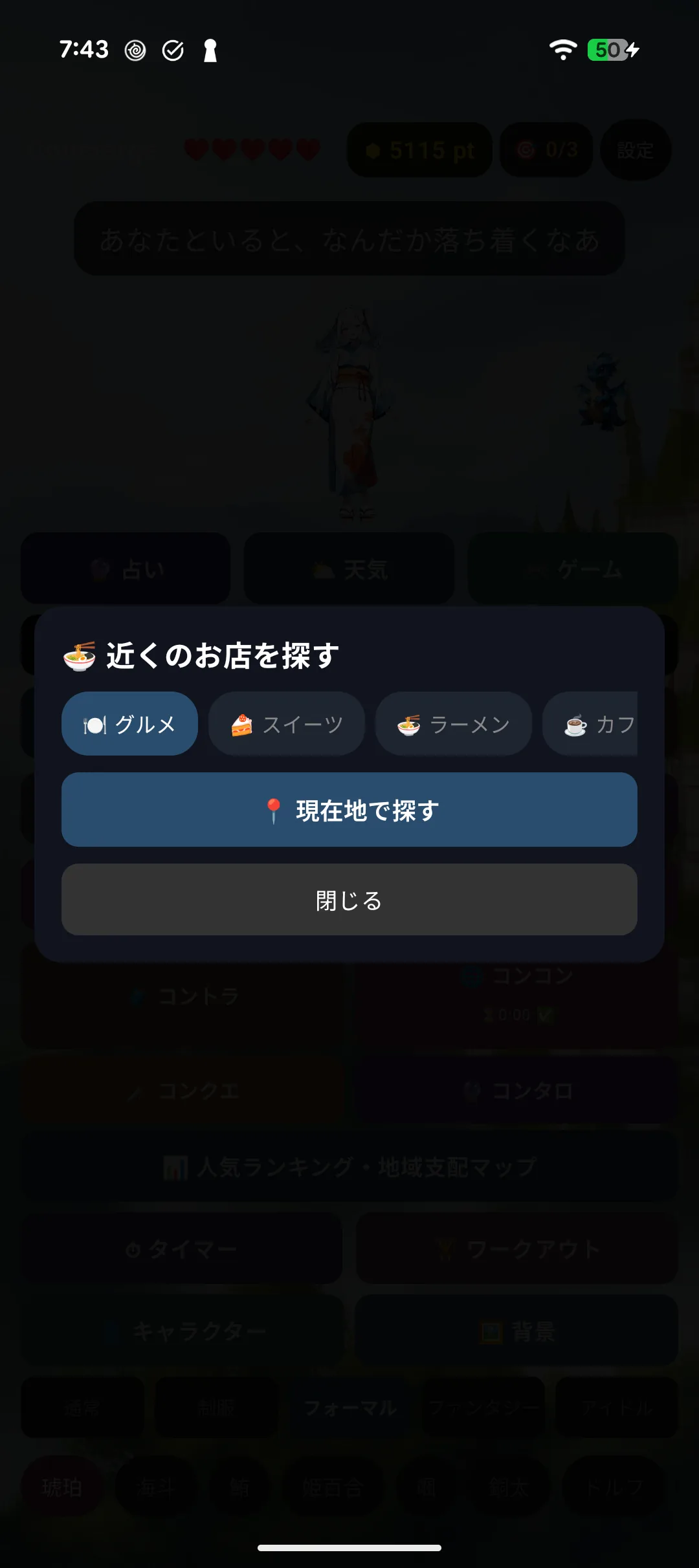
Pick a genre (food, sweets, souvenirs, ramen, cafés) to find places nearby.
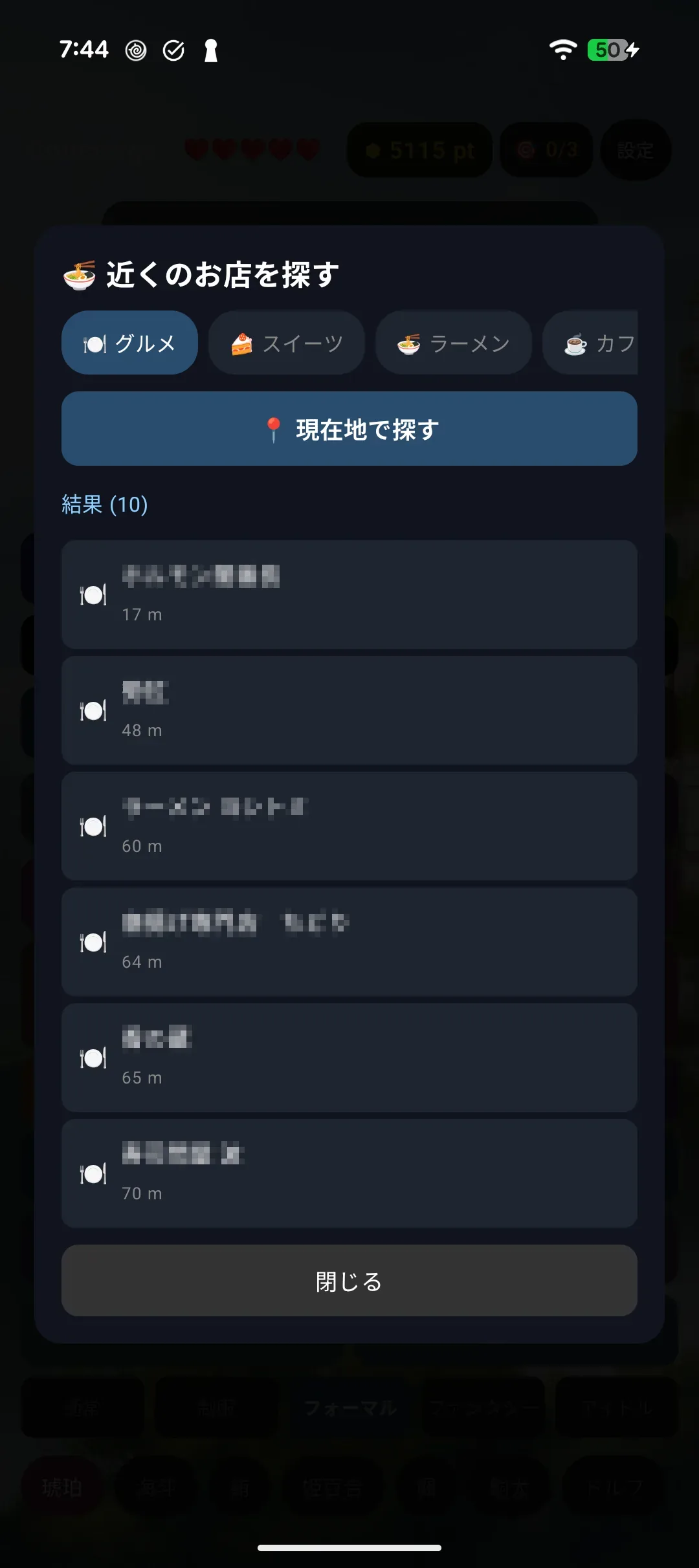
Choose one and your character asks "Shall we go to ○○?" — say yes and the map opens.
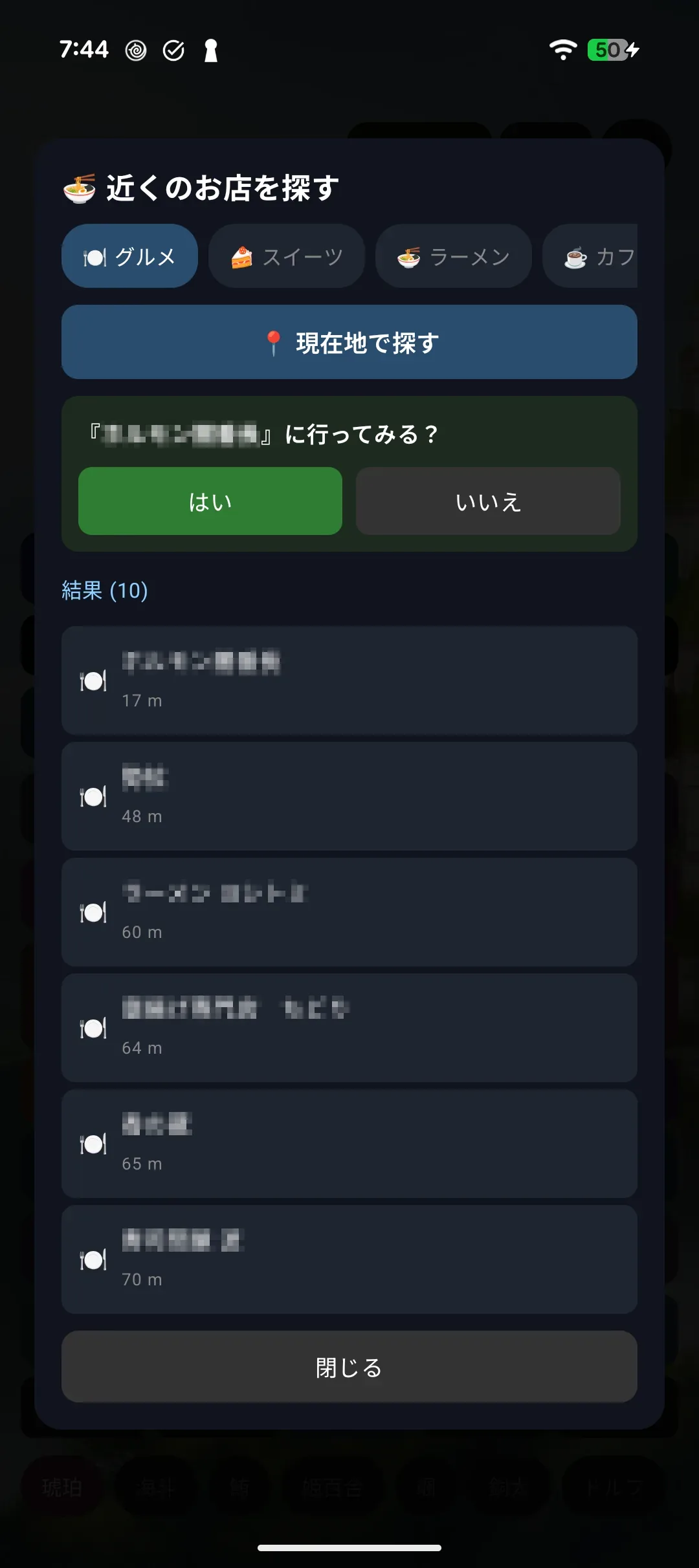
⌚ On Apple Watch, both the Watch map and the iPhone map open, since walking directions are easier to follow on the phone.
7-8. Notes and tasks
🤖 On Android this row starts hidden. Turn on "Notes & tasks / Photo" under Settings → Display → home menu rows.
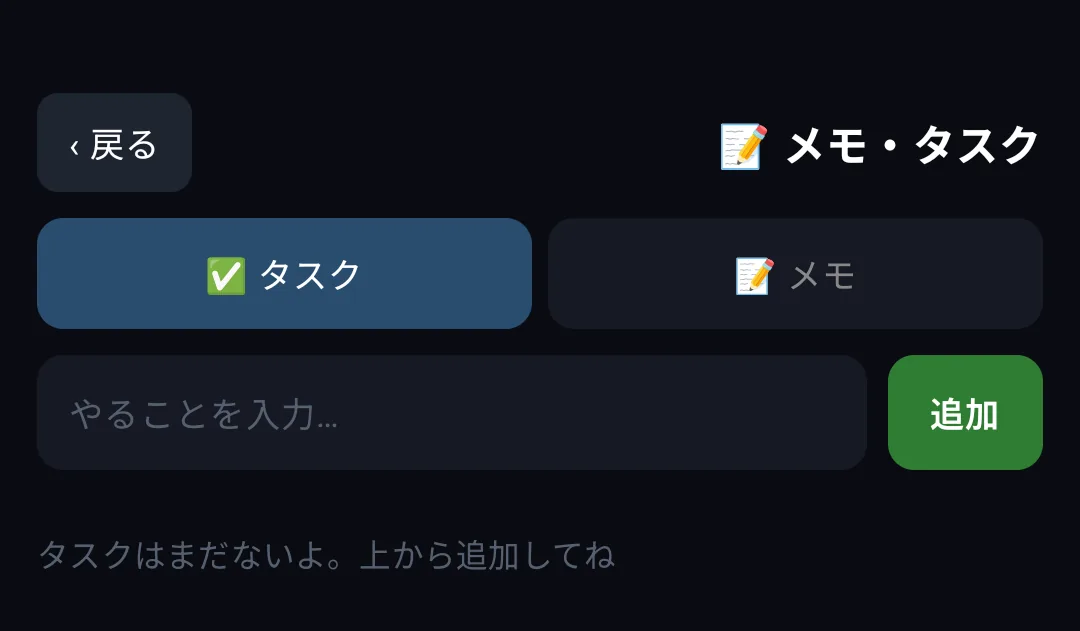
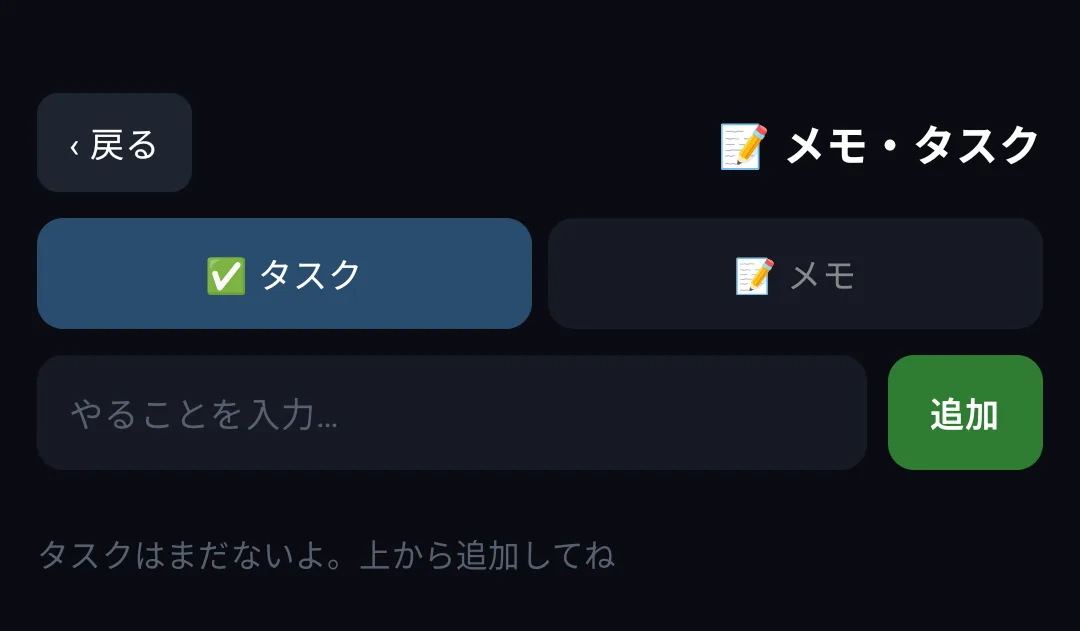
Short notes, and tasks with a due time. Your character lets you know when one is due.
Editing and deleting a note (⌚ Apple Watch)
| What you want | How |
|---|---|
| Edit it | Tap the note. An edit screen opens — change the text and press Save |
| Delete it | Swipe the note left and a red Delete button appears |
| Delete it (another way) | The edit screen also has a Delete button at the bottom |
🤖 A deleted note cannot be recovered.
Text entry on ⌚ is mostly dictation, Scribble and emoji. Reworking a long note is painful, so deleting and re-entering is often faster than editing.
Editing and deleting notes and tasks (🤖 Android)
| What you want | How |
|---|---|
| Edit it | Tap the row and edit it in place. Press ✓ to save (✕ to cancel) |
| Delete it | Press 🗑 on the right of the row |
Saving an empty row does not delete it — use 🗑 for that. Editing a task keeps its done / not-done state.
7-9. Photos (⌚ Apple Watch)
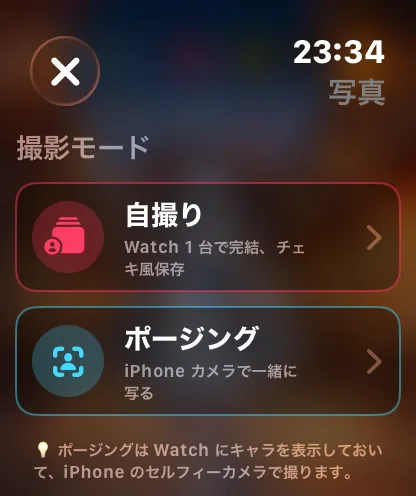
Two modes. They do completely different things, so pick carefully.
| Mode | What it does | Camera | Saved on ⌚ | Sent to iPhone |
|---|---|---|---|---|
| Selfie | Makes a picture of you and your character inside the ⌚ screen | ⌚ | ✅ when you tap Save | ✅ yes |
| Posing | Turns the ⌚ into a display for your character so you can photograph yourself and the watch with your iPhone | iPhone | ❌ no | ❌ no |
⚠️ Both modes say "Say cheese!". Posing does not capture anything on the watch, so there is no Save button and the shot will not appear under "Photos with your character" on the iPhone — it goes to your iPhone's camera roll instead.
To send a picture from the watch to your iPhone, choose Selfie.
How Selfie works
- Choose Selfie
- Press the shutter → countdown → "Say cheese!"
- Tap Save — this is when it is stored and the transfer to your iPhone starts
Closing without tapping Save keeps nothing.
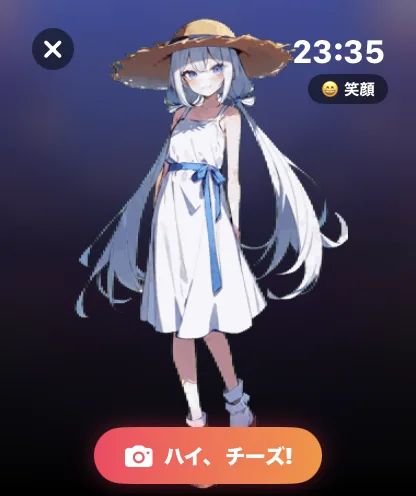
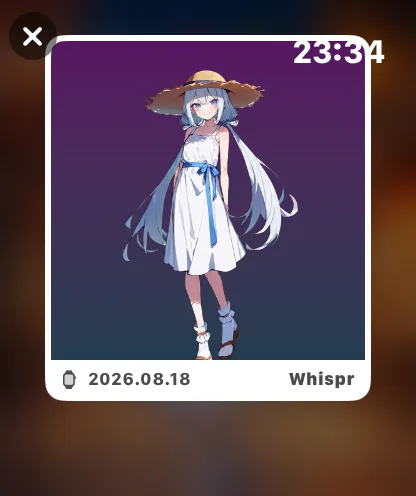
7-10. Drawing (⌚ Apple Watch / 🤖 Android)
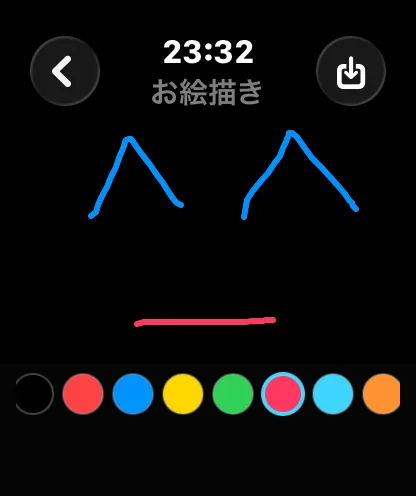
Draw with your finger and save it. Drawings are kept in a gallery.
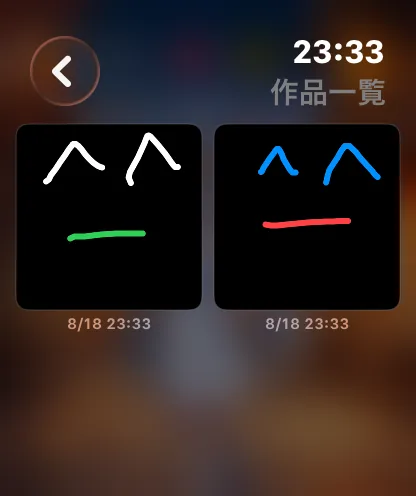
Editing and deleting a drawing
| What you want | How |
|---|---|
| Keep drawing | Pick a drawing in the gallery and press Edit. Add strokes or erase parts |
| Save | Press the save button at the top right. An edited drawing is overwritten (no duplicate) |
| Delete | Pick a drawing in the gallery and press Delete |
⚠️ Going back with unsaved strokes asks for confirmation. Choose "Back to Canvas" to keep drawing, or "Leave without saving" to discard. To keep it, go back to the canvas and press the save button at the top right.
🤖 Drawings are stored as stroke data, so you can keep adding to them any time.
Drawing on 🤖 Android
It is hidden at first. Turn on Settings → Display → TOP menu items → "Drawing", and "🎨 Drawing" appears in the TOP menu.
| What you want | How |
|---|---|
| Draw | "New drawing", then trace inside the white frame |
| Colour / width | The dots below the frame (10 colours), then thin / medium / thick |
| Undo one stroke | "Undo" |
| Clear all | 🧹 (asks first) |
| Save | "Save" |
| Keep drawing later | Tap the drawing in the list. Saving overwrites it (no duplicates) |
| Share | 📤 under the drawing. The image gets the app name and tag, and text is sent with it |
| Delete | 🗑 under the drawing (asks first) |
⚠️ Going back without saving asks first — save & back / keep drawing / discard.
7-11. Cheer loop (⌚ Apple Watch)
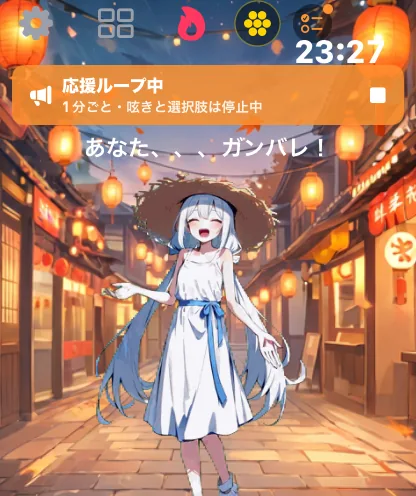
A mode where your character keeps cheering while you work or exercise.
7-12. Calendar events
android/07-event.webp
Fifteen events — New Year, Setsubun, Tanabata, Christmas and more — change the background and the lines you hear. On days when 🎉 appears in the header, tap it to hear something about the occasion.
7-13. Giving a gift (🤖 Android)
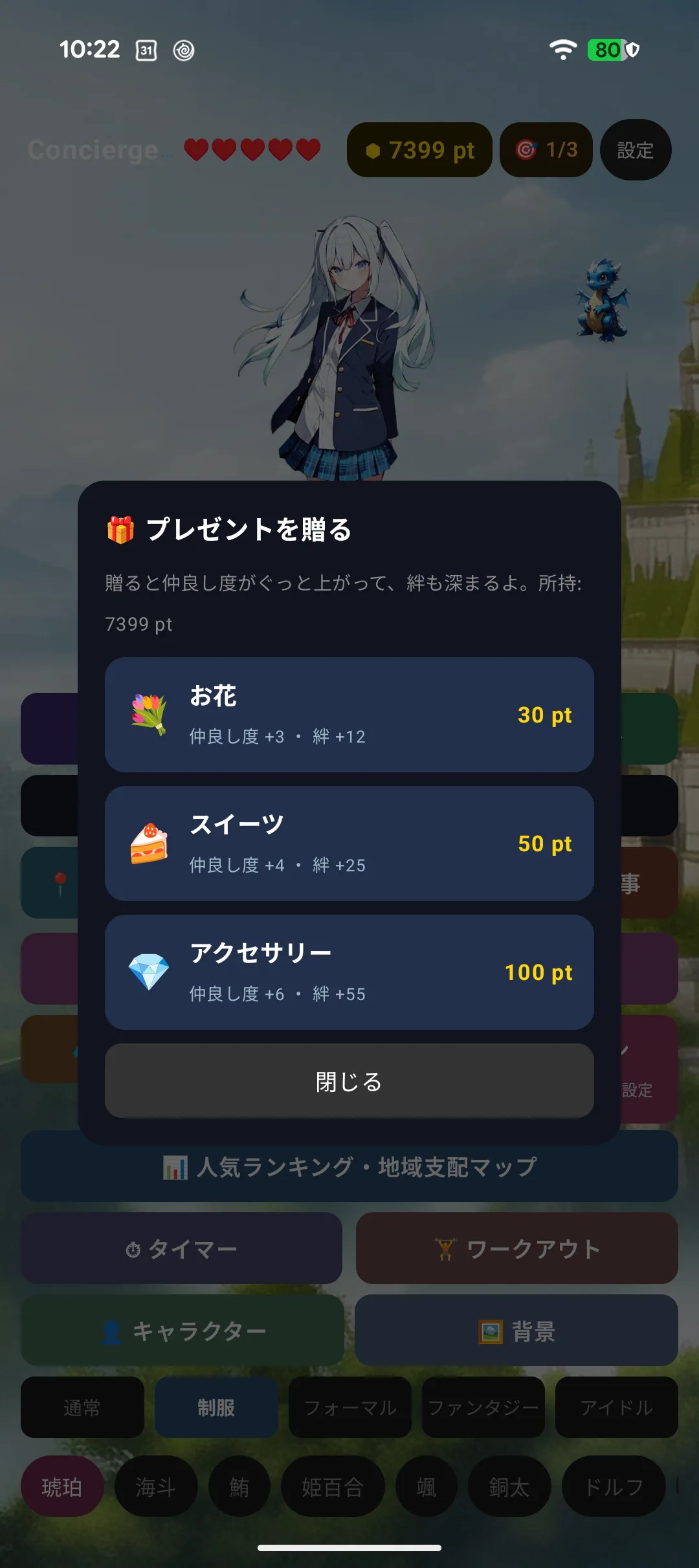
Spend pt on a present. It raises affection and bond experience, and they thank you for it.
| Gift | pt |
|---|---|
| 💐 Flowers | 30 |
| 🍰 Sweets | 50 |
| 💎 Accessory | 100 |
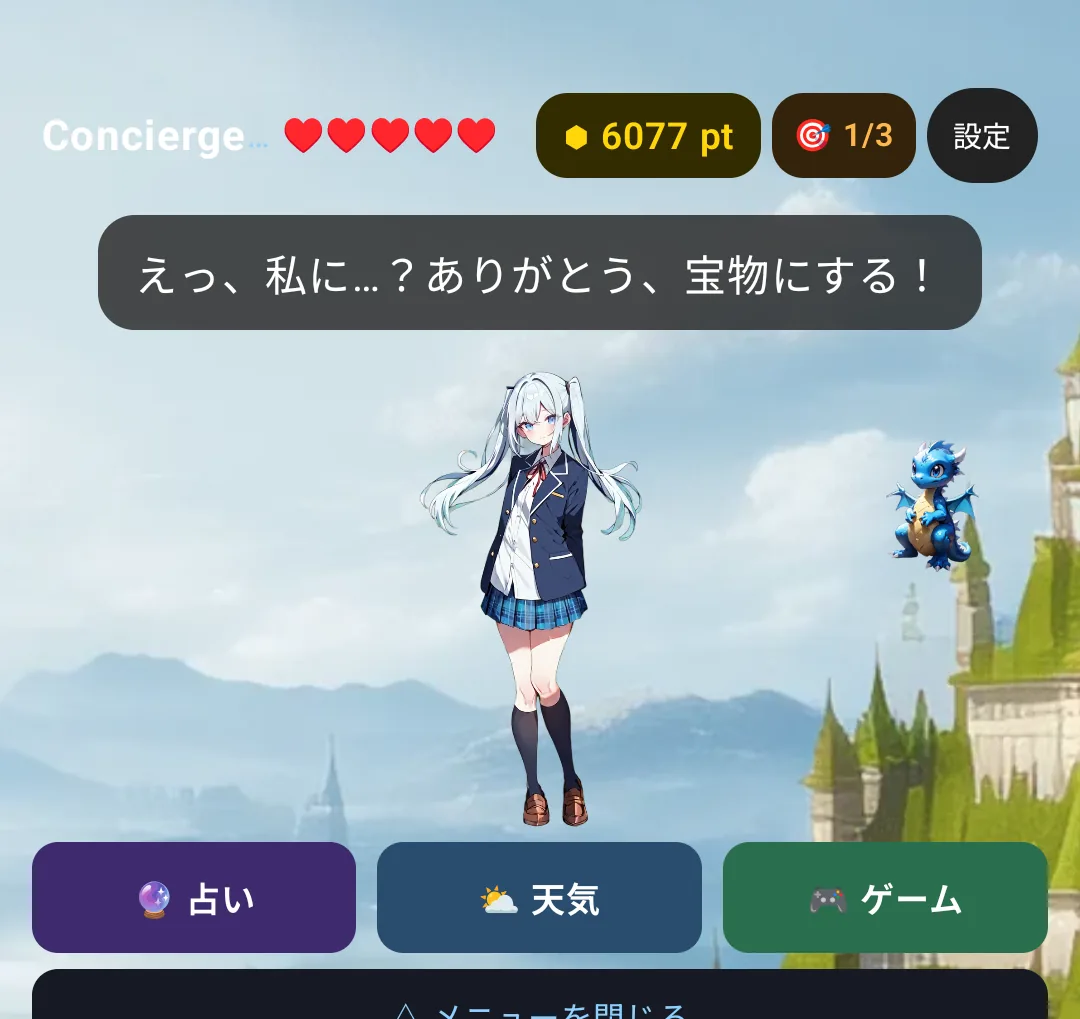
There is no lottery element — the effect is fixed by what you give.
7-14. On your watch face (⌚ Apple Watch)
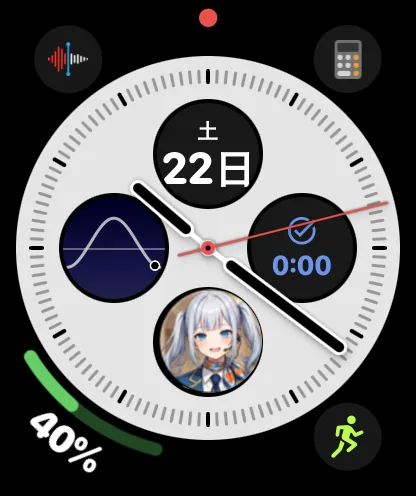
Put your character's icon on the watch face and open the app with one tap.
To add it: press and hold the watch face → Edit → choose a complication slot → pick Concierge.