Chapter 11
Appendix: Apple Watch and iPhone
The Apple Watch version works as a pair with the iPhone app. The App Store lists a single iPhone app, and the Apple Watch app ships inside it.
This chapter covers how to install it, which device does what, and what to check when the two do not talk to each other.
If you use Android + Wear OS, you can skip this chapter. Android works on its own, and the Wear OS app is installed separately from Google Play.
11-1. How the pair fits together

| What it is | |
|---|---|
| What you install from the App Store | Just the one iPhone app (the Watch app is inside it) |
| How the Watch app arrives | Installing on the iPhone also installs it on the Watch (when automatic install is on) |
| Your everyday device | The Apple Watch — that is where your character lives |
| What the iPhone is for | The big screen, plus helping the Watch out (previews, records, AR photos, maps, relaying chat) |
11-2. Installing
- Install the app from the App Store on your iPhone
- Open the Watch app on the iPhone
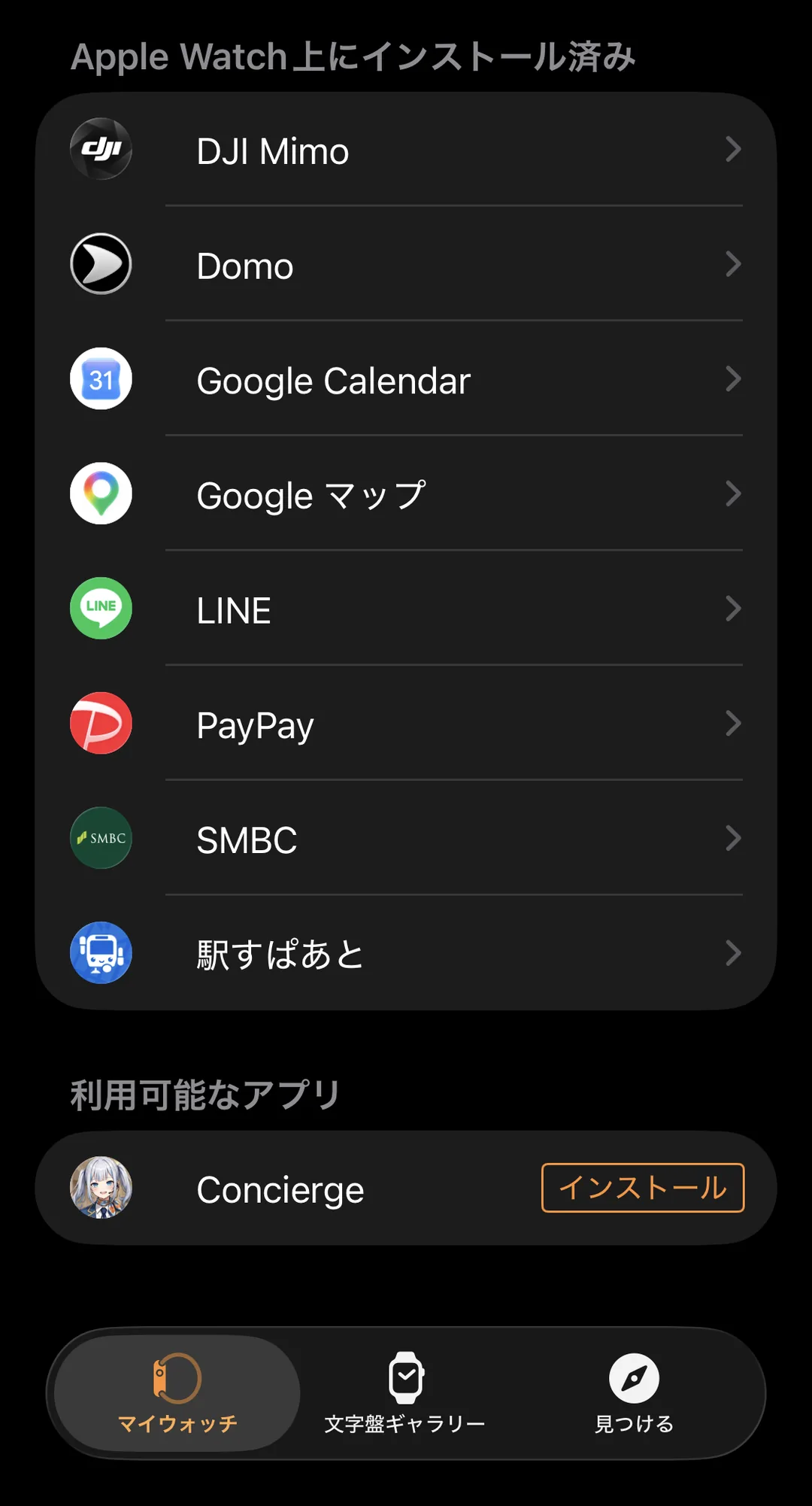
- Go to My Watch → Available Apps at the bottom
- Tap Install next to Concierge
- It may also install by itself if the setting below is on
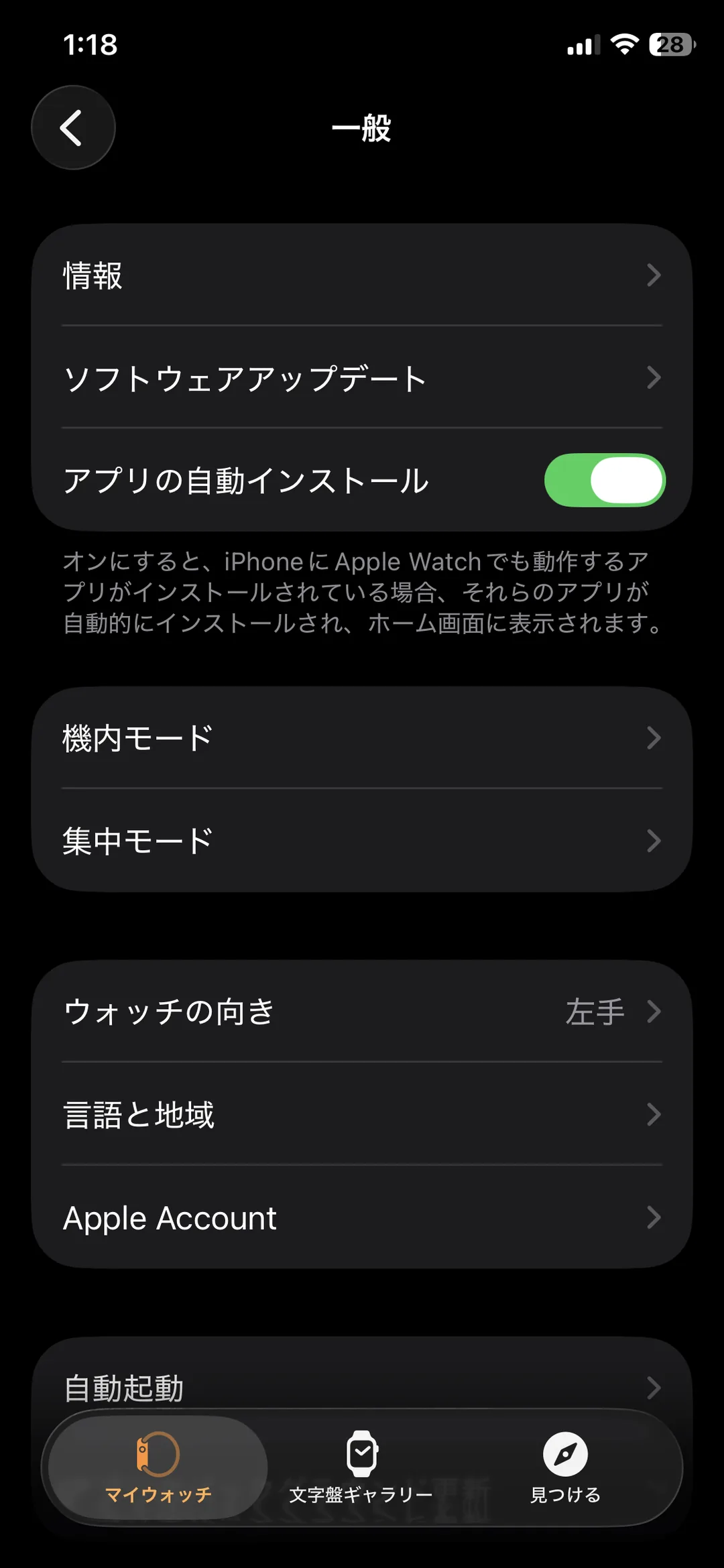
Where the automatic setting lives: Watch app → My Watch → General → Automatic App Install
⚠️ It is under General, not inside the Available Apps list.
You can also install from the Watch itself. On the Watch: home screen → App Store → search → install. That is quicker when your iPhone is not to hand.
⚠️ If it never shows up on the Watch, open the iPhone app once. Delivery of the Watch app sometimes does not start until the iPhone app has been opened at least once.
11-3. One-time setup
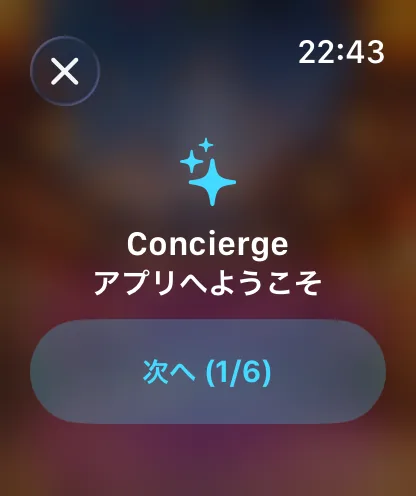
Open the app on the Watch, then on the iPhone — once each. After that the two recognise each other and keep in sync on their own.
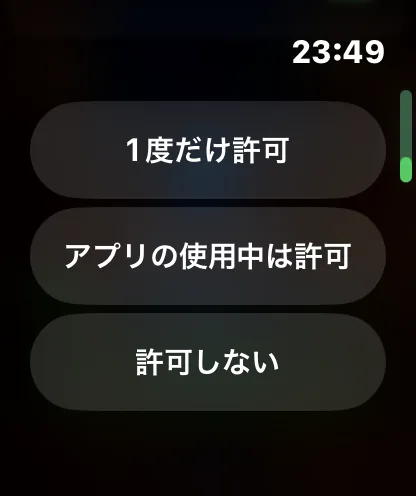
You will be asked for a few permissions. All of them can be changed later, and declining one only disables that feature.
| Permission | Used for | If you decline |
|---|---|---|
| Location | Where you are, sights, local specialties, food spots, weather | Only those features stop working |
| Health (heart rate / steps / activity) | Workout encouragement, step milestones, high heart-rate care | No health-related reactions |
| Notifications | Timer, expedition returns, Concon battle results | You only find out when you open the app |
| Camera (iPhone only) | Taking photos with your character (AR) | Only that photo feature is unavailable |
11-4. Which device does what
Almost everything works on the Watch alone. The iPhone is only needed for things that want a big screen, and for bridging the Watch to the outside world.
| Task | Watch alone | Needs iPhone |
|---|---|---|
| Seeing, touching and dressing your character | ✅ | |
| Games / Contra / Tarot / Concon / Conquest | ✅ | |
| Earning and buying points, buying characters and costumes | ✅ | |
| Downloading character art and voices | ✅ | |
| Fortunes / weather / timer / workouts / notes | ✅ | |
| AI replies when you talk to your character | ✅ relayed | |
| Opening a food spot in Maps | shows it | ✅ walking directions |
| Browsing records and statistics | ✅ big screen | |
| Character previews (with video) | ✅ big screen |
How they communicate
- The two connect over Bluetooth or the same Wi-Fi. They do not have to be side by side
- While they are apart, messages queue up and arrive together once they are close again (records from the Watch, for example, appear the next time you open the iPhone app)
- The Watch talks to our server by itself. Points, purchases and character downloads do not go through the iPhone — so you can still buy and earn while you are out without it
11-5. Checking that they are linked
Open the iPhone app: if Watch information appears around "Control your Watch", the two are linked.
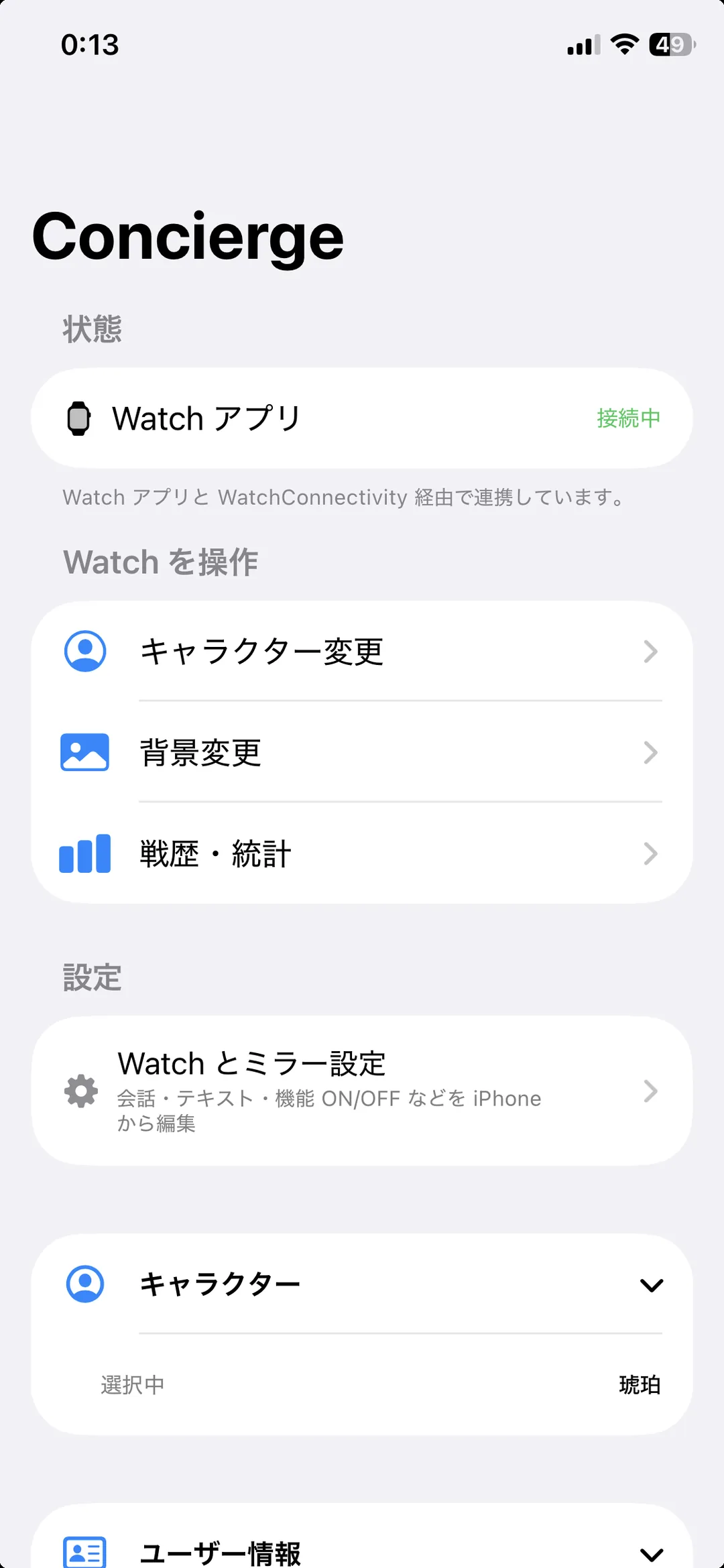
11-6. When they will not link
Work down the list. Steps 1 and 2 fix most cases.
- Bring them close together — nothing arrives with Bluetooth off. Swipe down on the Watch face and check that Airplane Mode is not on
- Open both apps once — the iPhone app first, then the Watch app
- Check the Watch app is installed — iPhone Watch app → My Watch → look for it in the list
- Restart the iPhone, then the Watch if that did not help
- Delete the app from the Watch and install it again — characters you bought and your points are stored on our server and with your Apple ID, so they are not lost (they may take a moment to come back after reinstalling)
If something you bought does not appear on the Watch, try the restore steps in Chapter 4 (Points). Purchase records live on the server rather than on the device, so you never have to pay twice.
If none of that helps, contact us from Chapter 10. Your app version and device are attached automatically, so just tell us which screen you were on and what you did.